Skip to main content Skip to footer
Equaze Help Documentation

Beneficiary

  • Get Information of User’s Account
  • Add New Beneficiary to Account
  • Account Beneficiary Lookup
  • Deleting a Beneficiary

PKI Setup

  • Generating RSA Private Key and Certificate Request in Terminal (for macOS)
  • Generate RSA Private Key and Certificate Request in OpenSSL command prompt (for Windows)
  • Generate a Digital Certificate in Online account
  • Regenerate an API key for PKI request in Postman
  • Create a Valid Body for the Digital Certificate in Postman
  • The “Digital Signature” Creation Using .NET (Dotnet)

Executing a Transaction Using PKI

  •  Initiating a Secure PKI Transaction Using API

Webhooks

  • Enabling Webhooks

Webhooks Specifications

  • V6 Webhooks Specification
  • V7 Webhooks Specification

API Authorisation Access

  • API Overview
  • Get Access Token Using Refresh Token
  • Get a Bearer Token
  • Regenerate API Key
  • Get Existing API Key
View Categories
  • Home
  • Guide
  • API Guide
  • API Authorisation Access
  • Regenerate API Key

Regenerate API Key

Prerequisites

Have a valid Bearer Token ready, as it is required for authorizing the API key generation request. The following steps outline the process for generating API Key.

Step 1: Generate API Key Request

Open Postman.
Create a new request for generating an API key.
Set the method to POST.
Enter the URL: https://api.prd.enumis.co.uk/onlineaccount-api/apikeys/regenerate


In the request body, provide the necessary details:

{
“environment”: “YourEnvironmentKey”
}
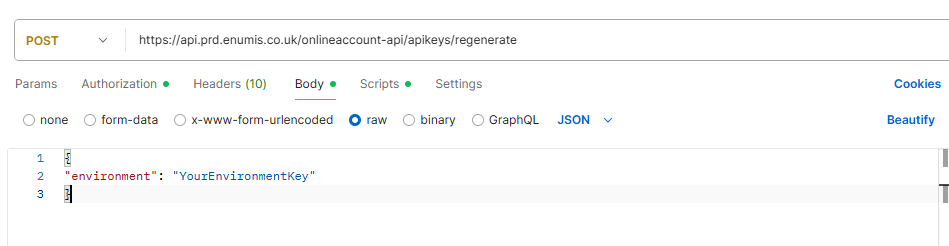

Replace “YourEnvironmentKey” with any key you want to use. You can create and regenerate these keys at will.

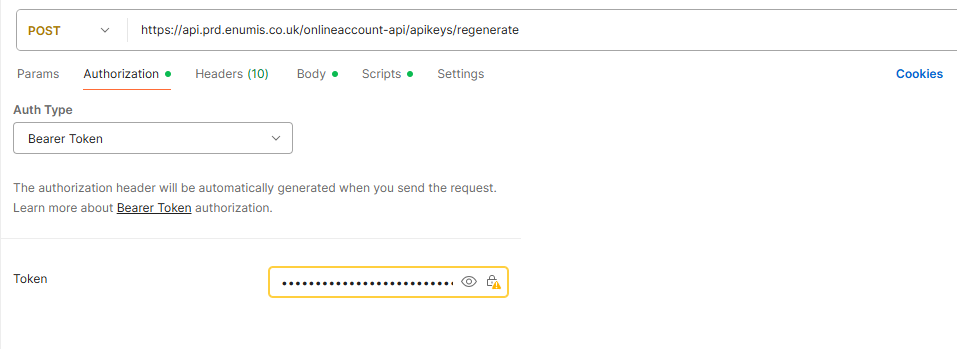
Fill in the Bearer Token in the Authorization Section

Step 2: Set Authorization

In the new request, go to the “Authorization” section.
Choose “Bearer Token” as the authorization type.
Paste the previously copied “bearerToken” into the provided field.


Step 3: Send the API Key Generation Request

Submit the Request

Click on the “Send” button to submit the request for generating an API key.

Copy the Generated API Key

Retrieve API Key

Examine the response from the API key generation request.
Locate the “key” field in the response body.
Copy the value of the “key.” This is your generated API key.
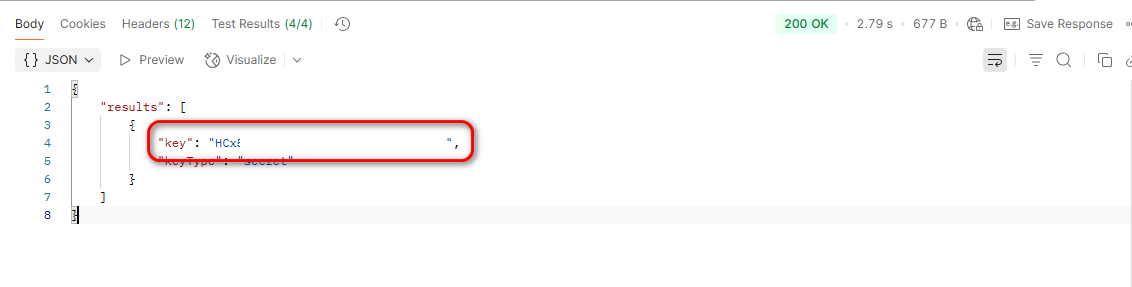

By carefully following these detailed steps, you have successfully authenticated and generated an API key. Ensure the security of API key, as it is crucial for authorizing and making subsequent API requests.

What are your Feelings

Share This Article :

  • Facebook
  • X
  • LinkedIn
  • Pinterest
Get a Bearer TokenGet Existing API Key
Table of Contents
  • Prerequisites
  • Step 1: Generate API Key Request
  • Step 2: Set Authorization
  • Step 3: Send the API Key Generation Request
    • Submit the Request
    • Retrieve API Key
"Equaze" is a trading style of Enumis Ltd. Enumis Limited is authorised and regulated by the Financial Conduct Authority as an Electronic Money Institution (FRN 900028) and authorised and regulated by the Financial Conduct Authority for Consumer Credit (FRN 724110) Company Registration E&W 7441513. Enumis Mastercard Products are issued by Enumis Limited pursuant to a license from Mastercard International Incorporated. Mastercard and the Mastercard Brand Mark are registered trademarks of Mastercard International Incorporated.
Equaze Help Documentation
© Copyright Equaze