
Ways to access the “Statement” page
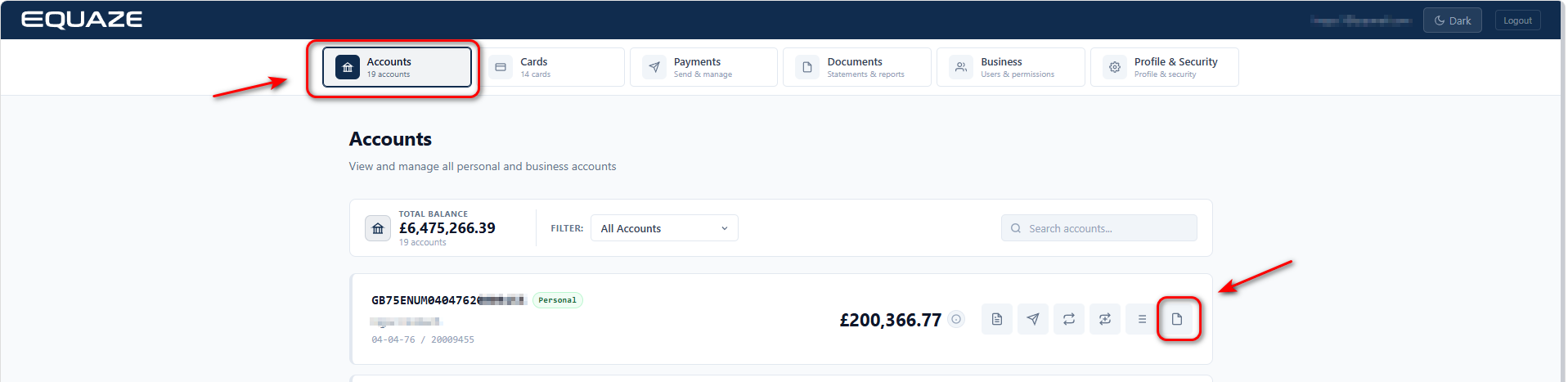
There are two ways to access the Statement page.
- On the Accounts screen, select the account to export data from and click the Statement button to navigate to the Statement page.
- Select Documents and click Statements to navigate to the Statements page.
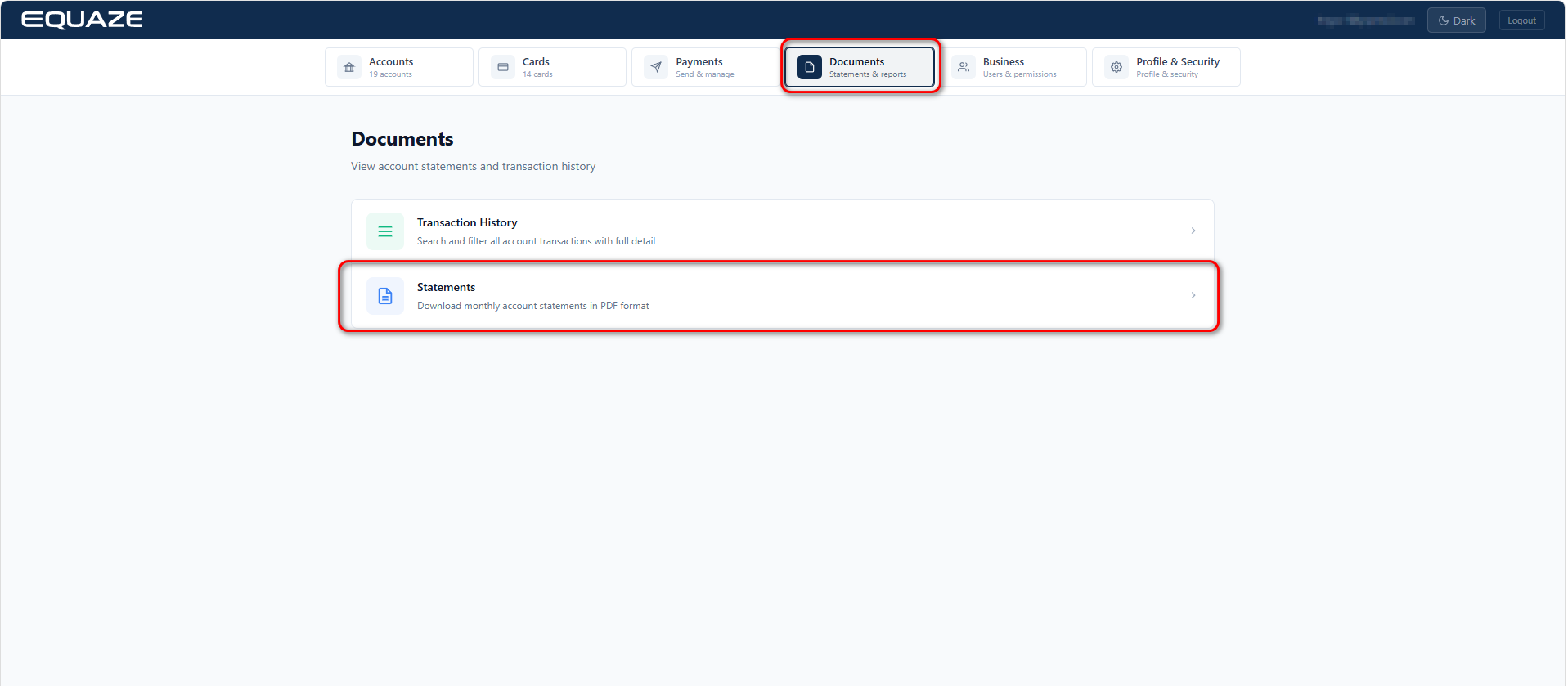
Access “Statements” Page
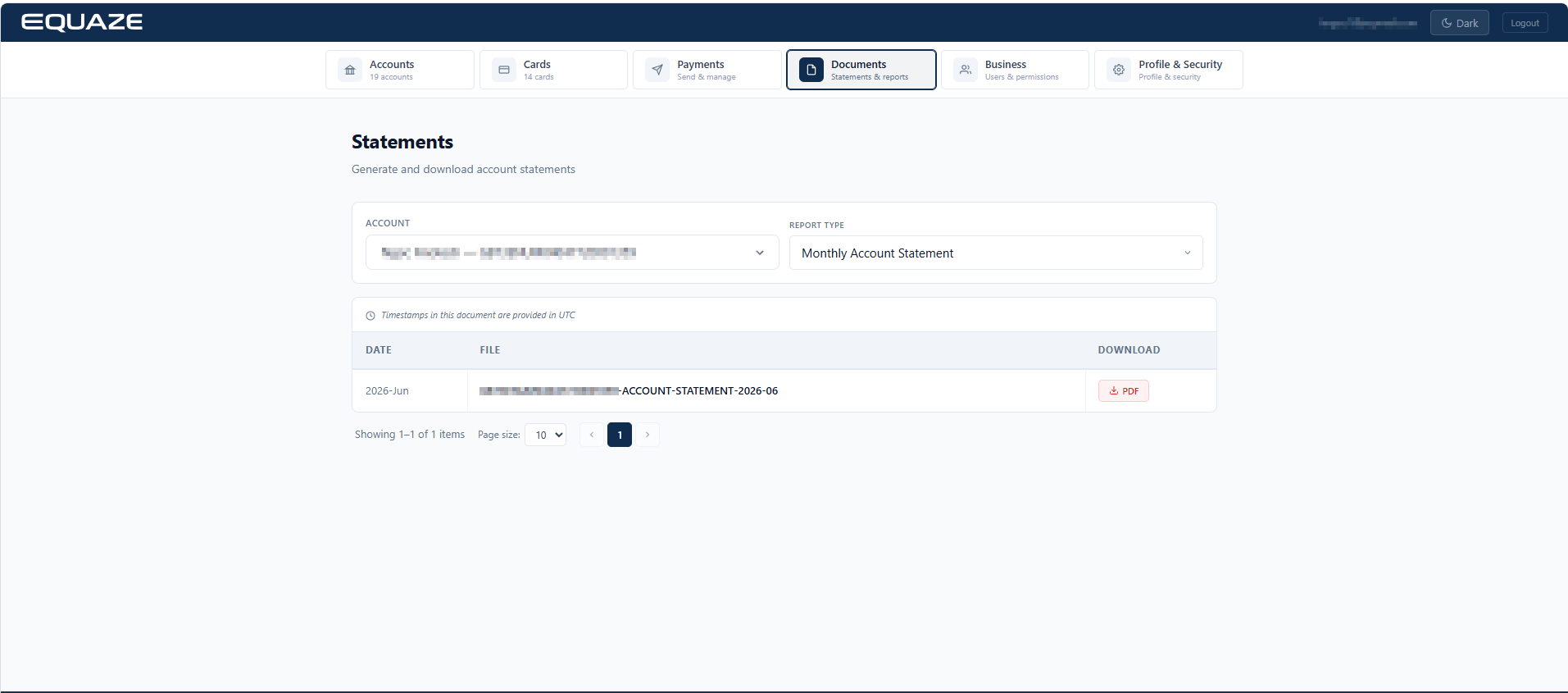
Select Account
Identify and click on the “Account” dropdown menu for selecting the account.
Review the list of available source accounts and choose the desired one.
- The selected source account should be displayed in the field.

Access “Report Type” Dropdown
On the “Account statements” page, locate the “Report type” dropdown.
Click on the “Report type” dropdown to expand the list of available options.
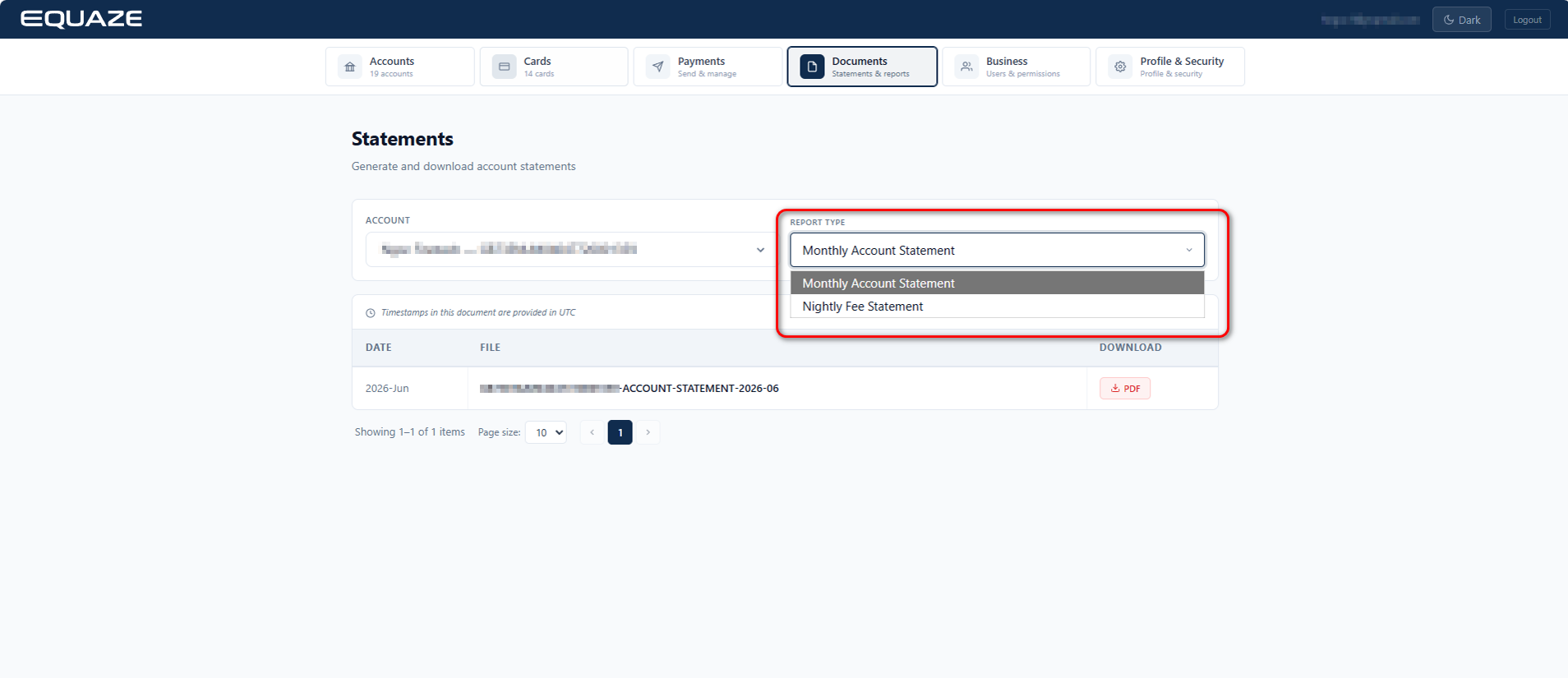
Select an Option in “Report Type” Dropdown:
Click on one of the options in the expanded “Report type” dropdown.
- The selected option should be highlighted, indicating it has been chosen.
- The relevant statements information should be displayed on the page.

Download Statement Information as PDF
Still on the “Statements” page, locate and click on the “Download PDF” button.
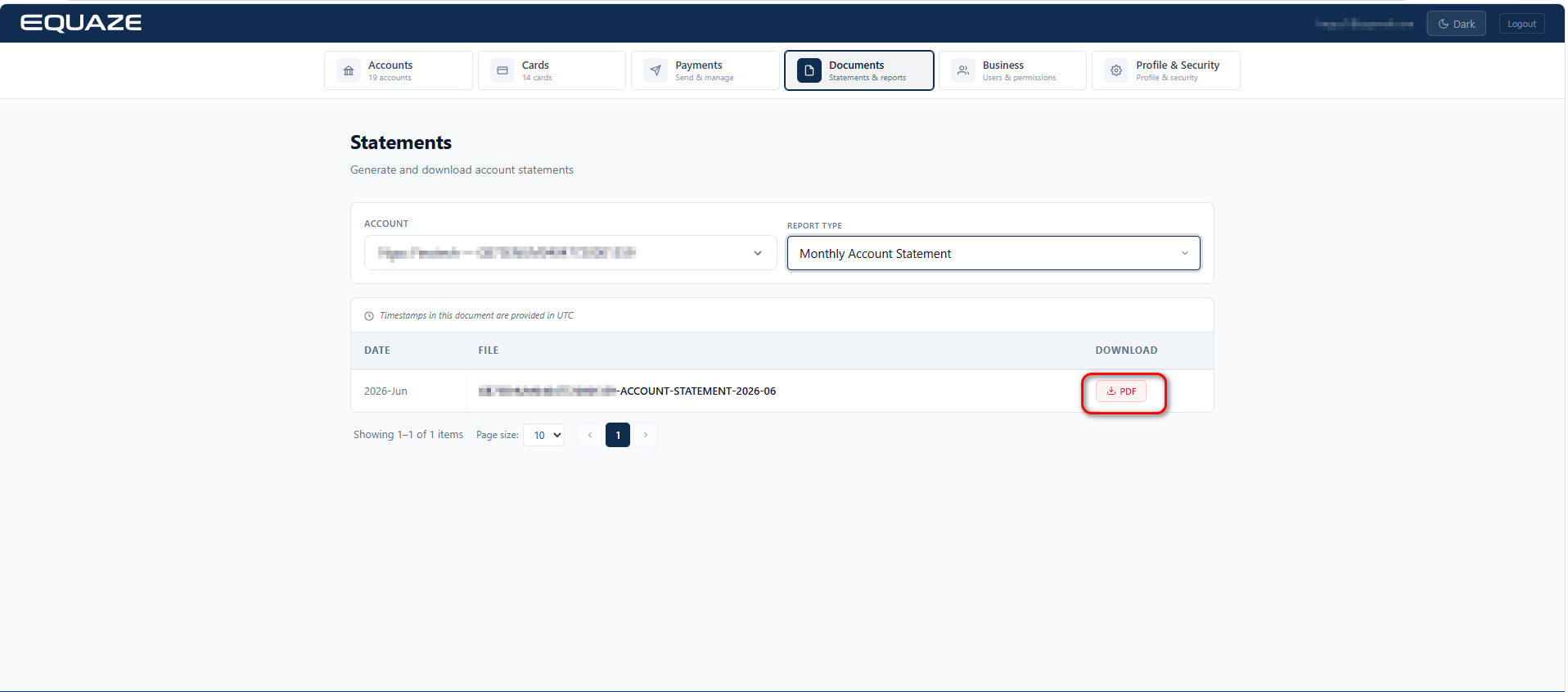
- The PDF file should be downloaded.
Confirm the success of the download.
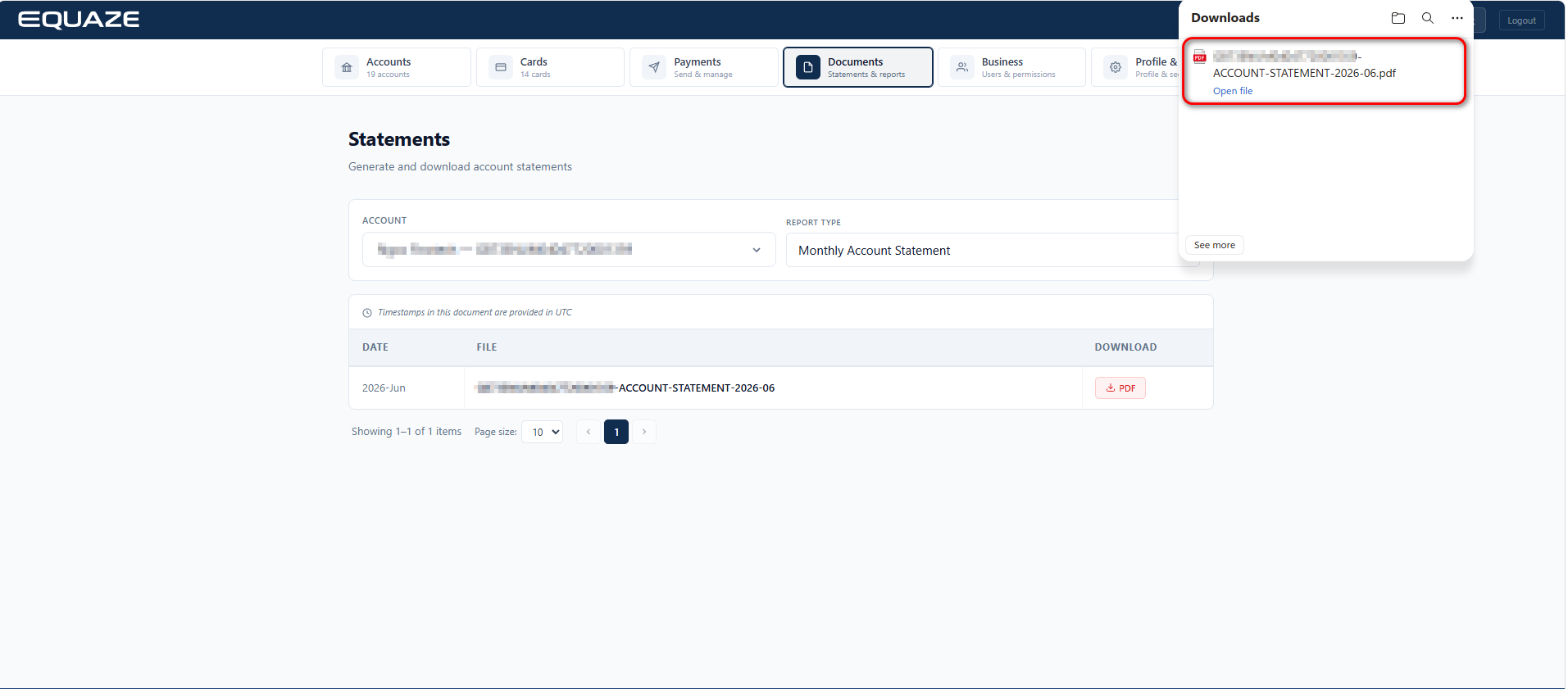
By following these detailed steps, you can thoroughly validate the process of selecting a report type, viewing statement information, and downloading it as a PDF on the website.


