
Aside from making individual payments in Enumis Online, you can also perform them in bulk. Bulk payment is a convenient way to send multiple payments simultaneously.
To make a bulk payment, click Payments > Bulk Payment to direct you to the Bulk Payments page. It’s the page where you must upload a comma-separated values (CSV) file containing payment data for each recipient.
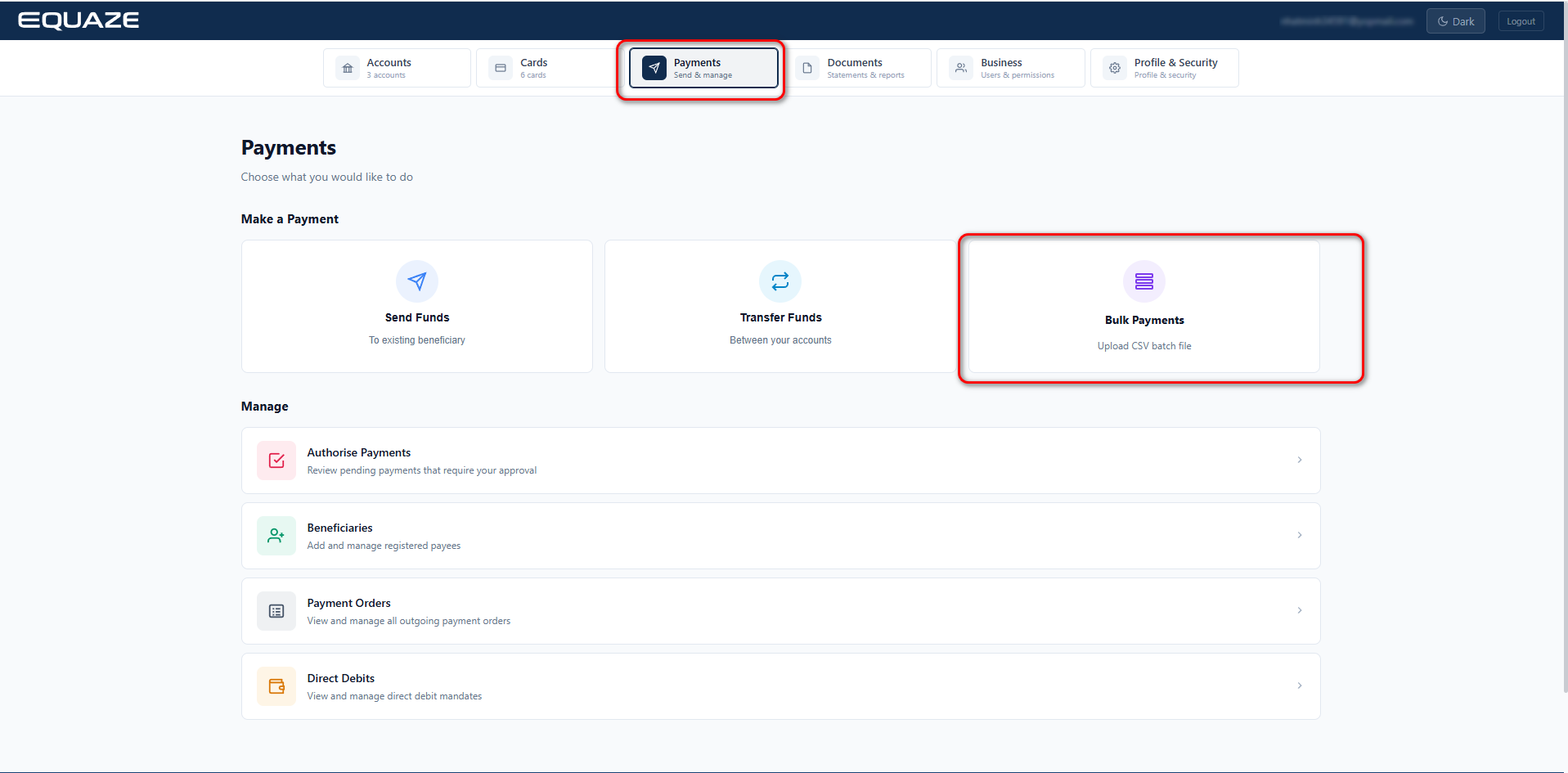
Download The CSV Template
The Bulk Payments page provides a sample CSV file available for download. This file contains the proper column headers required for successful bulk payment. Click Download Sample CSV to save the file to your computer.

Understanding the CSV file’s column headers
Open your downloaded CSV file on your computer. You can open it using a standard text editor or a spreadsheet application like Microsoft Excel. Here is what the sample CSV file looks like when opened in Excel:

The following describes the column headers provided in the CSV file, as well as the data you need to provide for each matching column:
| Field Name | Description | Example |
|---|---|---|
| Account | Enter your account that you wish to make the payment from. It must be the full IBAN if it is a current account. | |
| Beneficiary | Enter the Beneficiary Nickname. | |
| Date | Enter the date that you wish the payment to be executed. | |
| Amount | Enter the payment amount. | |
| Scheme | Enter the payment scheme you wish to use for this payment. For example, FPS or Chaps. | |
| PaymentReference | Enter the reference you wish to use for the payment. This will be sent with the payment and communicated to the beneficiary. | |
| InternalReference | Enter an internal reference if you wish. |
Upload And Validate CSV File
Once you have finished entering records (payments) in your CSV file, upload it back to Enumis Online for validation. Our system must check your CSV file for incorrect or missing values, especially for the essential columns, before processing the bulk payment.
Click Select File on the Bulk Payments page to select your CSV file from your computer. Your operating system’s open file dialogue box appears to help you locate your CSV file. As an alternative way of uploading, drag your CSV file from your computer and drop it into the dashed rectangular region of the Bulk Payments page.

The Bulk Upload page appears once you’ve dropped or uploaded a CSV file. It renders the contents of the CSV file you’ve just uploaded in a tabular format, similar to how Microsoft Excel displays data.

Click Next to proceed to Step 2 – Validation. In this step, the system will check the validity of the CSV file you’ve uploaded. If there are any errors, they will be displayed on the Bulk Upload page. Take time to review these errors, as they will indicate what type of data or value needs to be corrected in your CSV file. In that case, click Back to return to the previous page and reupload your updated CSV file.

If your CSV has passed validation, we will start Confirmation of Payee process.
In this step, the system will perform a Confirmation of Payee (CoP) check to verify whether your beneficiaries match the account details provided. If any beneficiaries do not match, the CoP check results will be displayed on the page.
By selecting the corresponding checkboxes, you acknowledge and accept the associated risks before proceeding.
If you do not select the checkbox, the transaction will be removed from the list.

Finalising The Operation
Transactions have beneficiaries that are Matches, and those Closed Match that you agreed to continue will be processed. Finalise your bulk payment by passing MFA. Check your mobile phone for your SMS verification code and your authentication app for your MFA verification code.
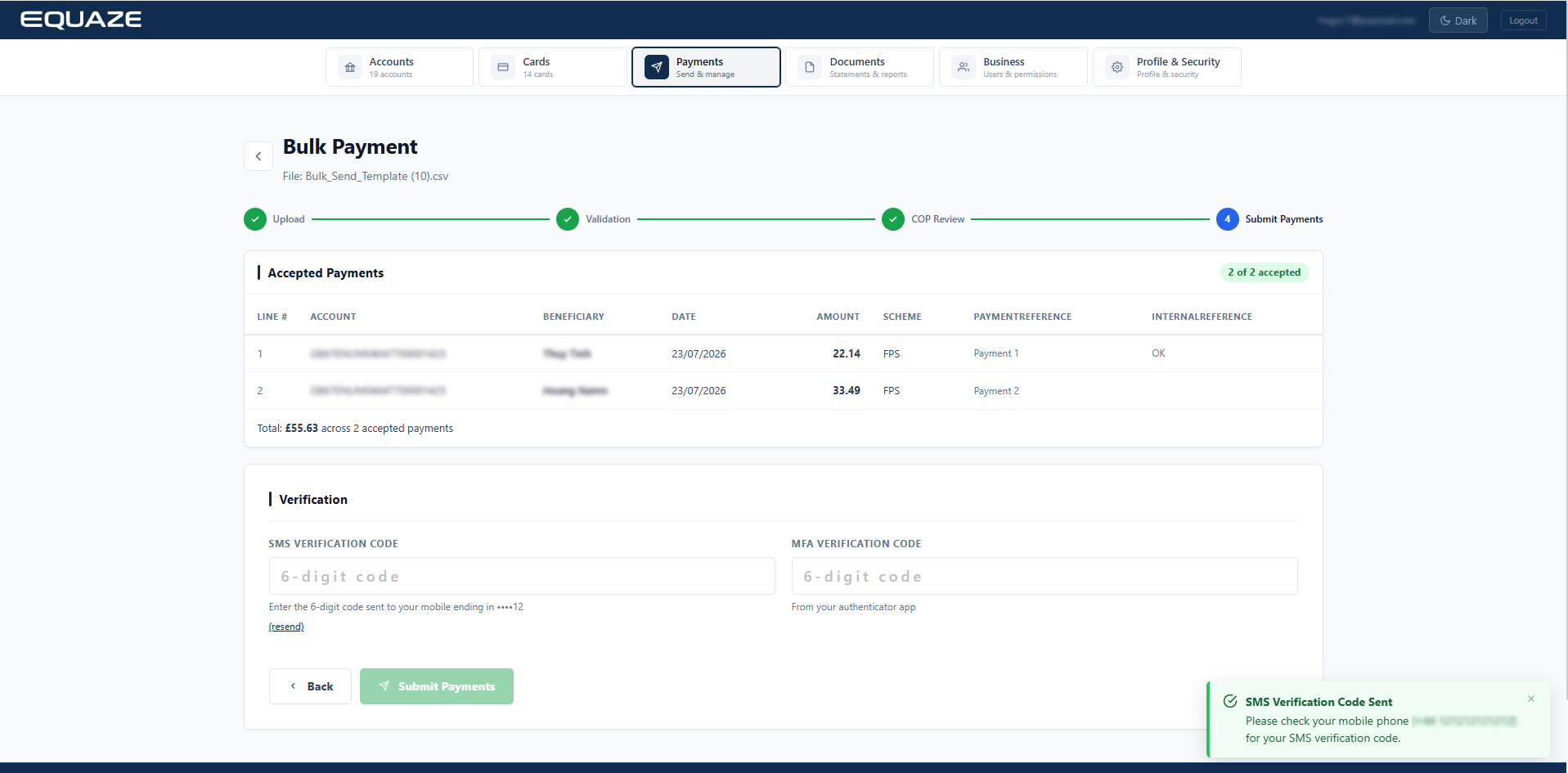
Enter your MFA and SMS verification codes in their respective fields. Then, click Submit to save your bulk payment and redirect you to the Accounts page.

Note:
- As a non-sole authority user, your bulk payment request is still pending in our system. A user with authorised permissions must first approve the request before our system processes it. Note that you are unable to authorise your request.
- The Bulk Payment function is only supported on desktop and is not available on mobile.


