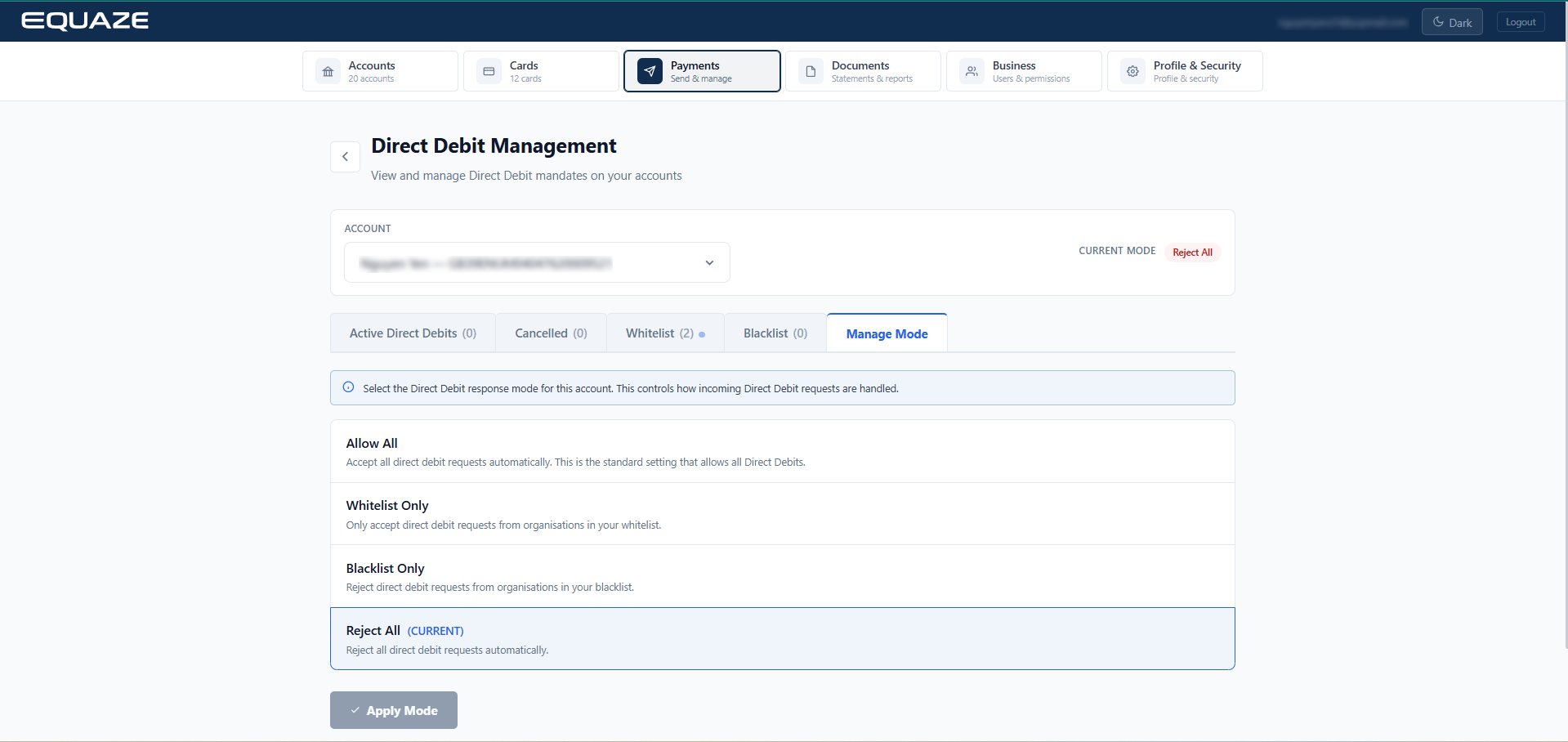
Direct Debit Management: This feature allows you to manage your Direct Debit Instructions (DDIs), including viewing active/cancelled DDIs, cancel DDIs, checking transaction history, and switching between management modes.
View Direct Debit and Direct Debit Transaction History
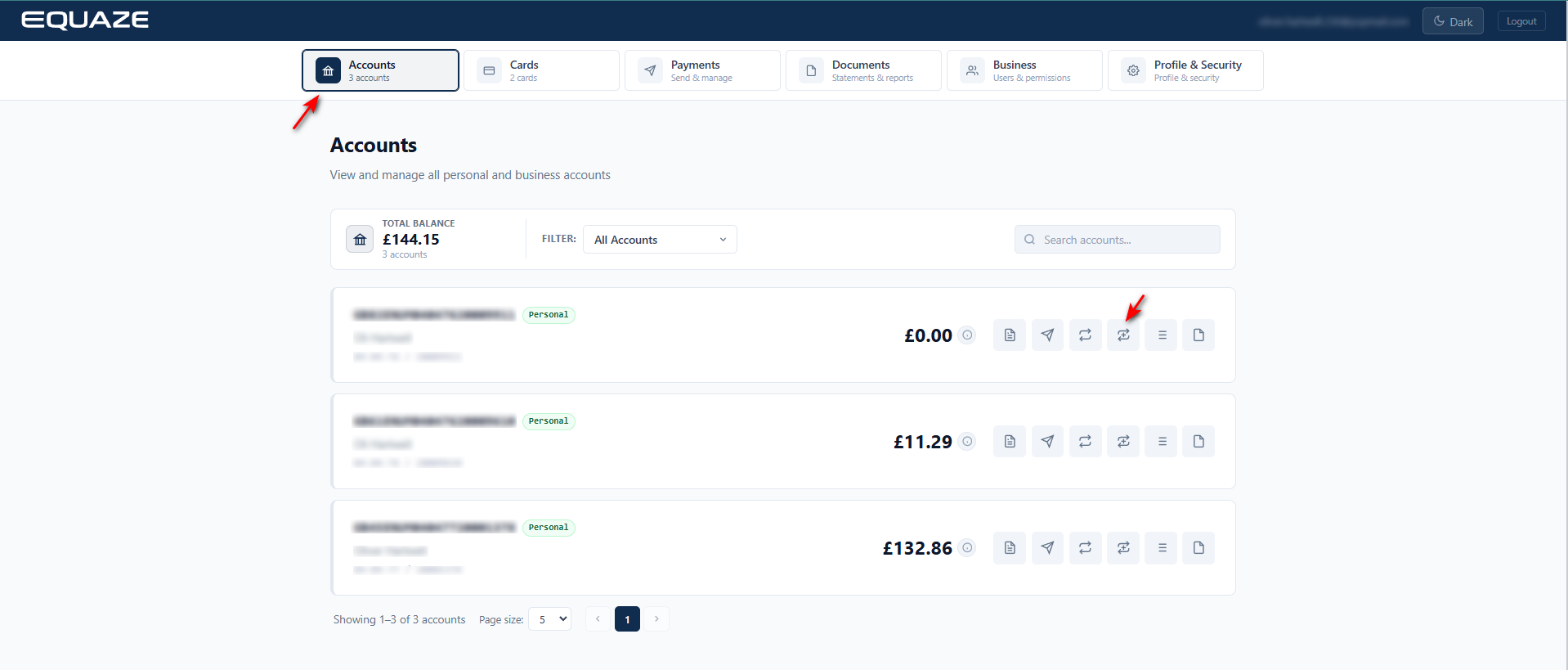
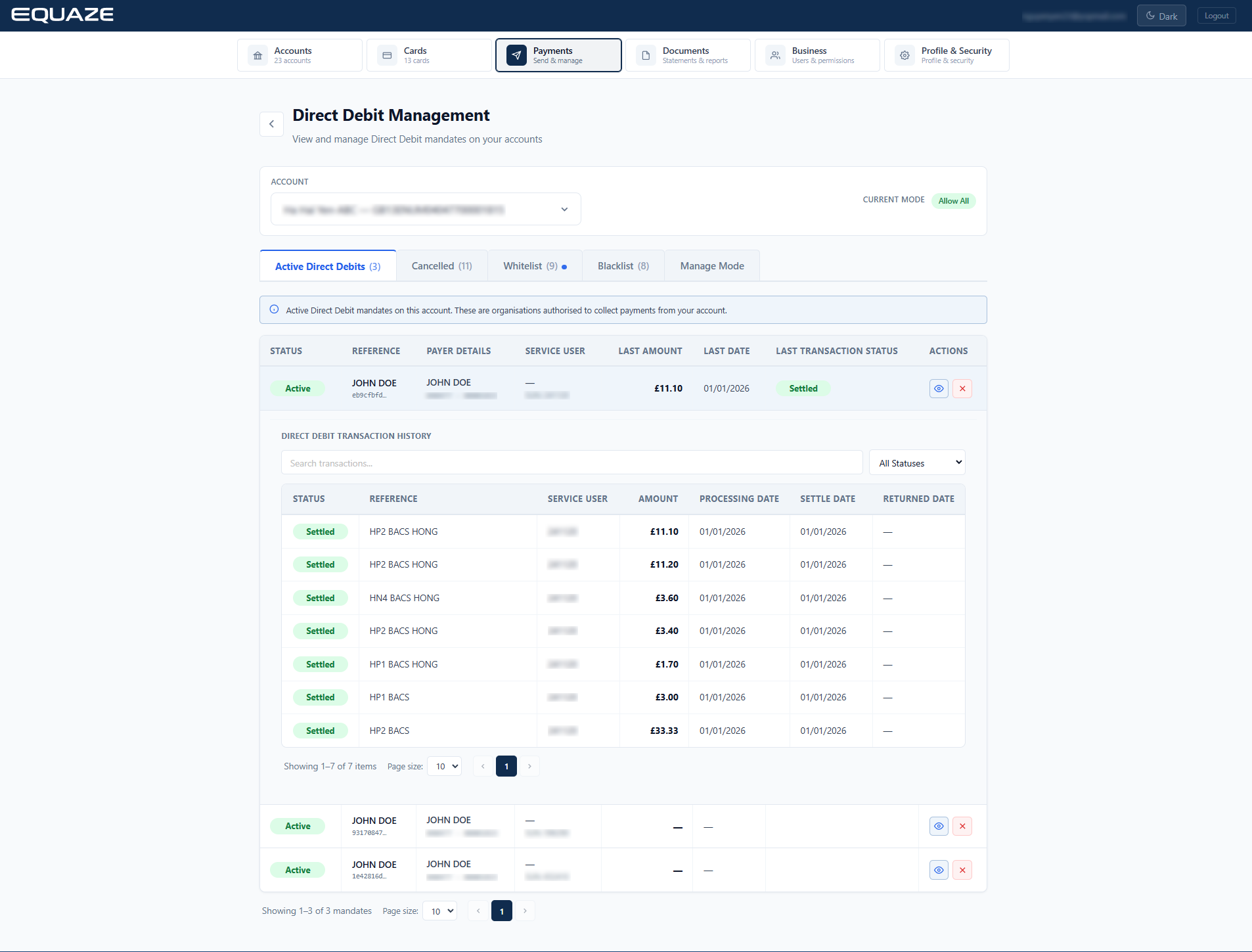
Step 1: Login to your account, on the Accounts screen, select the account and click the Direct Debit button to navigate to the Direct Debit Management page.
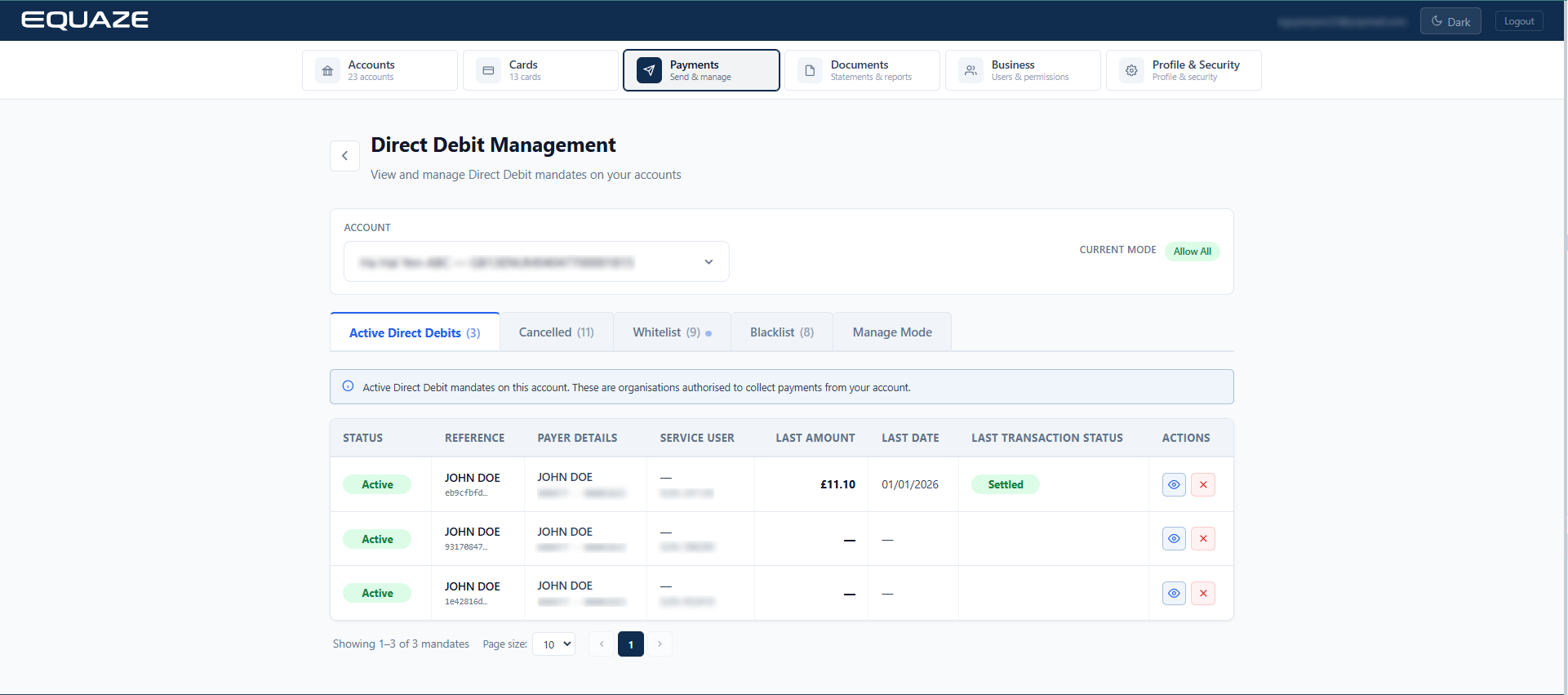
Step 2: Select the account for which you want to view and manage Direct Debits.
After selecting an account, the screen will display the DDIs associated with the selected account.
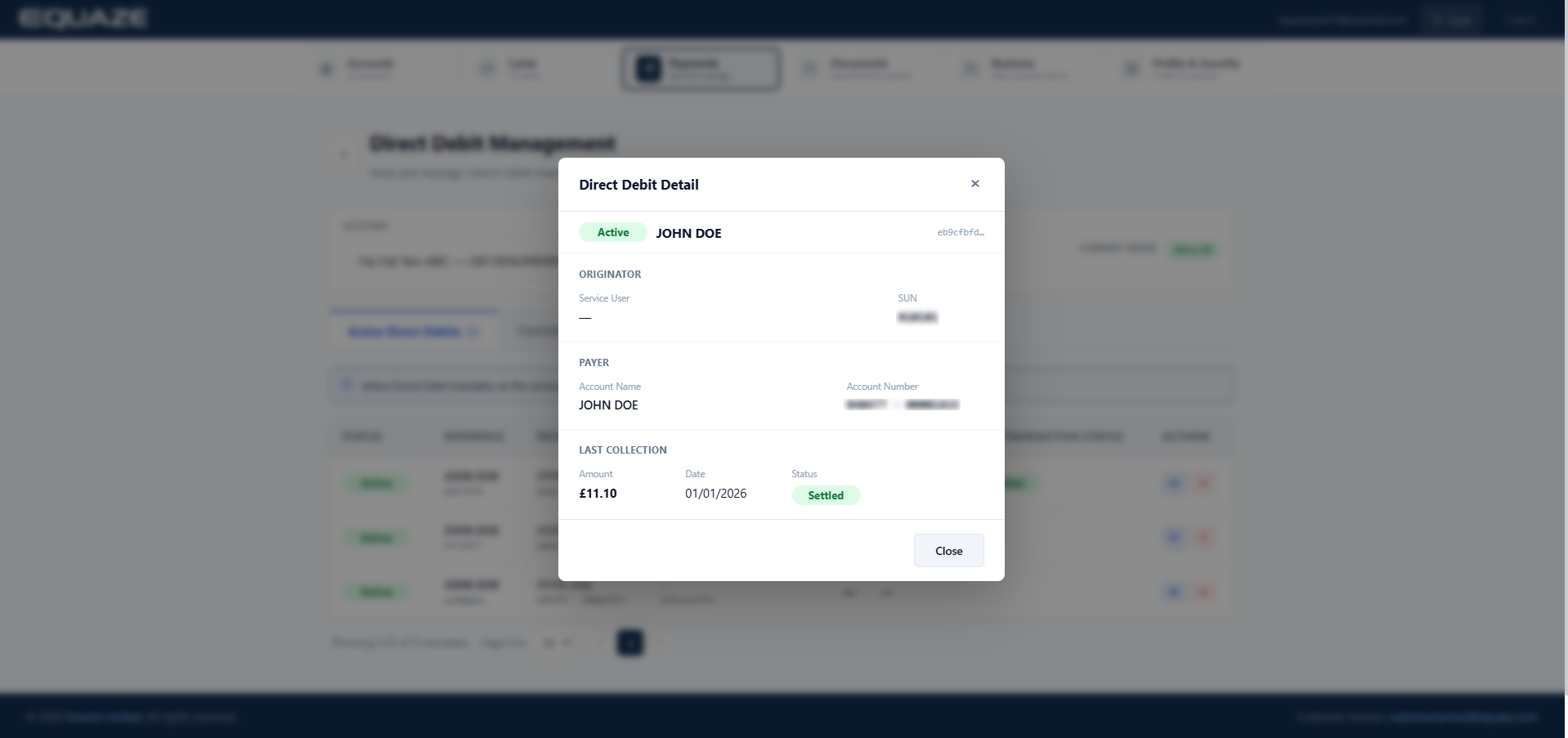
Step 3: Click View Detail to view full information related to the DDI
Step 4: Click on a Direct Debit row to expand its Transaction History panel. You can search transactions (e.g : Reference), filter transactions by Status.
Cancel Direct Debit
Step 1: Click the X icon in the “Action” column

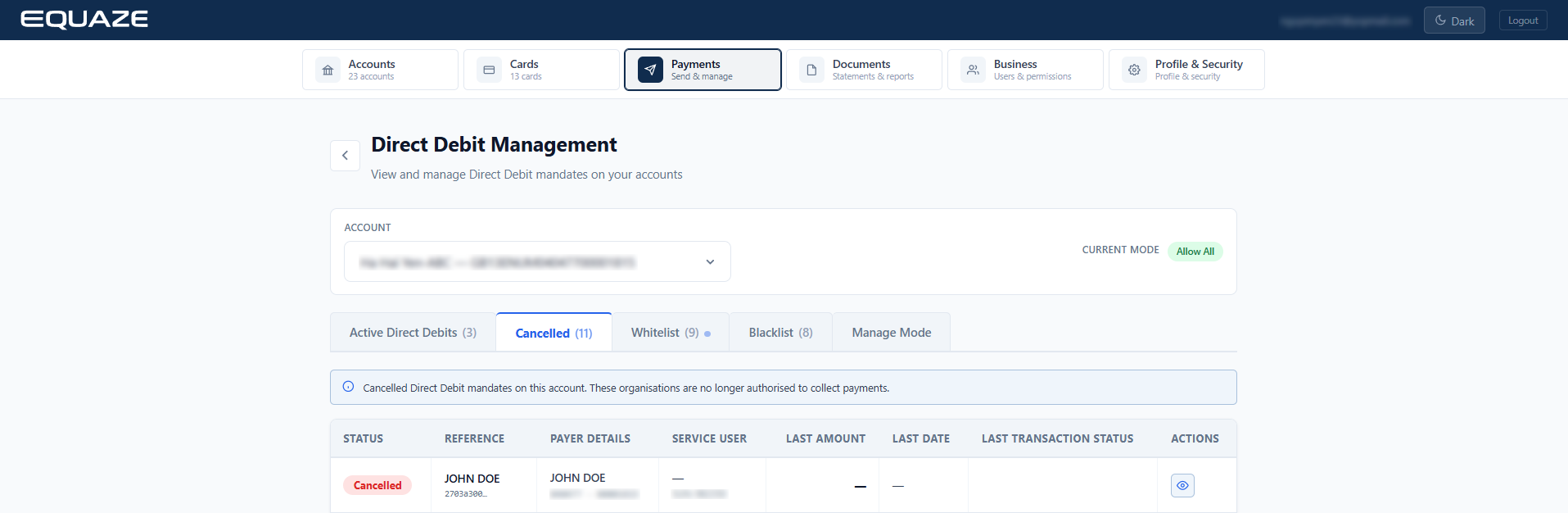
Step 2: Confirm by clicking “Cancel Mandate” to cancel the selected DDI.

After cancellation, the DDI will move from Active Direct Debits to Cancelled Direct Debits with the status: Cancelled.
Add Entry Whitelist/Blacklist
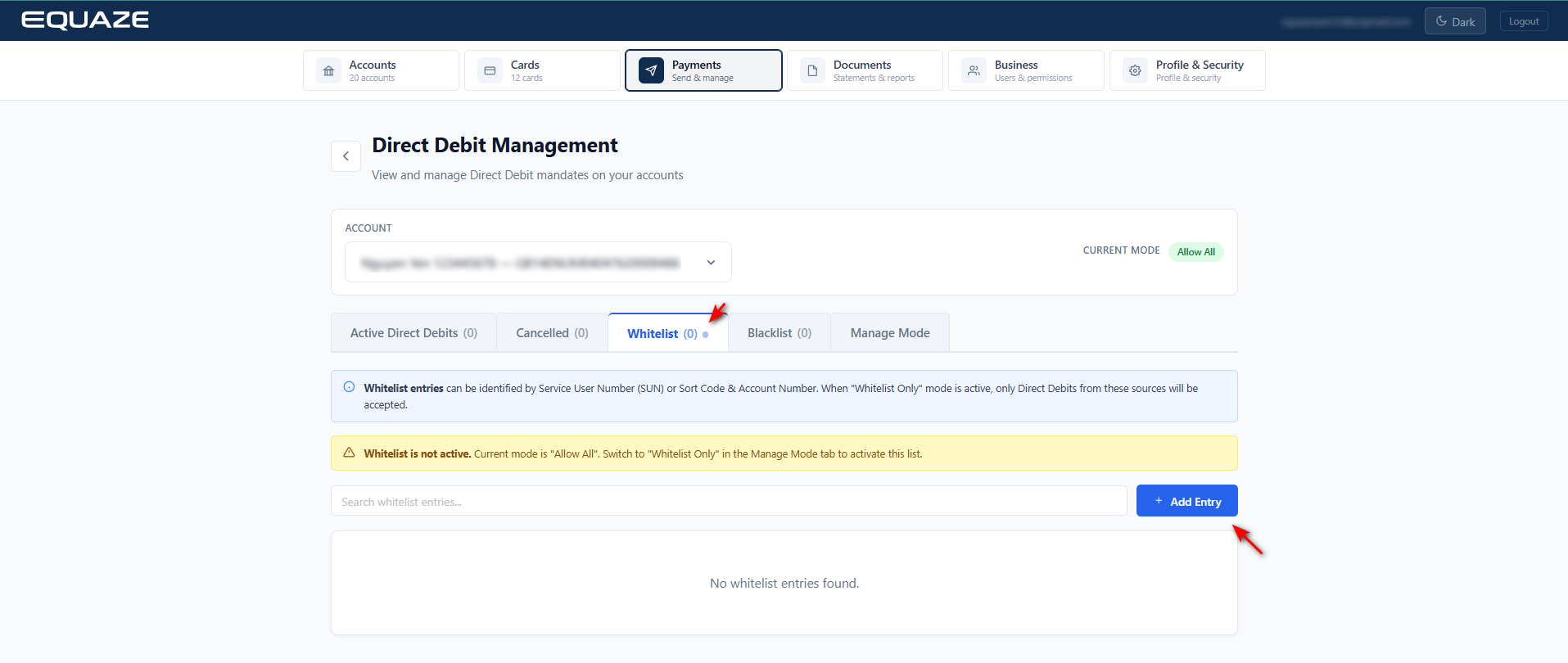
The Add Whitelist/Blacklist function defines which sources are allowed or blocked from initiating Direct Debits. This applies when the Current Mode is set to either Whitelist Only or Blacklist Only.
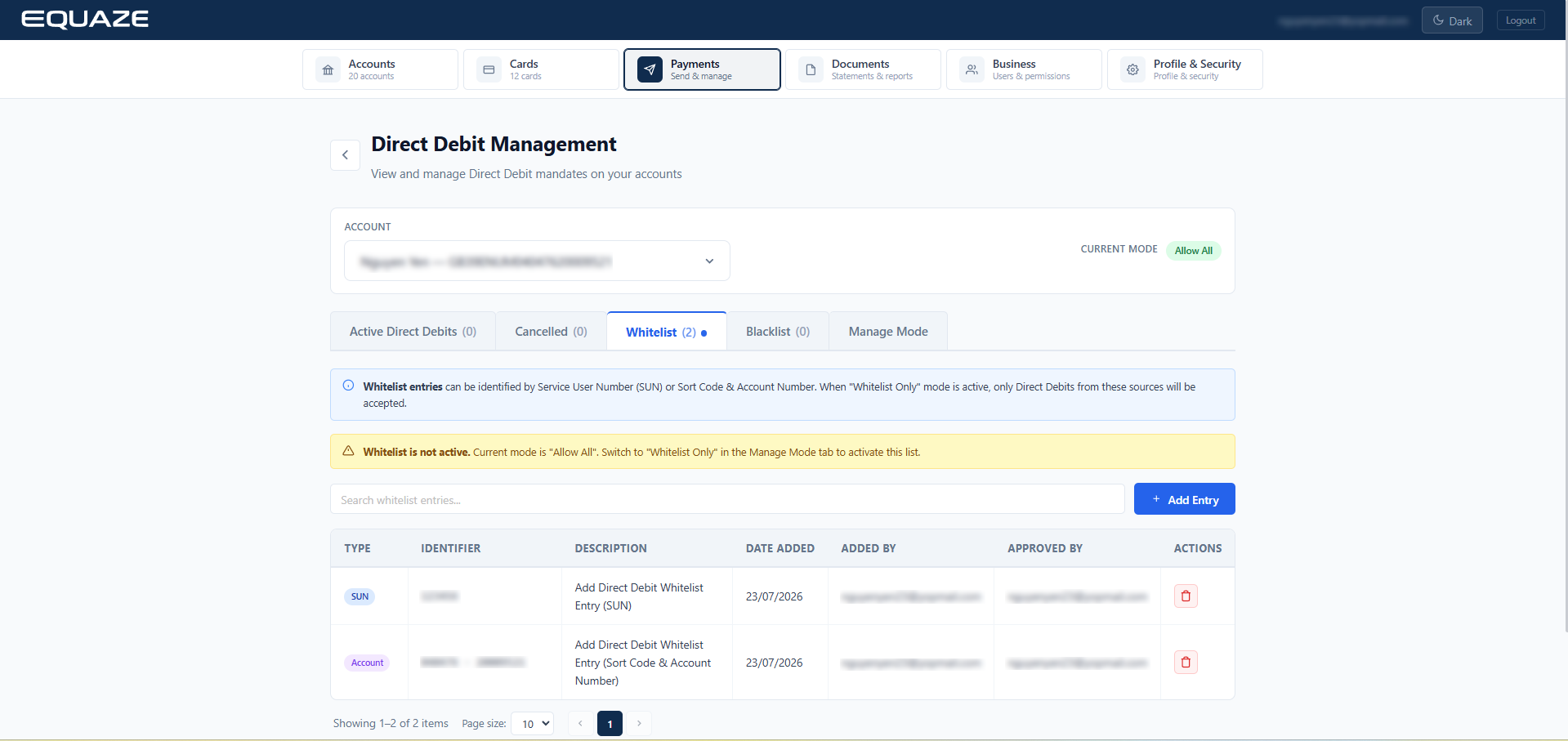
Step 1: Direct Debit → Select target Account → Select Whitelist Tab → Click on Add Entry button
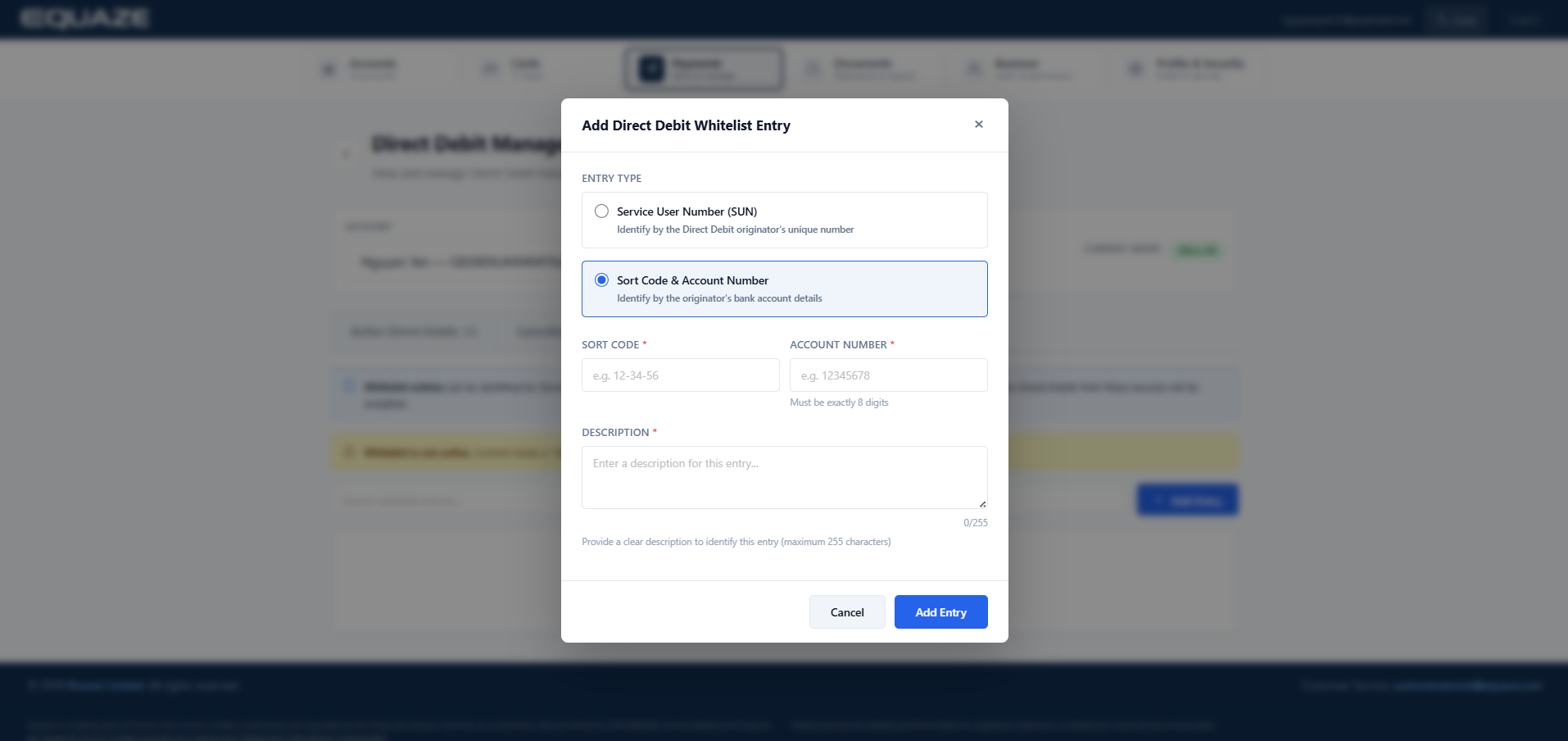
Step 2: Fill in the information in the Add Direct Debit List Entry popup and click Add Entry
Note: Users can select Entry Type:
- SUN: Enter any 6-digit SUN into the Service User Number (SUN) field.
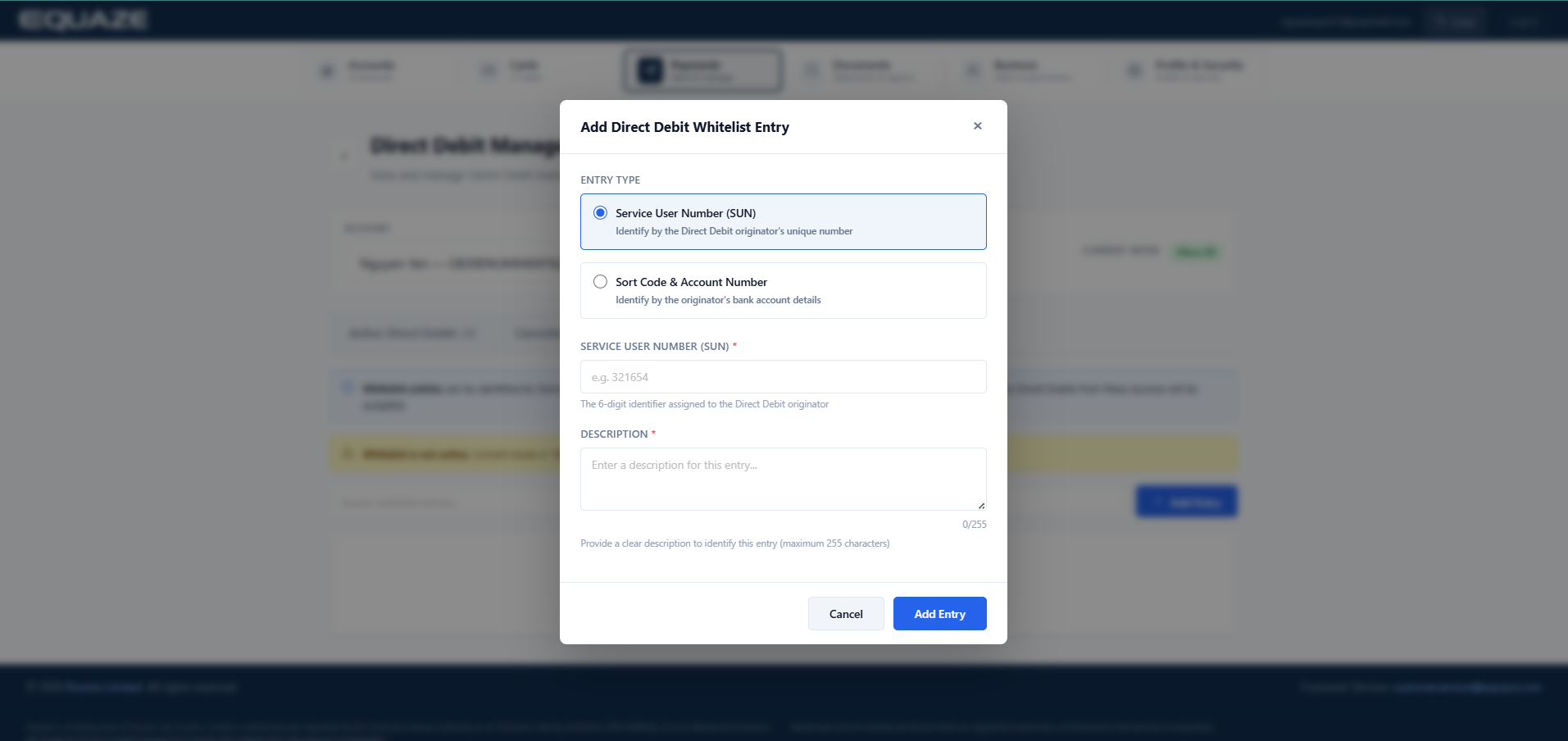
- Sort Code & Account Number: Enter a valid originator’s Sort Code (6 digits) and Account Number (8 digits).
SUN (or Account) has been successfully added and is now shown in the Whitelist.
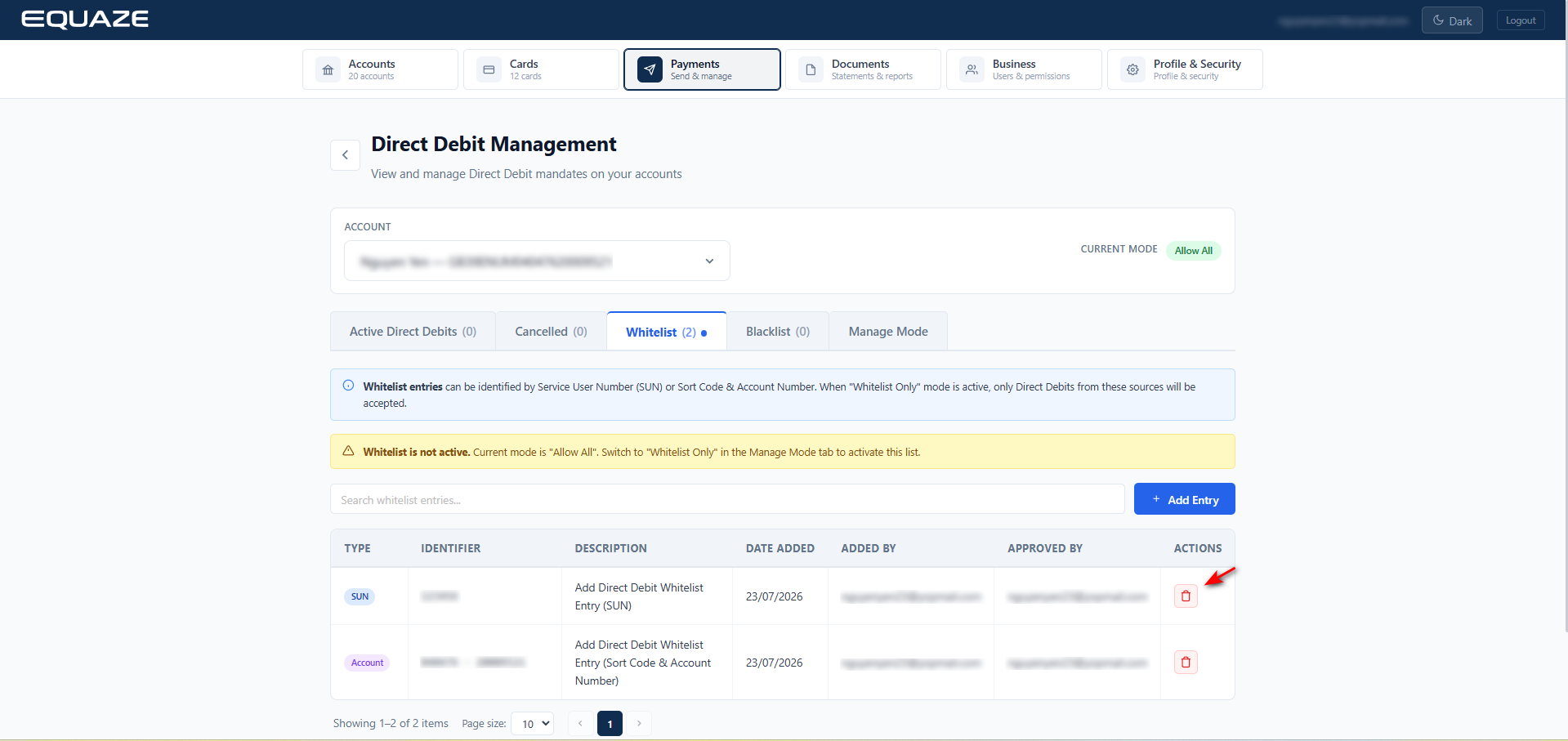
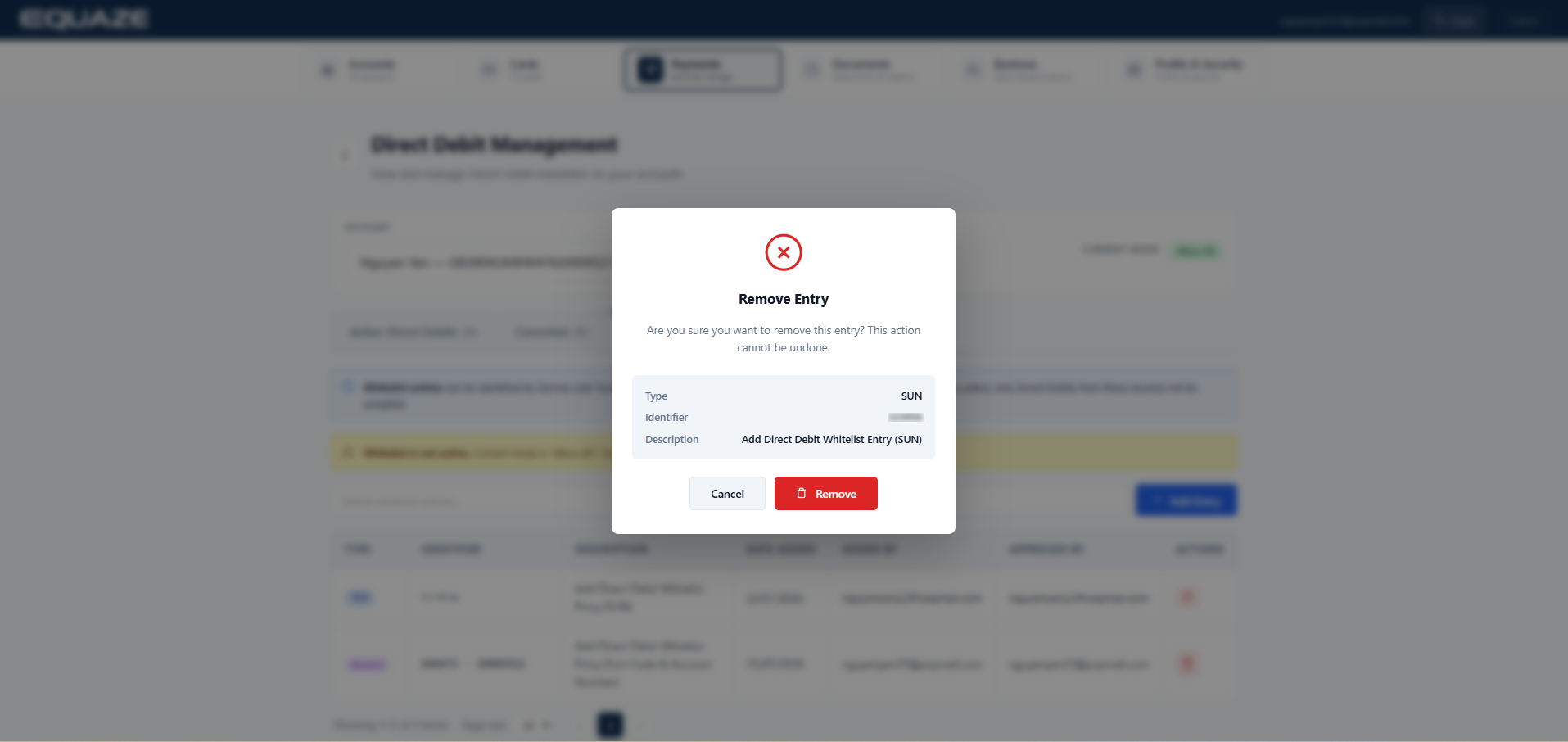
To remove Whitelist entry, just click on the Delete icon in the row you want to delete then confirm by clicking OK.
Note:
- Similar to Add Entry to Blacklist
- Cannot add the same SUN or Account to both Whitelist and Blacklist.
Manage Mode
Step 1: Select your preferred mode and click “Apply Selected Mode.”
Note: The currently active mode will be labeled as “CURRENT” next to it.
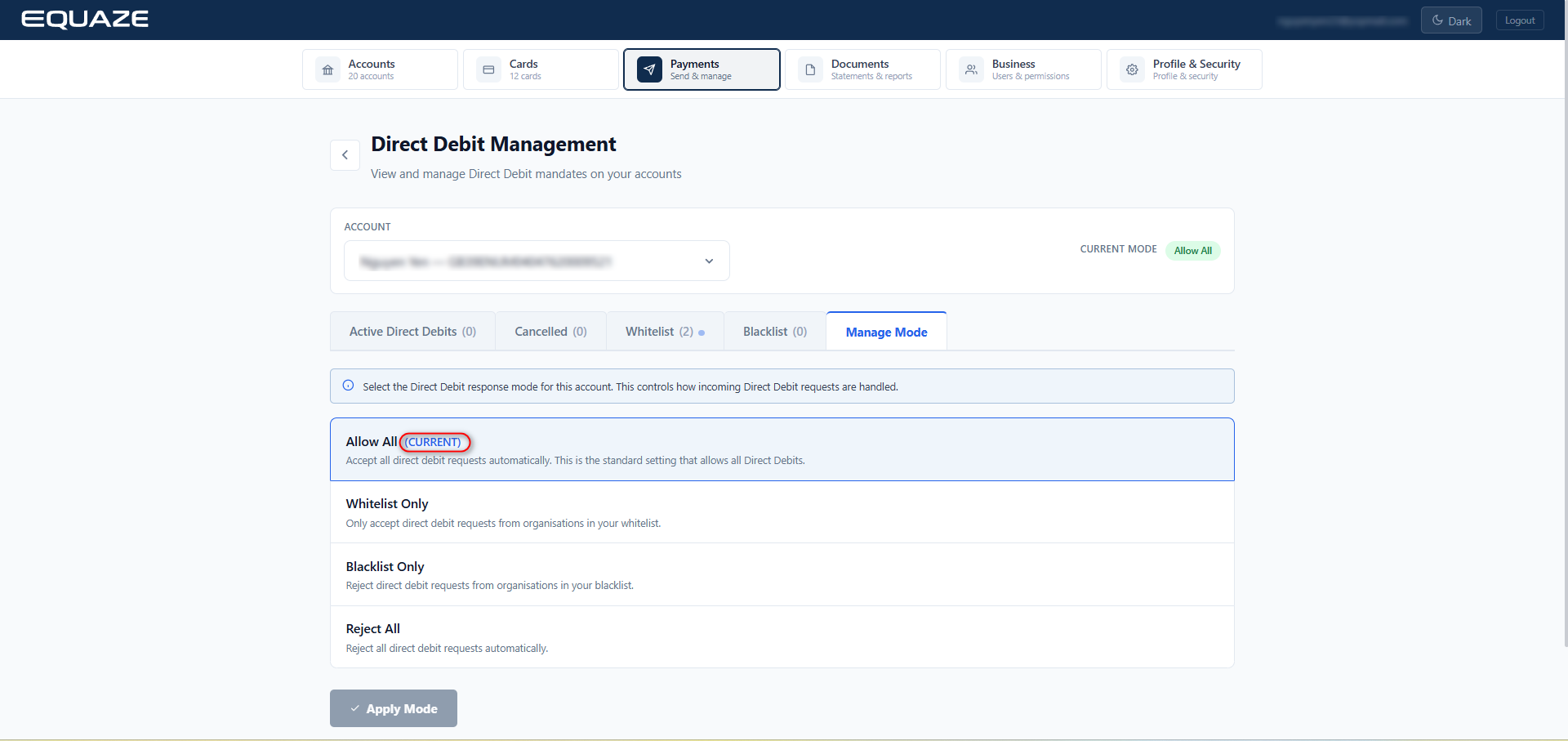
Step 2: Change to a different mode from the current one and click Apply Mode. The mode is successfully updated and labeled as Current.
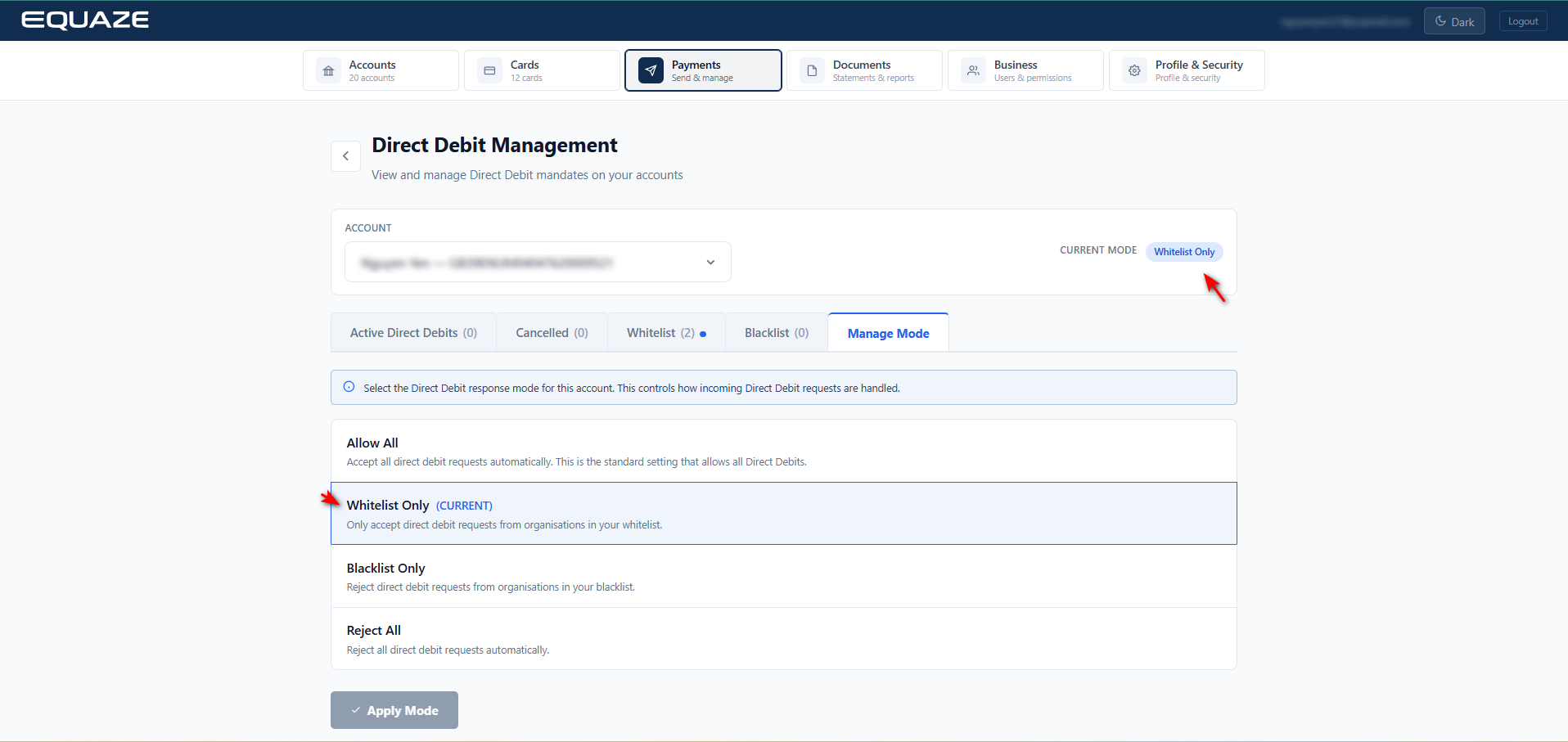
Available Modes Explanation:
- Allow All: When you select Allow All, you are choosing to automatically approve all Direct Debit requests from any organisation without needing to review or manually approve them.

- Whitelist Only: When you select Whitelist Only, you only accept Direct Debit requests from organisations that are in your whitelist. Any Direct Debit request from an organisation not on your whitelist will be automatically rejected. To switch to this mode, you must cancel all existing DDIs from organisations not in your whitelist. Otherwise, the change cannot be applied.

- Blacklist Only: DDIs created from SUNs or accounts (Sort Code – Account Number) that are not on the Blacklist can still be created and processed normally.
Before changing the Current Mode to Blacklist Only, all previously created DDIs associated with a SUN or Sort Code – Account Number that is listed in the Blacklist must be manually cancelled.

- Reject All: When you select Reject All, any DDI initiated will be automatically cancelled. Before switching the Current Mode to Reject All, all previously created DDIs must be manually cancelled.