Skip to main content Skip to footer
Equaze Help Documentation

Login & Registration

  • Registering
  • Logging in
  • Password Reset

Account Payments

  • Direct Debit
  • Creating a Beneficiary
  • Bulk Creating Beneficiaries
  • Adding Beneficiary Address
  • Viewing Beneficiary Details
  • Editing a Beneficiary
  • Authorising Beneficiary Creation and Updates
  • Deleting a Beneficiary
  • Making a Single Payment
  • Making Bulk Payments
  • Authorising a Payment

Cards

  • Check PIN Code
  • Activate a card account

Transfers

  • Transfer Between Current Accounts in Same Currency
  • Transfer from Current Account to Card
  • Authorising a Transfer

Statements

  • Download Transaction Data Excel
  • Download Billing Statement
  • Download Monthly Statement

User Management

  • PKI Credential User
  • Business Permission Management

Profile Management

  • Security Management
View Categories
  • Home
  • Guide
  • User Guide
  • Profile Management
  • Security Management

Security Management

2 min read

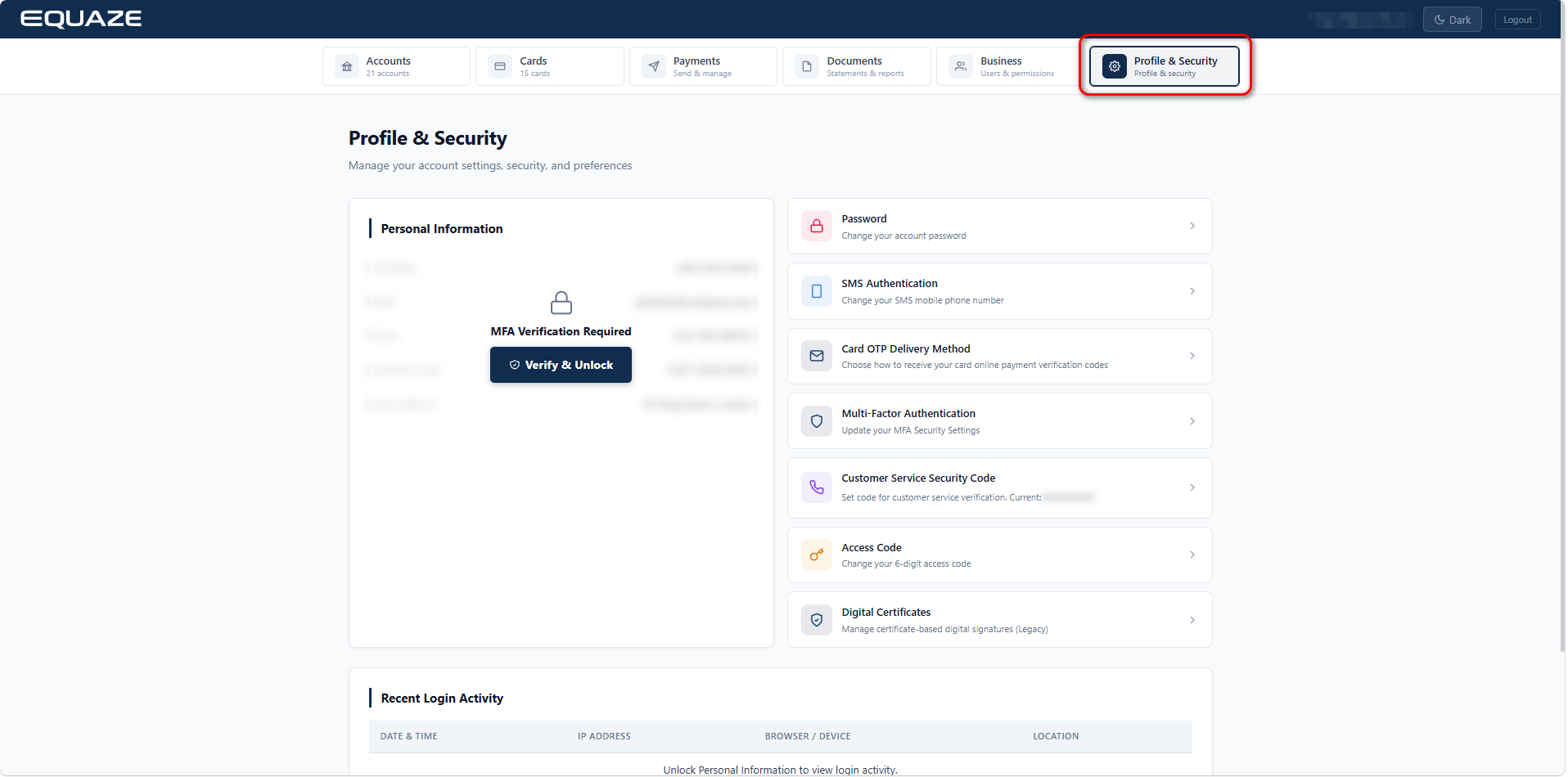
Security Management helps you manage and protect your account. Here, you can perform important security actions such as changing your [Password], [SMS Authentication], [Access Code], update your [Multi-Factor Authentication] and [Customer Service Security Code]. These settings help improve account security and ensure that only you can access and use your personal information.

Accessing Security Management

Navigate to “Manage” Dropdown:

Observe the webpage’s navigation bar for the “Manage” dropdown.
Hover on the “Manage” dropdown to reveal additional options.

  • The dropdown should be expanded, displaying User Security options.

Click on User Security

  • Then, the browser should navigate to a “Security Management” page.

Update Password

Change Password feature allows users to update their login password to keep their account secure.

Step 1: Click on Password

  • Navigate to Manage Password screen

Step 2: Enter Current Password, New Password, Repeat New Password, MFA Verification Code and Click Change Password.

  • After clicking “Change Password”, your password will be successfully updated.

Update SMS Authentication

The SMS Authentication feature allows users to update the phone number used to receive verification codes SMS, ensuring that security actions and transactions are always accurately verified.

Step 1: Click on SMS Authentication

  • Navigate to SMS Authentication screen

Step 2: Enter your new mobile phone number and Repeat Mobile Phone Number → Click Send Verification Codes.

  • Navigate to next screen, display notification message: “Check your EMAIL/PHONE for your SMS Enrollment verification code(s)”

Step 3: Check Your email and phone for your SMS you enter in step 2 → Enter Email Verification Code and SMS Verification Code → Click Validate Request

  • Navigate to next screen

Step 4: Enter your MFA Verification Code and Access Code → Click Update Mobile Phone

  • Change your SMS mobile phone number successfully

Update your Multi-Factor Authentication

MFA plays a vital role during account registration and login, as well as when changing the password, SMS settings, setting the Customer Service Security Code, and updating the customer’s Access Code.

Step 1: Click on Multi-Factor Authentication

  • Navigate to Multi-Factor Authentication screen

Step 2: Click on Send Verification Code to receive your MFA enrollment verification code via email.

Step 3: Enter Email Verification Code and Access Code → Click Continue

Step 4: Navigate to Multi-Factor Authentication → Scan the QR code or copy the code to your device to generate an MFA Code → Enter a valid MFA Code → Click Continue

Step 5: Navigate to Security Management → Display message: “MFA Updated Successfully”

You have successfully updated your MFA and can now use the new MFA.

Update Customer Service Security Code

Customer Service Security Code is a code used to verify a user’s identity when contacting Customer Service. Each customer must set up their own Customer Service Code to provide to Customer Service when requesting support.

Step 1: In Security Management → Click on Customer Service Security Code → Navigate to Customer Service Security Code screen

Step 2: Enter New Security Code → Enter Repeat Security Code → Enter MFA Verification Code

Step 3: Click on Set Security Code → Navigate to Security Management → Display message: “Customer Service Security Code has been updated successfully!”

You have successfully set up your security settings. The Customer Service Code is available in your Online Account and can be provided to the Customer Service team when requested.

Update Access Code

Access Code is a user-specific access credential.

The Access Code is a unique identifier for each user. Please keep it secure and easy to remember

Step 1: In Security Management → Click on Access Code → Navigate to Change Access Code screen

Step 2: Enter Current Access Code → Enter New Access Code → Repeat New Access Code → Enter Date of Birth → Enter MFA Verification Code

Step 3: Click on Change Access Code → Navigate to Security Management screen → System display message: “Account Code has been updated successfully!”

Your Access Code has been successfully updated. You can now use the new Access Code to change SMS and MFA settings.

What are your Feelings

Share This Article :

  • Facebook
  • X
  • LinkedIn
  • Pinterest
Table of Contents
  • Accessing Security Management
  • Update Password
  • Update SMS Authentication
  • Update your Multi-Factor Authentication
  • Update Customer Service Security Code
  • Update Access Code
"Equaze" is a trading style of Enumis Ltd. Enumis Limited is authorised and regulated by the Financial Conduct Authority as an Electronic Money Institution (FRN 900028) and authorised and regulated by the Financial Conduct Authority for Consumer Credit (FRN 724110) Company Registration E&W 7441513. Enumis Mastercard Products are issued by Enumis Limited pursuant to a license from Mastercard International Incorporated. Mastercard and the Mastercard Brand Mark are registered trademarks of Mastercard International Incorporated.
Equaze Help Documentation
© Copyright Equaze