Skip to main content Skip to footer
Equaze Help Documentation

Login & Registration

  • Registering
  • Logging in
  • Password Reset

Account Payments

  • Direct Debit
  • Creating a Beneficiary
  • Bulk Creating Beneficiaries
  • Adding Beneficiary Address
  • Viewing Beneficiary Details
  • Editing a Beneficiary
  • Authorising Beneficiary Creation and Updates
  • Deleting a Beneficiary
  • Making a Single Payment
  • Making Bulk Payments
  • Authorising a Payment

Cards

  • Check PIN Code
  • Activate a card account

Transfers

  • Transfer Between Current Accounts in Same Currency
  • Transfer from Current Account to Card
  • Authorising a Transfer

Statements

  • Download Transaction Data Excel
  • Download Billing Statement
  • Download Monthly Statement

User Management

  • PKI Credential User
  • Business Permission Management

Profile Management

  • Security Management
View Categories
  • Home
  • Guide
  • User Guide
  • User Management
  • Business Permission Management

Business Permission Management

2 min read

Prerequisites

There are two types of Business User (Signatory):

  • Sole Authority: Can create, approve and implement changes without secondary approval.
  • Dual Authority: Can initiate actions but need another authorised user, with the appropriate permissions, to approve the request.

To approve / reject dual authority requests, there are different screens:

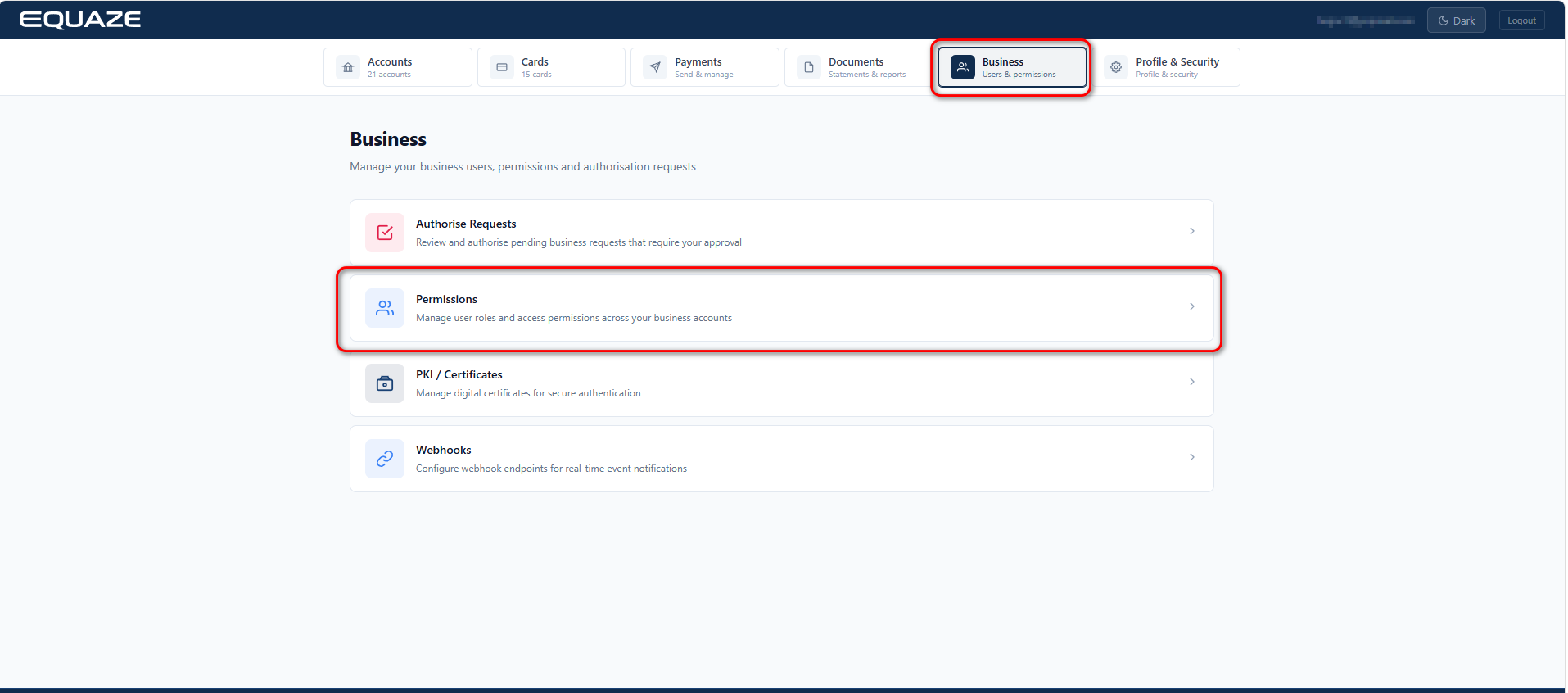
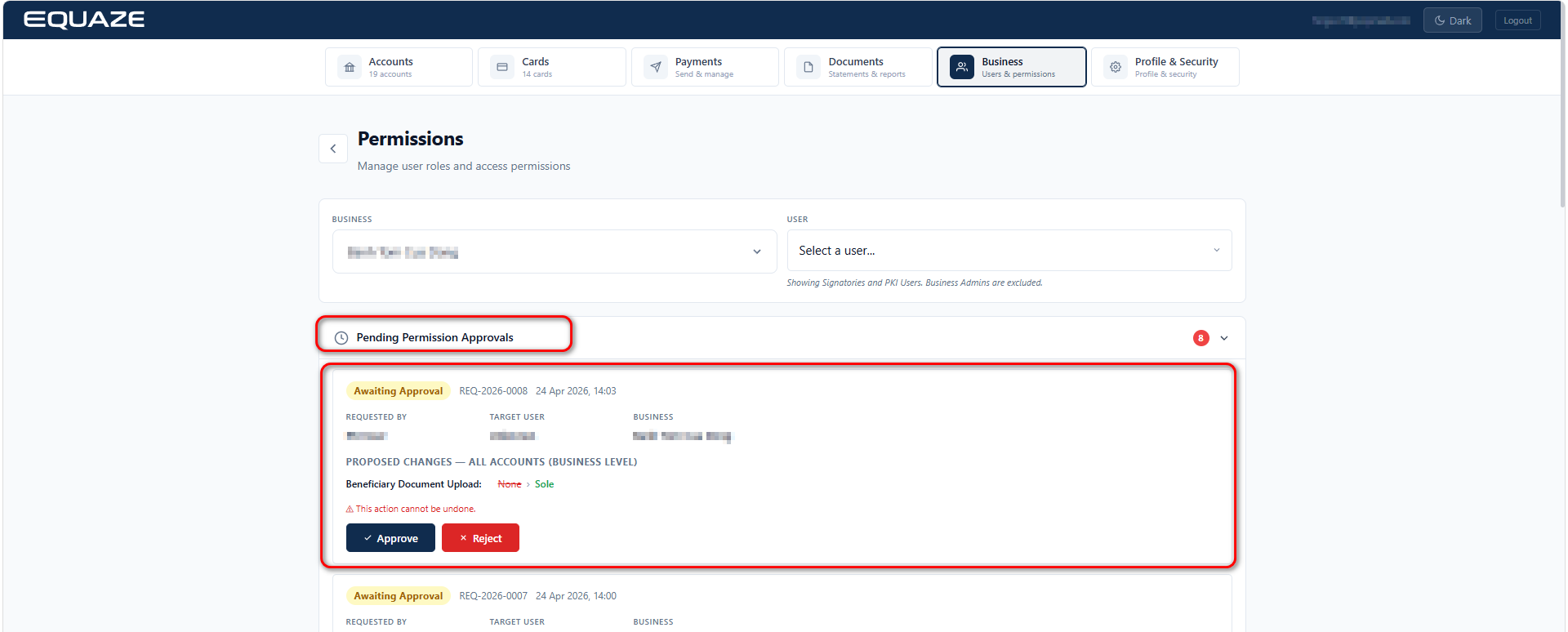
  • For requests related to Business Permissions, Business User can find them in “Manage” > “Permissions” > “Pending Permission Approvals” section to approve/reject requests.
  • For requests related to Business Payments, Business User can find in “Payments” > “Authorise Payments” to approve/reject requests.
  • For other requests related to Business Action (e.g Add Beneficiary), Business User can find in “Manage” > “Authorise Requests” screen to approve/reject requests.

Grant permission to Business User

Observe the webpage’s navigation bar for the “Manage” dropdown.
Hover on the “Manage” dropdown to reveal additional options.

  • The dropdown should be expanded, displaying Permissions option.

Click on Permissions

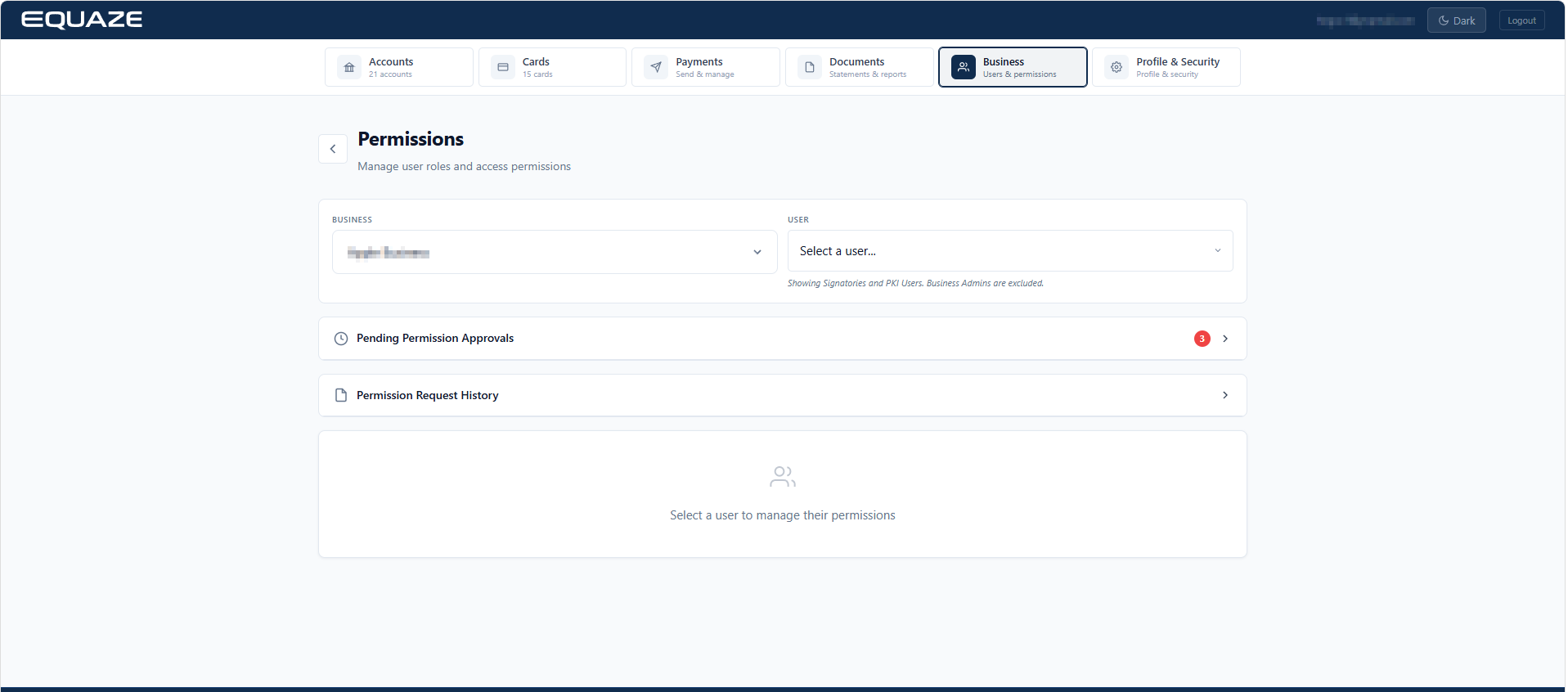
  • Then, the browser should navigate to a “Permission Management” screen.

Step 1: In Permission Management → Select Business → Select User.

  • Display the list of permissions assigned to that user.

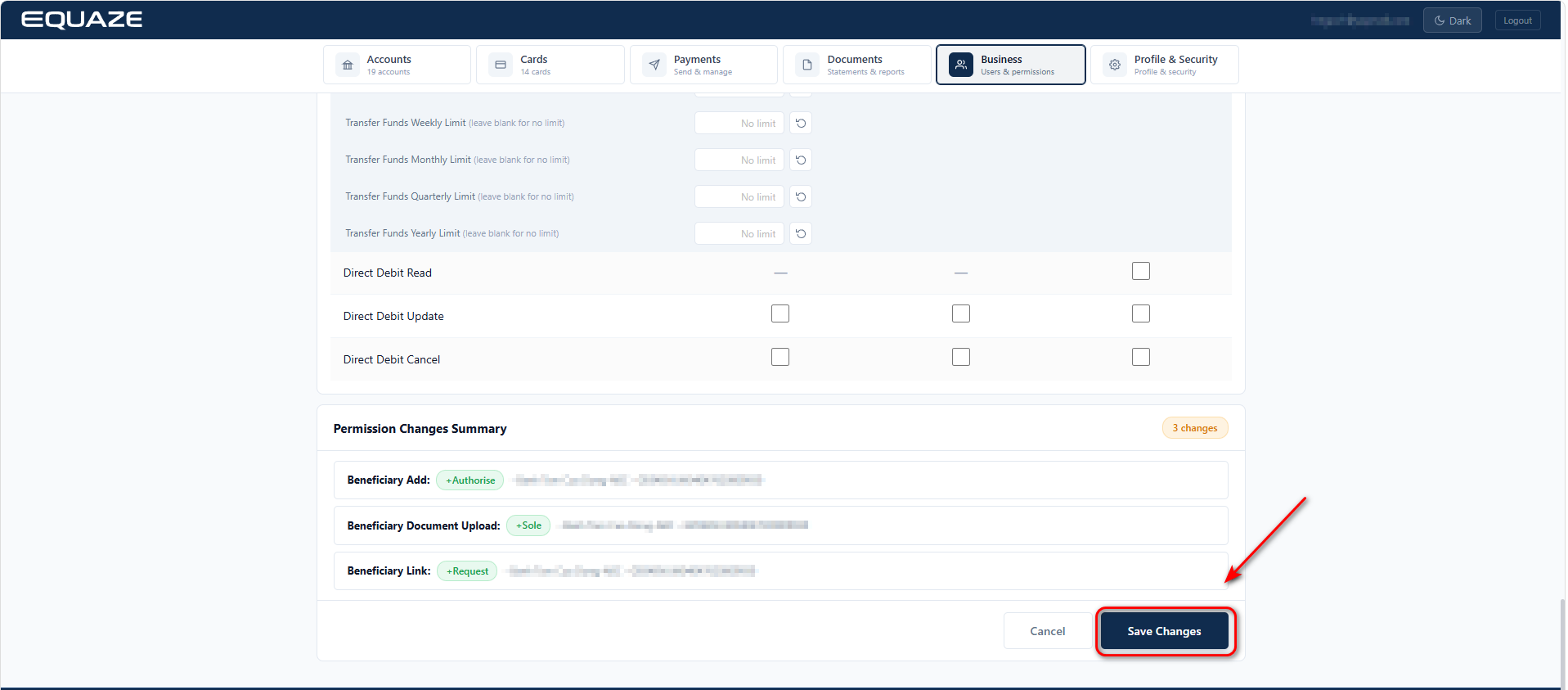
Step 2: For each account that you want to grant permissions to a signatory, select the permissions by ticking the corresponding checkboxes → Scroll down → click Save Changes.

Step 3: Click OK to submit the permission grant request.

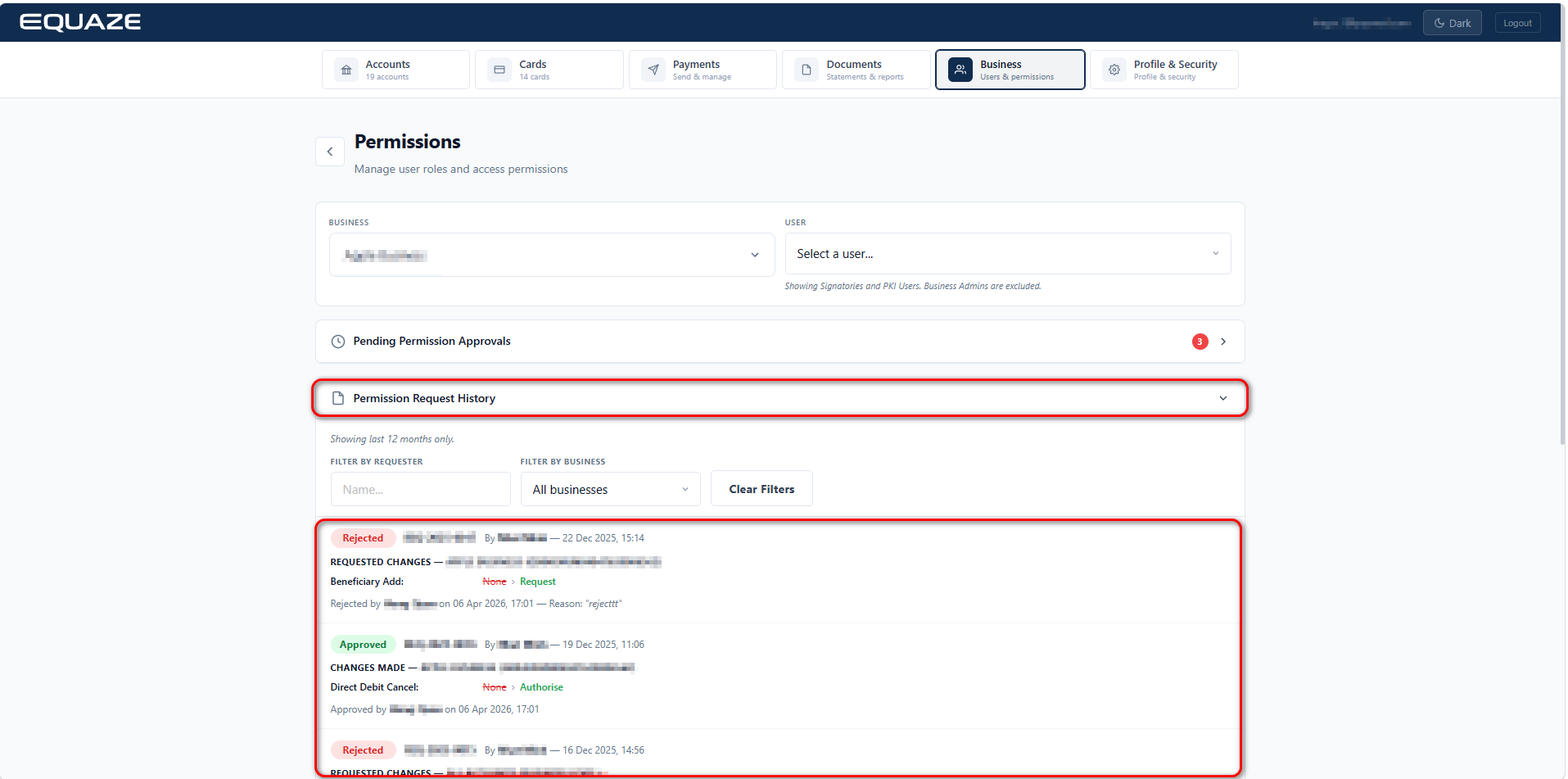
In the Pending Requests section, you can view permissions awaiting your approval or rejection.

Revoke permission from Business User

Step 1: In Permission Management → Select Business → Select User.

  • Display the list of permissions assigned to that user.

Step 2: For each account that you want to revoke permissions from a signatory, select the permissions by ticking the corresponding checkboxes → Scroll down → click Save Changes.

Step 3: Click OK to submit the permission revoke request.

In the Pending Requests section, you can view permissions awaiting your approval or rejection.

You can view the approval/rejection history of permission requests in the Permission Request History section and search permission requests by Requester Name, filter by Business, clear filters to display all permission requests.

What are your Feelings

Share This Article :

  • Facebook
  • X
  • LinkedIn
  • Pinterest
PKI Credential User
Table of Contents
  • Prerequisites
  • Grant permission to Business User
  • Revoke permission from Business User
"Equaze" is a trading style of Enumis Ltd. Enumis Limited is authorised and regulated by the Financial Conduct Authority as an Electronic Money Institution (FRN 900028) and authorised and regulated by the Financial Conduct Authority for Consumer Credit (FRN 724110) Company Registration E&W 7441513. Enumis Mastercard Products are issued by Enumis Limited pursuant to a license from Mastercard International Incorporated. Mastercard and the Mastercard Brand Mark are registered trademarks of Mastercard International Incorporated.
Equaze Help Documentation
© Copyright Equaze