
Note: CHAPS payments will need Beneficiary address details to comply with new regulatory requirements. This is to enhance security, verify the legitimacy of the beneficiary, contribute to accurate and efficient fund transfers.
Navigating to Manage Beneficiaries
Click on the “Payments” dropdown situated in the header of the website and select “Manage Beneficiaries” from the options.
- The “Manage beneficiaries” page will be displayed.
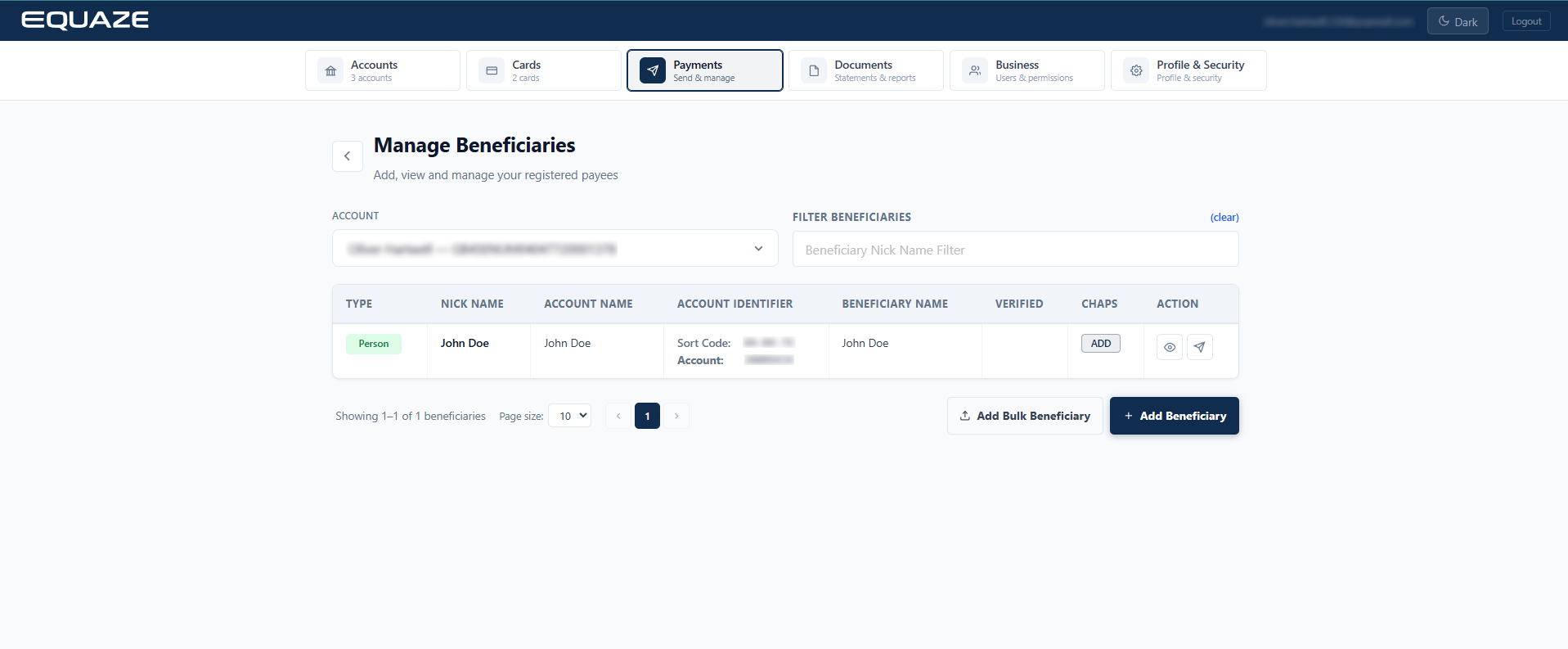
Selecting Account and Initiating Add Address
Click on the “Select account” dropdown to choose the specific account you want to manage. Then click the “Add” button under the CHAPS column.

Display popup Add CHAPS Details
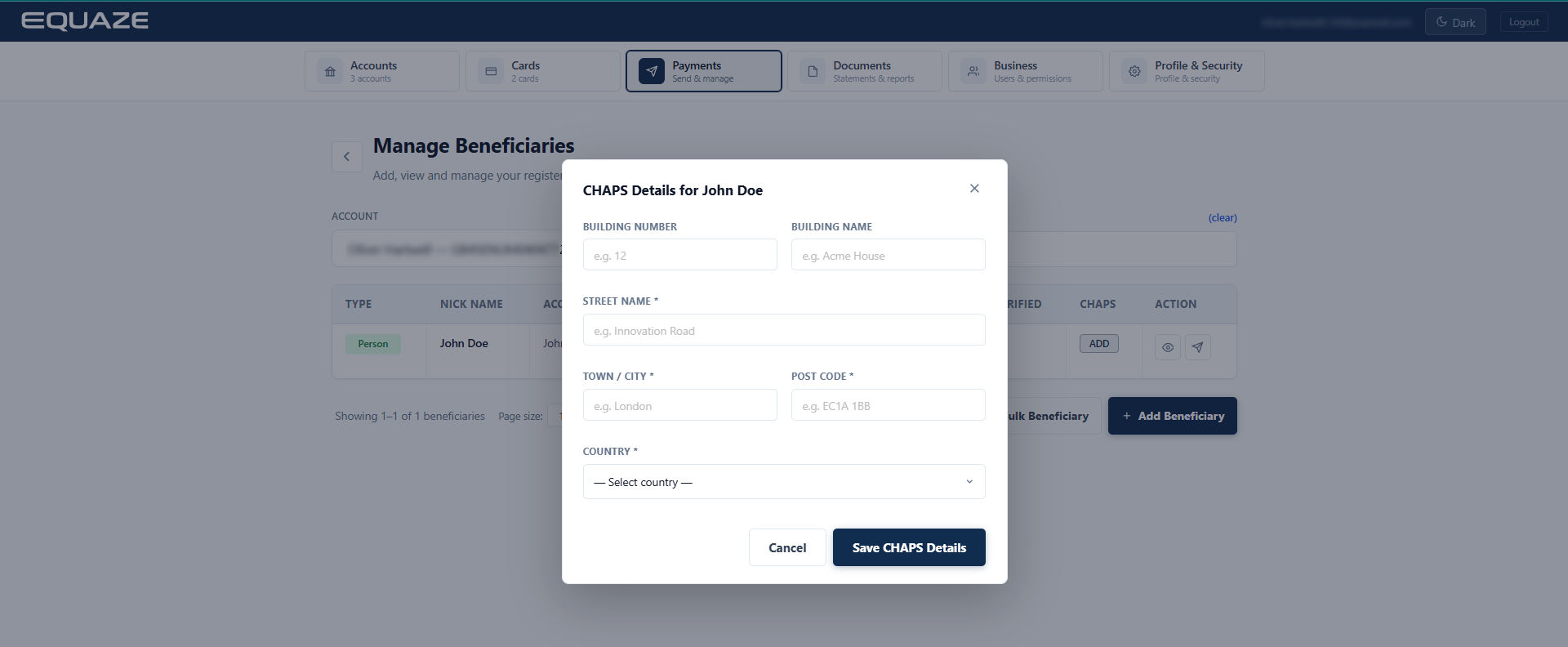
Entering Address Information
Fill in all required fields with valid address data.
- Ensure to complete the fields for country, state district, town name, post code, street name, building number, and building name.

Saving the Address
Click the “Save CHAPS Details” button to save the entered address.
After successfully adding, a View button is displayed under the CHAPS column. Click the View button to review the address that was added.

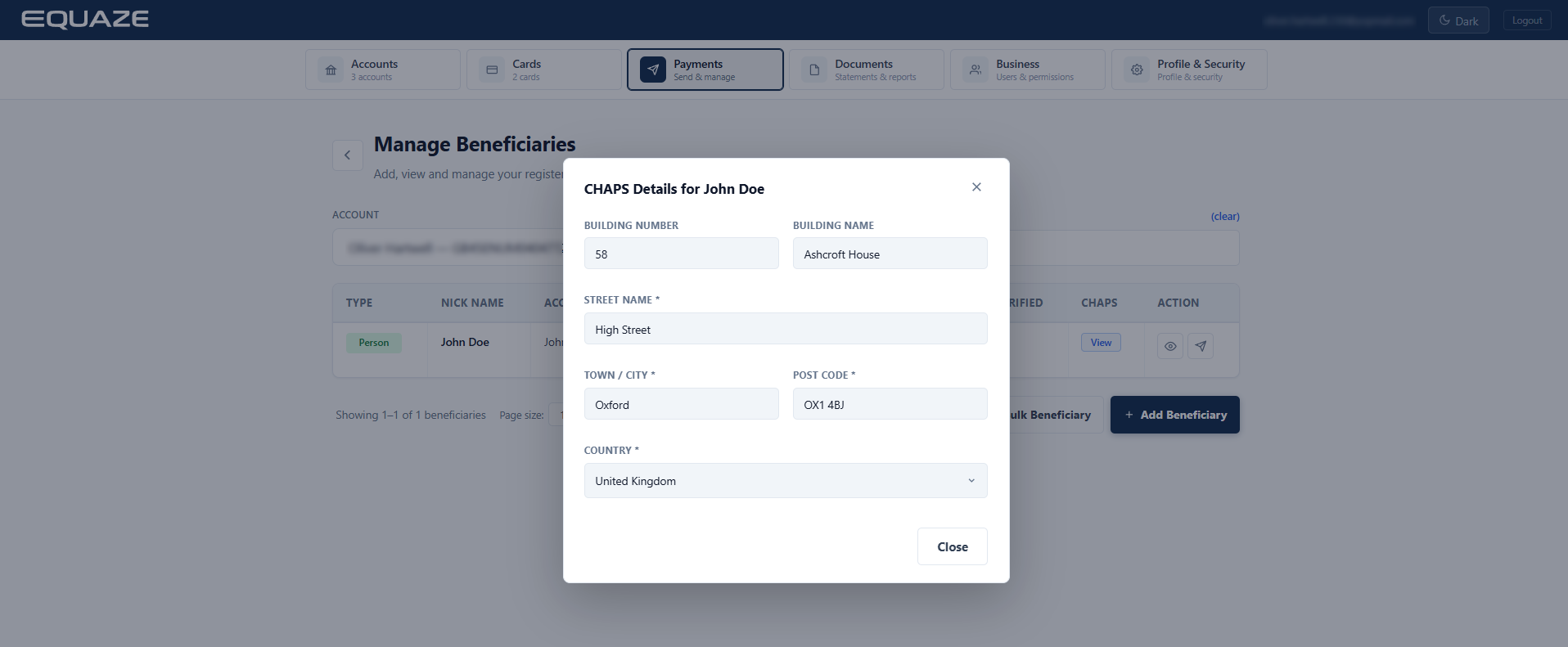
By following these steps, you can efficiently add address details for beneficiaries within your account on the website.
Note: If your permissions are not sole authority, adding beneficiary CHAPS address requires approval from a user with the appropriate authorised permissions. It will remain pending in our system until the authorised user approves or rejects it. Note that you can’t authorise the creation of your new beneficiary


