Skip to main content Skip to footer
Equaze Help Documentation

Login & Registration

  • Registering
  • Logging in
  • Password Reset

Account Payments

  • Direct Debit
  • Creating a Beneficiary
  • Bulk Creating Beneficiaries
  • Adding Beneficiary Address
  • Viewing Beneficiary Details
  • Authorising Beneficiary Creation and Updates
  • Deleting a Beneficiary
  • Making a Single Payment
  • Making Bulk Payments
  • Authorising a Payment

Cards

  • Check PIN Code
  • Activate a card account

Transfers

  • Transfer Between Current Accounts in Same Currency
  • Transfer from Current Account to Card

Statements

  • Download Transaction Data Excel
  • Download Billing Statement
  • Download Monthly Statement

User Management

  • PKI Credential User
  • Business Permission Management

Profile Management

  • Security Management
  • Update Password
  • Update SMS Authentication
  • Update Your Multi-Factor Authentication
  • Update Customer Service Security Code
  • Update Access Code
  • Update Card OTP Delivery Method
View Categories
  • Home
  • Guide
  • User Guide
  • Statements
  • Download Monthly Statement

Download Monthly Statement

Ways to access the “Statement” page

There are two ways to access the Statement page.

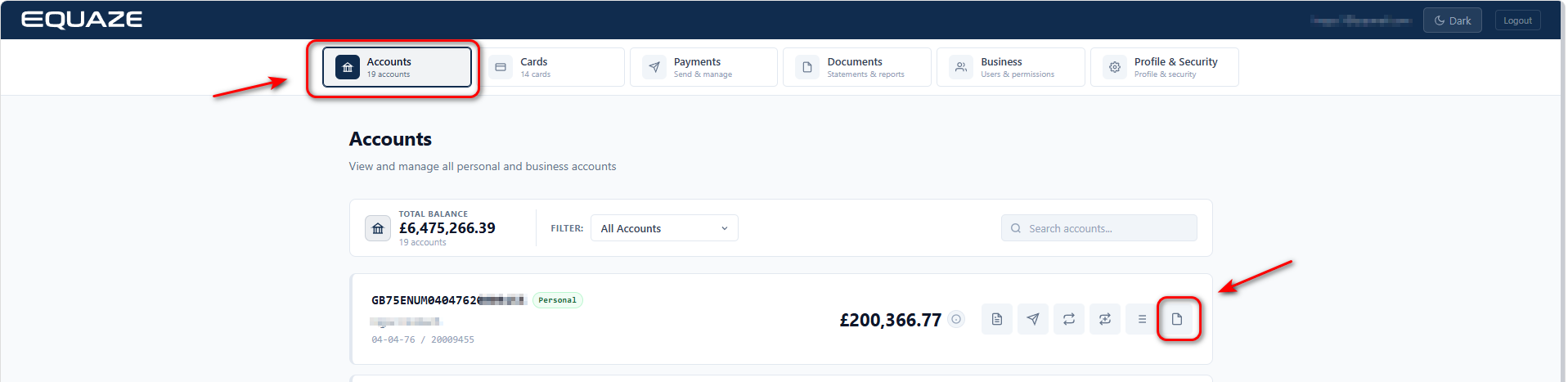
  1. On the Accounts screen, select the account to export data from and click the Statement button to navigate to the Statement page.
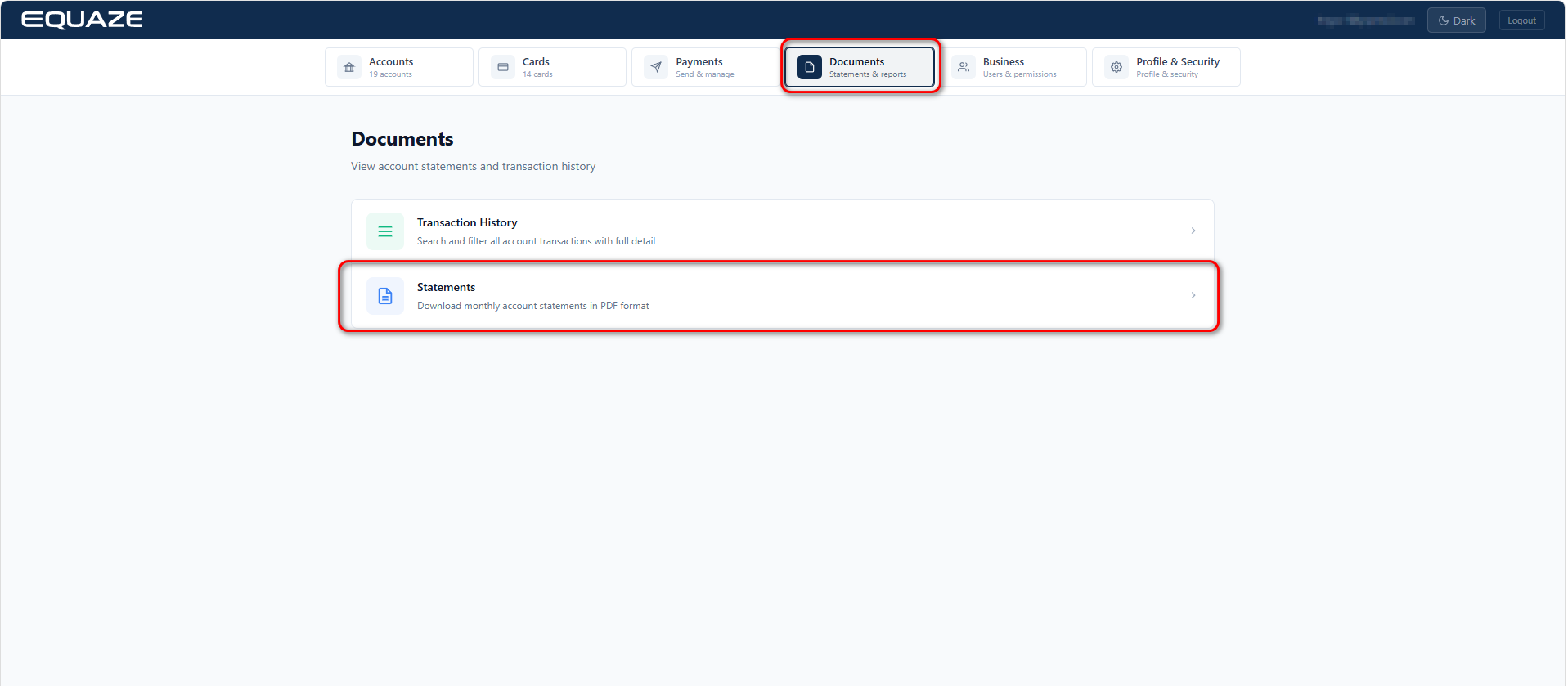
  1. Select Documents and click Statements to navigate to the Statements page.
Access “Statements” Page
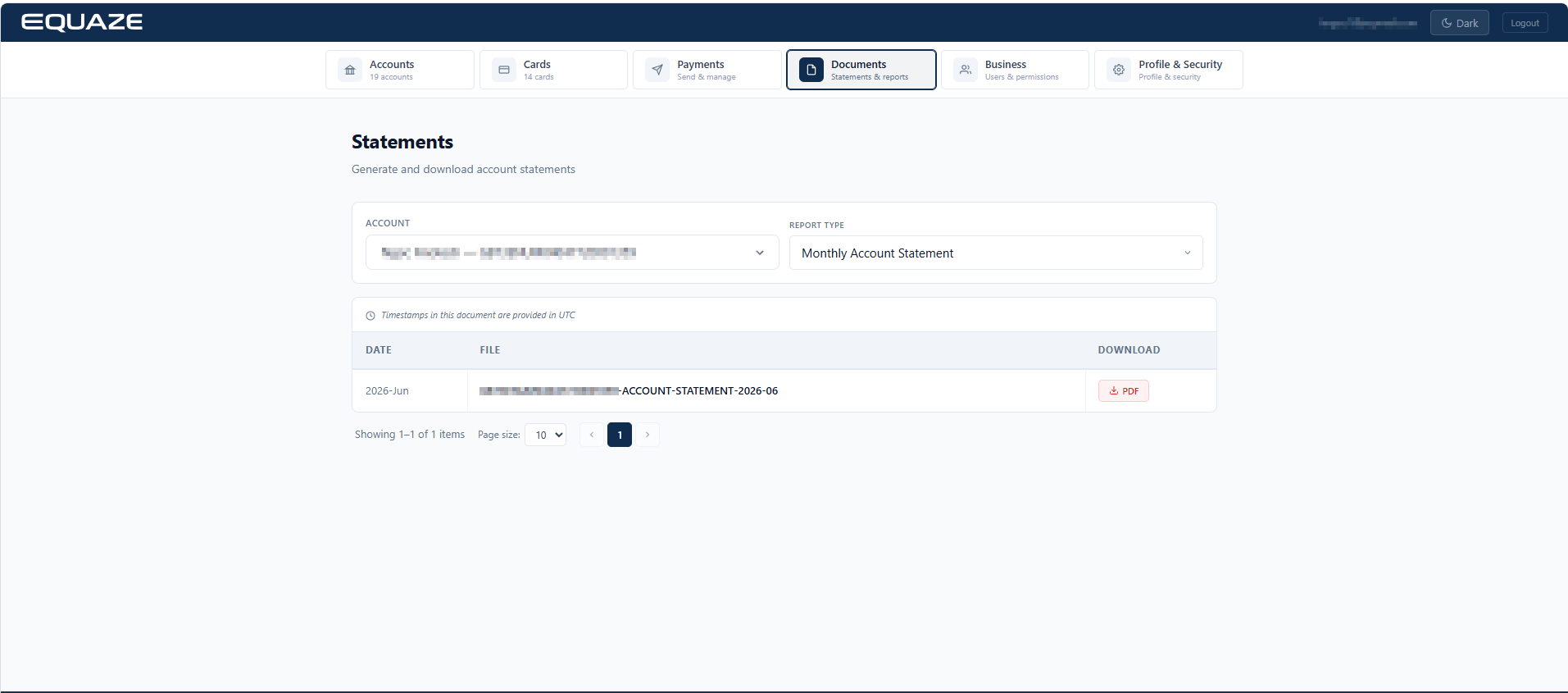
Select Account

Identify and click on the “Account” dropdown menu for selecting the account.
Review the list of available source accounts and choose the desired one.

  • The selected source account should be displayed in the field.

Access “Report Type” Dropdown

On the “Account statements” page, locate the “Report type” dropdown.

Click on the “Report type” dropdown to expand the list of available options.
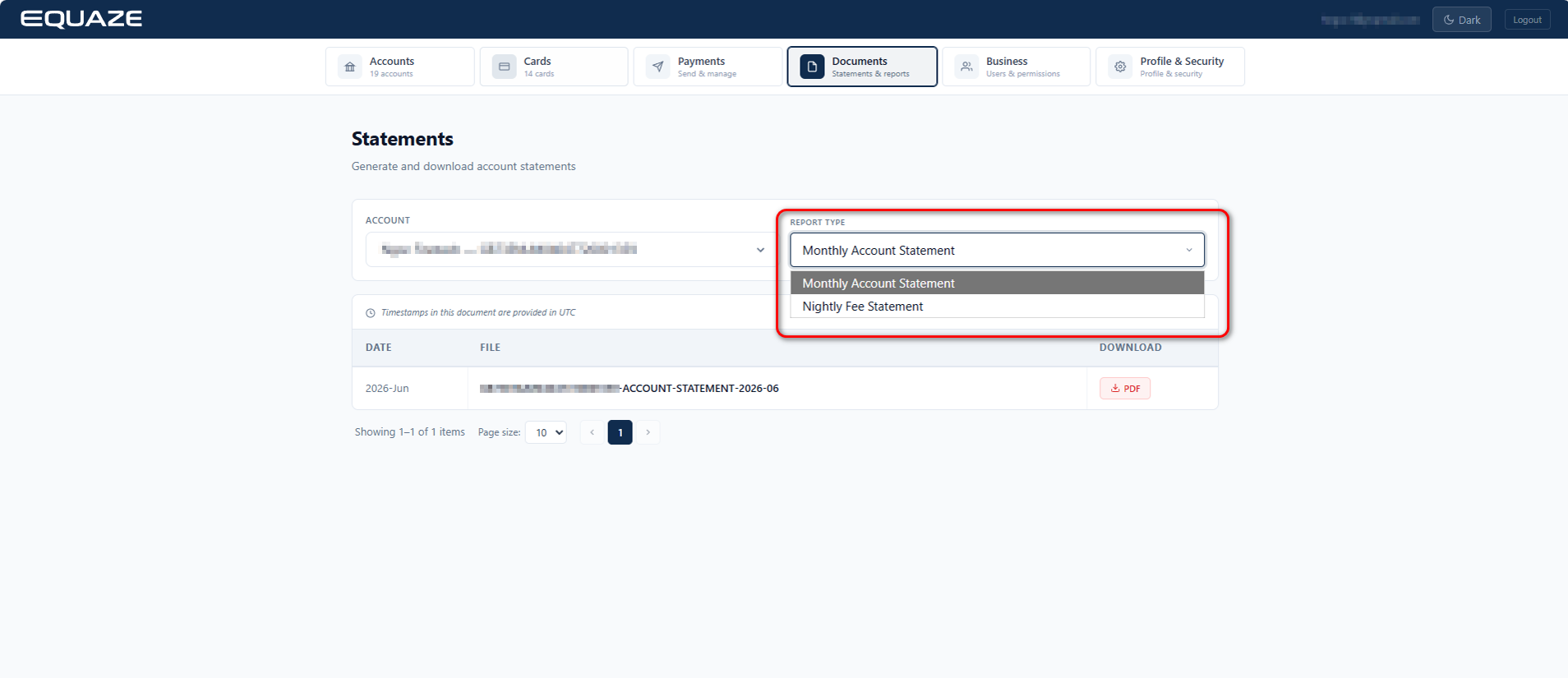
Select an Option in “Report Type” Dropdown:

Click on one of the options in the expanded “Report type” dropdown.

  • The selected option should be highlighted, indicating it has been chosen.
  • The relevant statements information should be displayed on the page.

Download Statement Information as PDF

Still on the “Statements” page, locate and click on the “Download PDF” button.
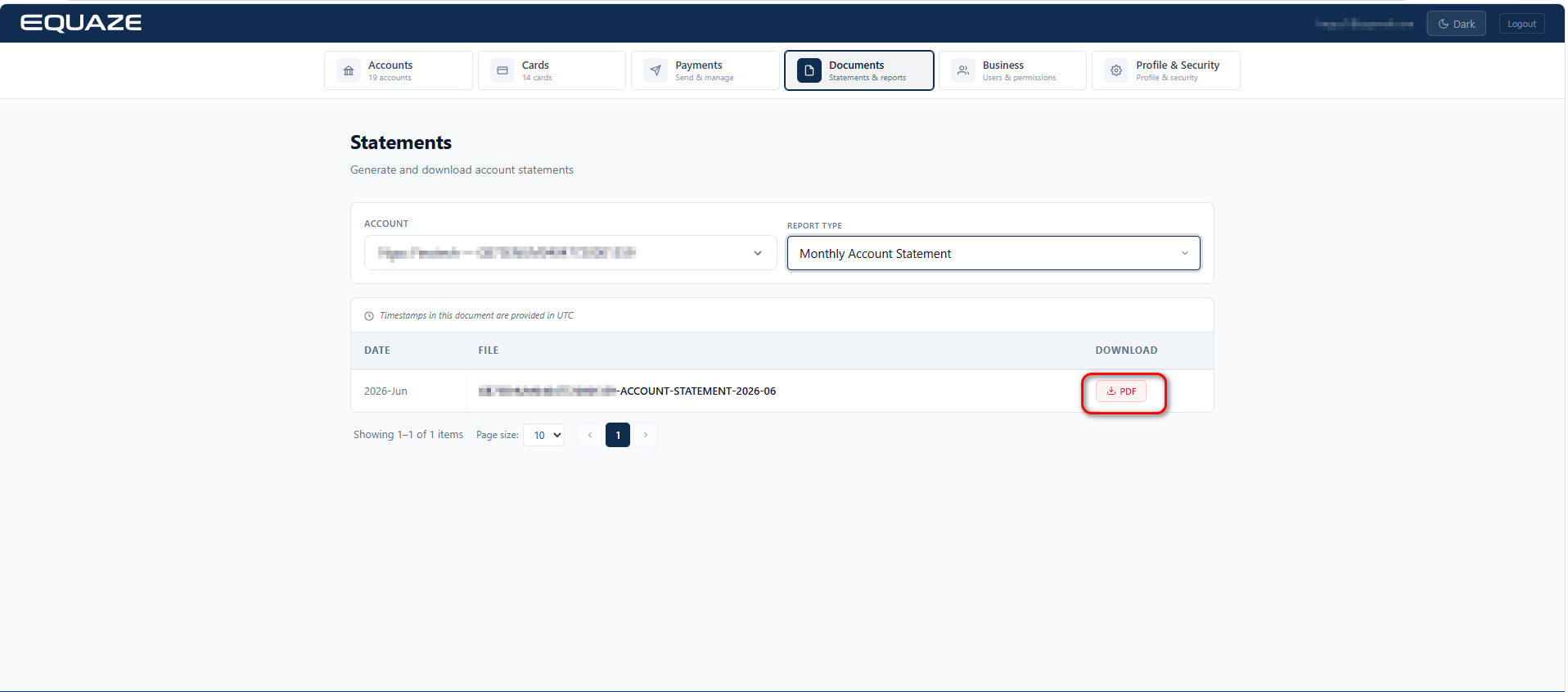
  • The PDF file should be downloaded.

Confirm the success of the download.
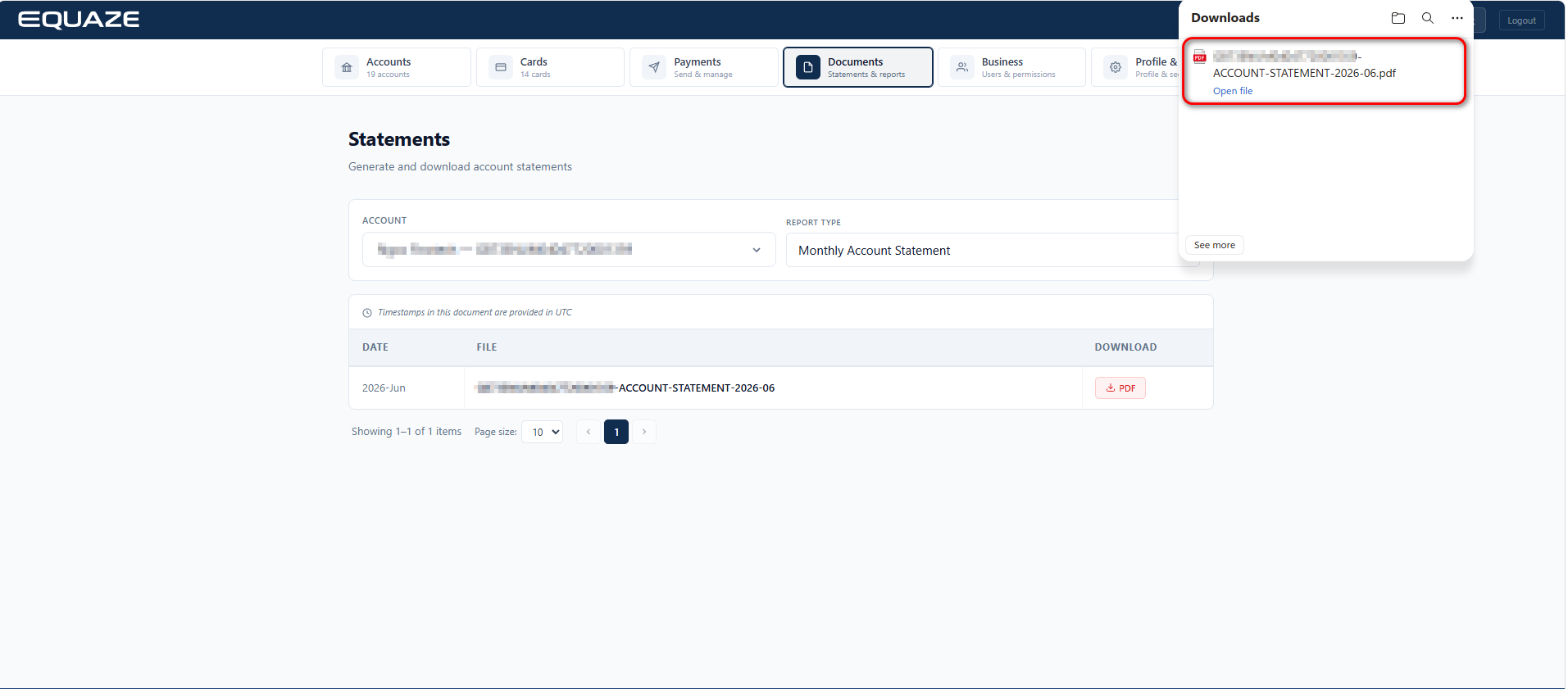
By following these detailed steps, you can thoroughly validate the process of selecting a report type, viewing statement information, and downloading it as a PDF on the website.

What are your Feelings

Share This Article :

  • Facebook
  • X
  • LinkedIn
  • Pinterest
Table of Contents
  • Ways to access the “Statement” page
  • Access “Report Type” Dropdown
  • Download Statement Information as PDF
"Equaze" is a trading style of Enumis Ltd. Enumis Limited is authorised and regulated by the Financial Conduct Authority as an Electronic Money Institution (FRN 900028) and authorised and regulated by the Financial Conduct Authority for Consumer Credit (FRN 724110) Company Registration E&W 7441513. Enumis Mastercard Products are issued by Enumis Limited pursuant to a license from Mastercard International Incorporated. Mastercard and the Mastercard Brand Mark are registered trademarks of Mastercard International Incorporated.
Equaze Help Documentation
© Copyright Equaze