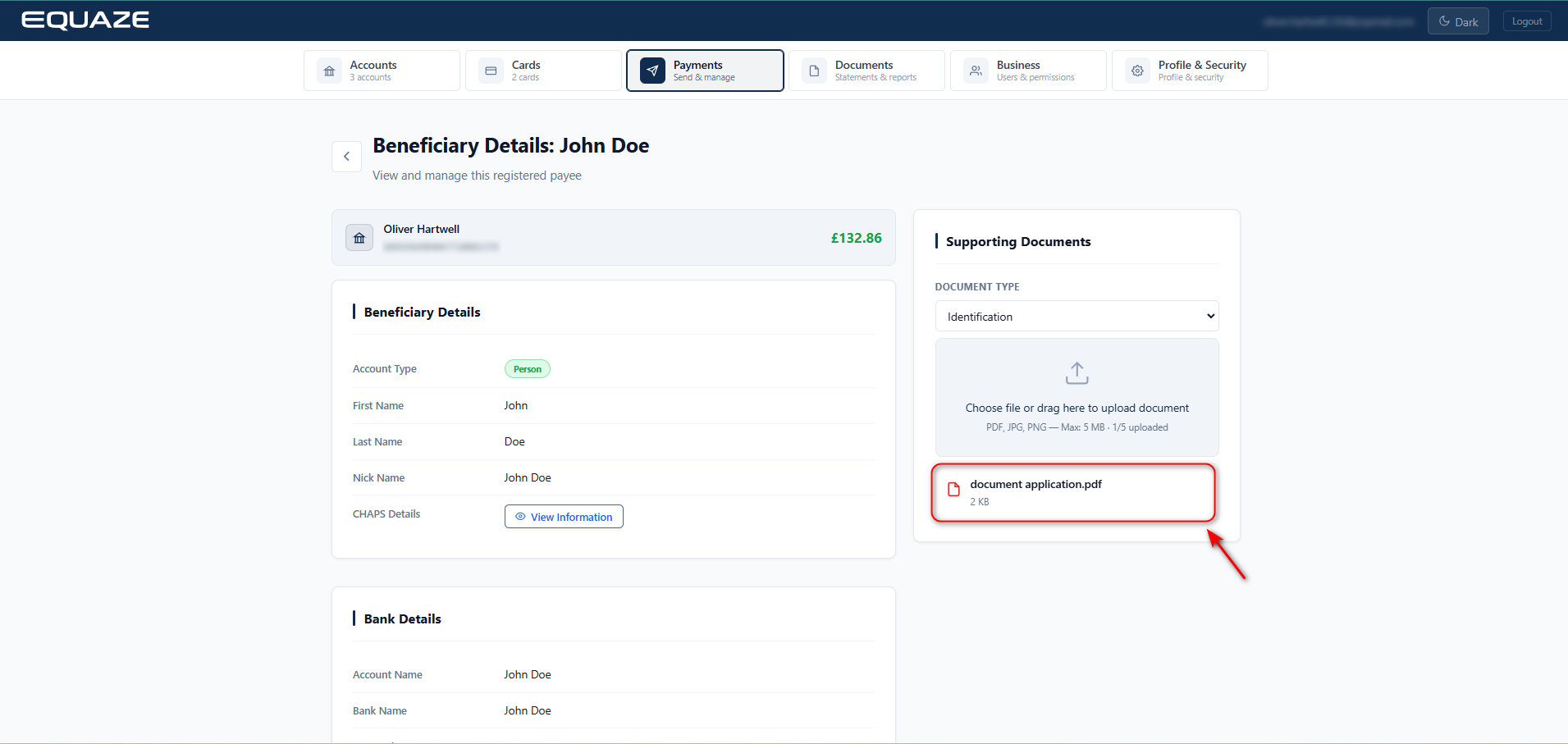
To view a beneficiary, select the options Payments > Manage Beneficiaries in the menu first.
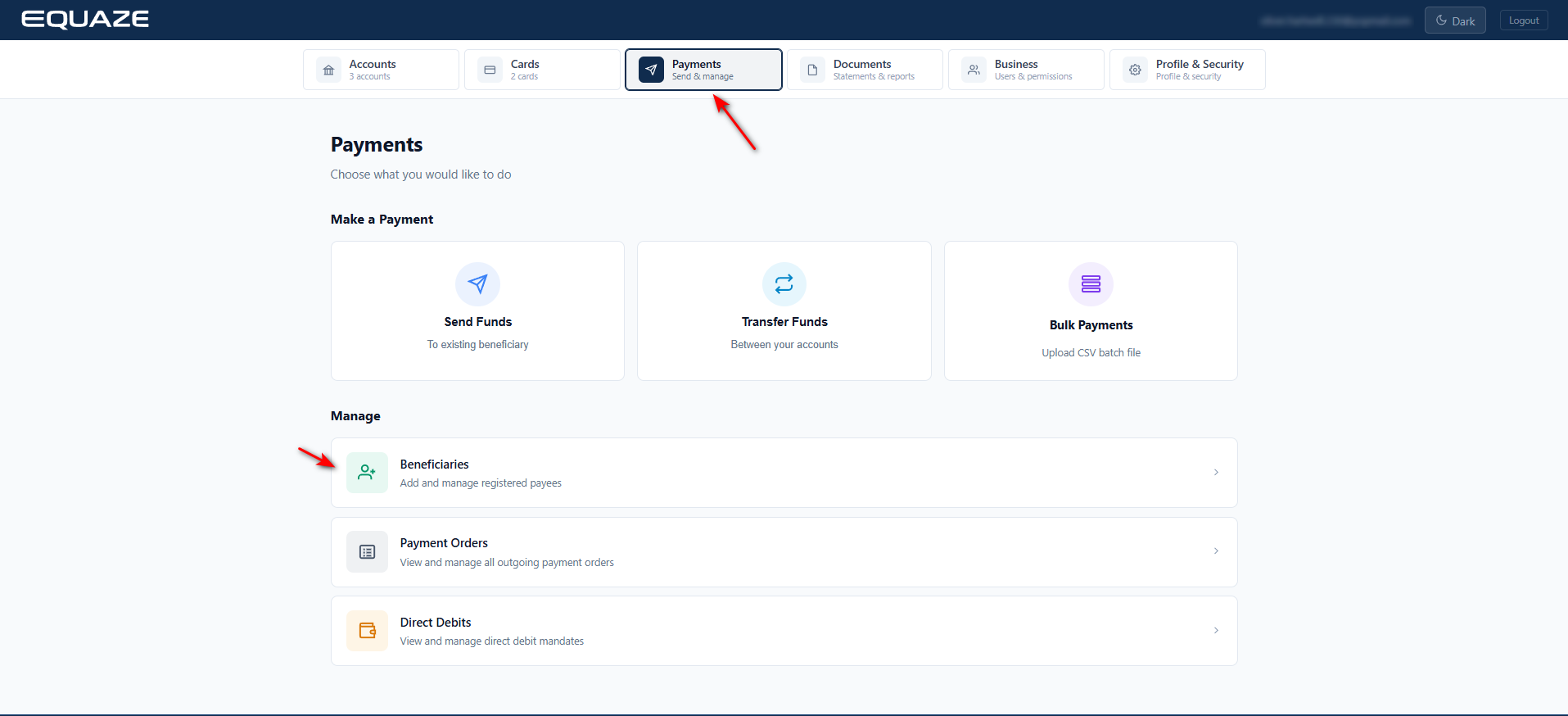
The Manage Beneficiaries page then appears, where you must select an account where the beneficiary you want to view is associated.
Selecting an Account
In the Select Account dropdown, select the account where your beneficiary is associated. Then, upon selecting, a list of beneficiaries under the specified account appears.
Selecting and Viewing a Beneficiary
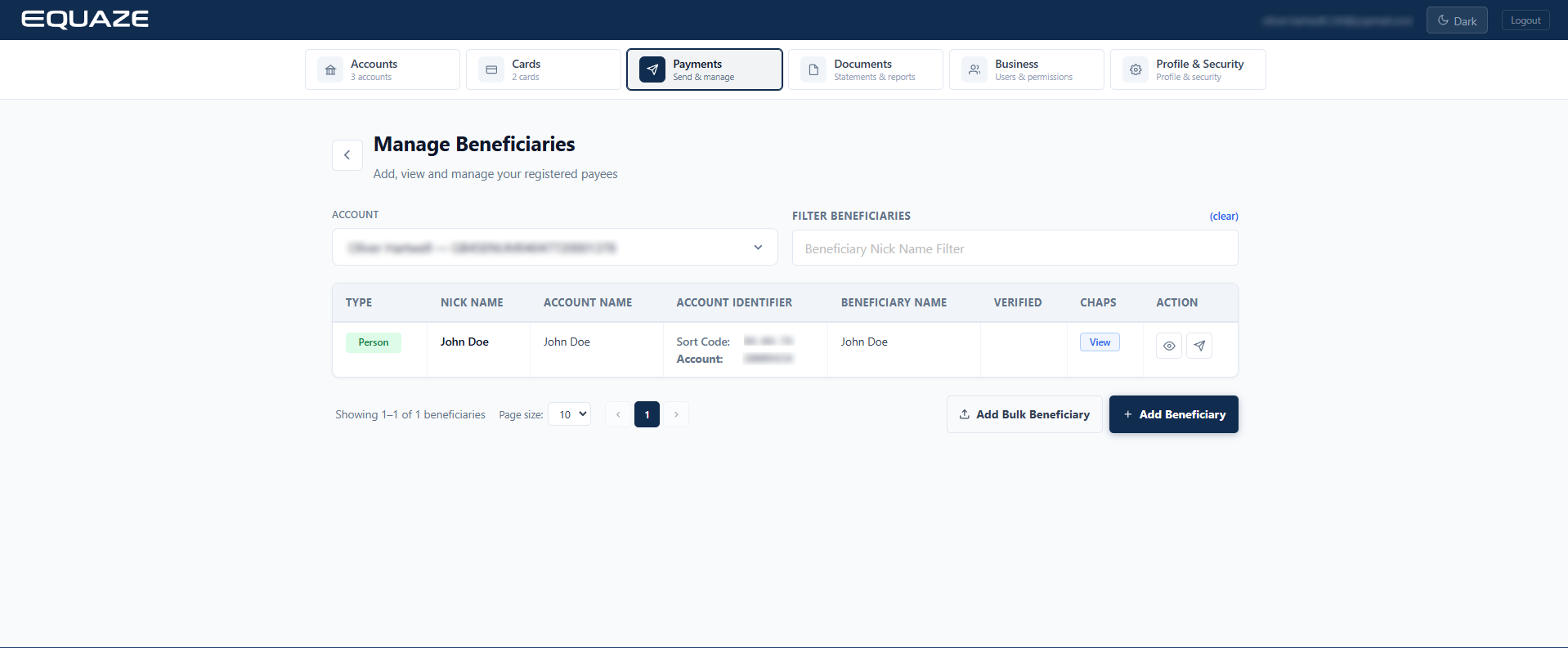
In the list, select the beneficiary that you want to view, and then click the button with the “eye” icon. Doing so opens the Beneficiary Details page to see the details about the relevant beneficiary.

You can use the pagination controls at the bottom if the list contains many beneficiaries. It allows you to move from one set of records to another. There is also the Filter Beneficiaries field where you can filter the list to display only the beneficiary you want to view.
Once you’re in the Beneficiary Details page, you can click Back to return you to the Manage Beneficiaries page.
Attaching Documents
On the Beneficiary Details screen, users can attach relevant documents in the Supporting Documents section.
To add a document, click the wide empty whitespace of the Upload File to open the file dialogue box of your operating system. Select one or more files to attach and wait until the upload progress completes.
Alternatively, you can drag one or more files from your computer and drop them directly into the empty whitespace.
Once uploaded successfully, the attached files will be displayed below.