
Access SMS Authentication
On Profile & Security page, click on “SMS Authentication” to access SMS Authentication details.
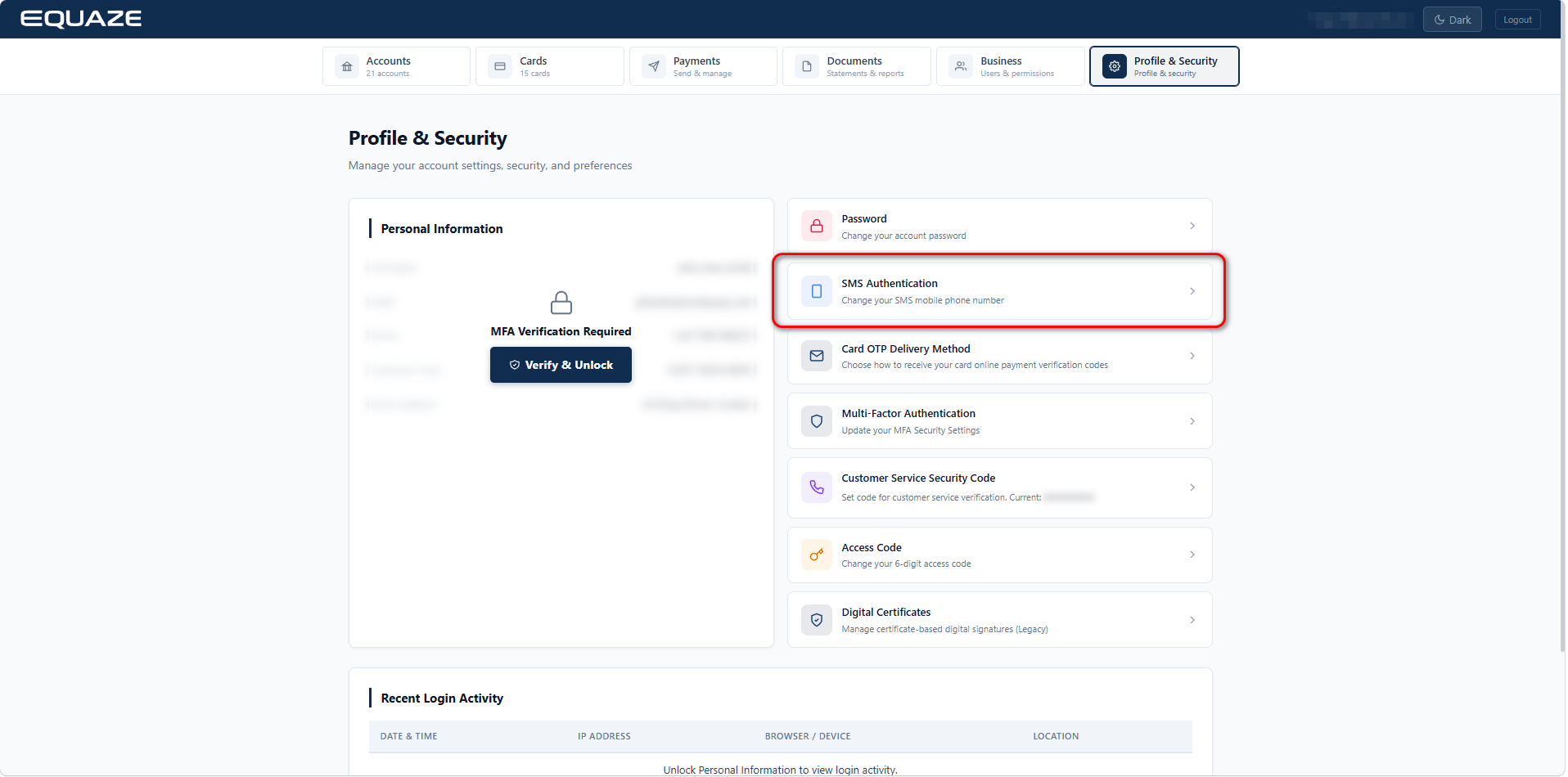
Update SMS Authentication
On the “SMS Authentication” page, you’ll encounter fields for “New Mobile Phone Number” and “Repeat Mobile Phone Number”.
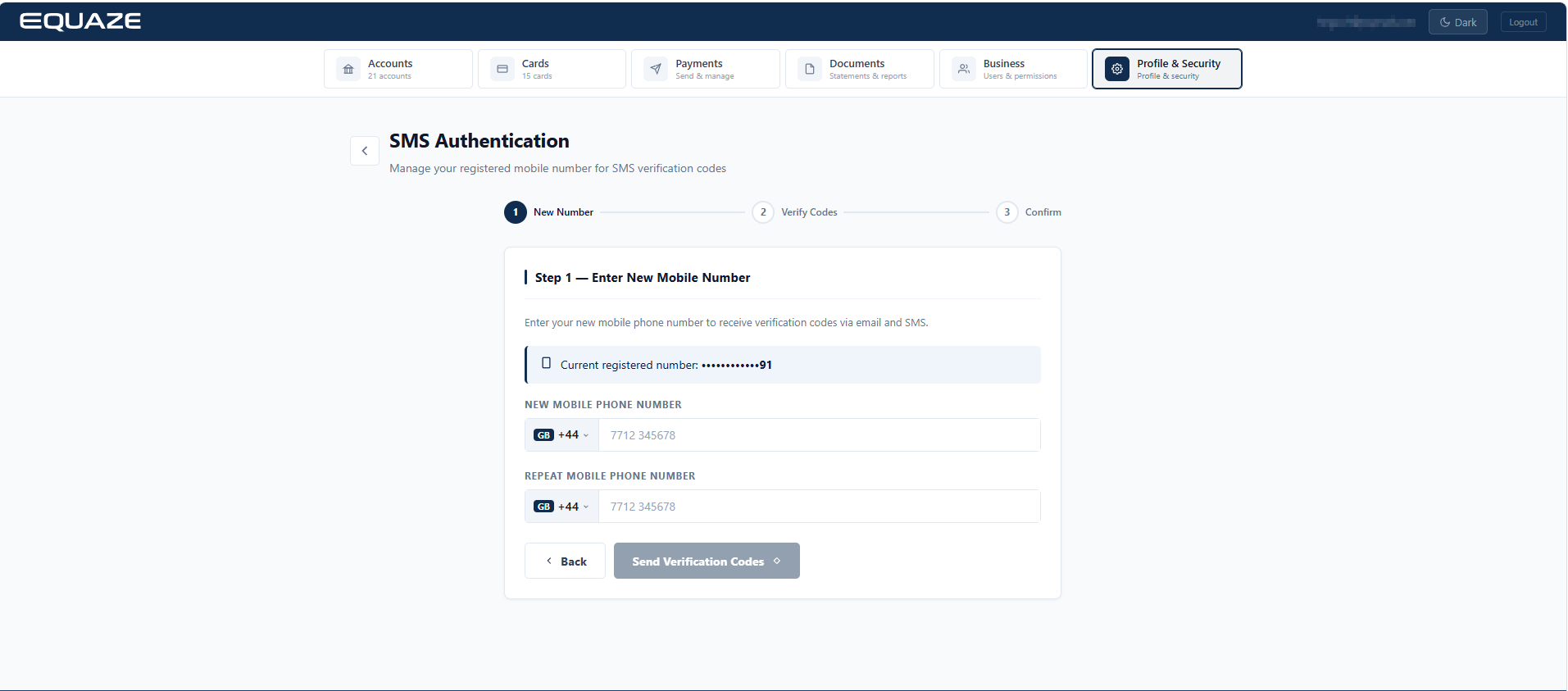
Enter the new valid mobile number in both fields.
- The country code can be selected to update the phone number format accordingly.
Preparing for Verification
Initiate the verification process by clicking the “Send Verification Codes“ button.
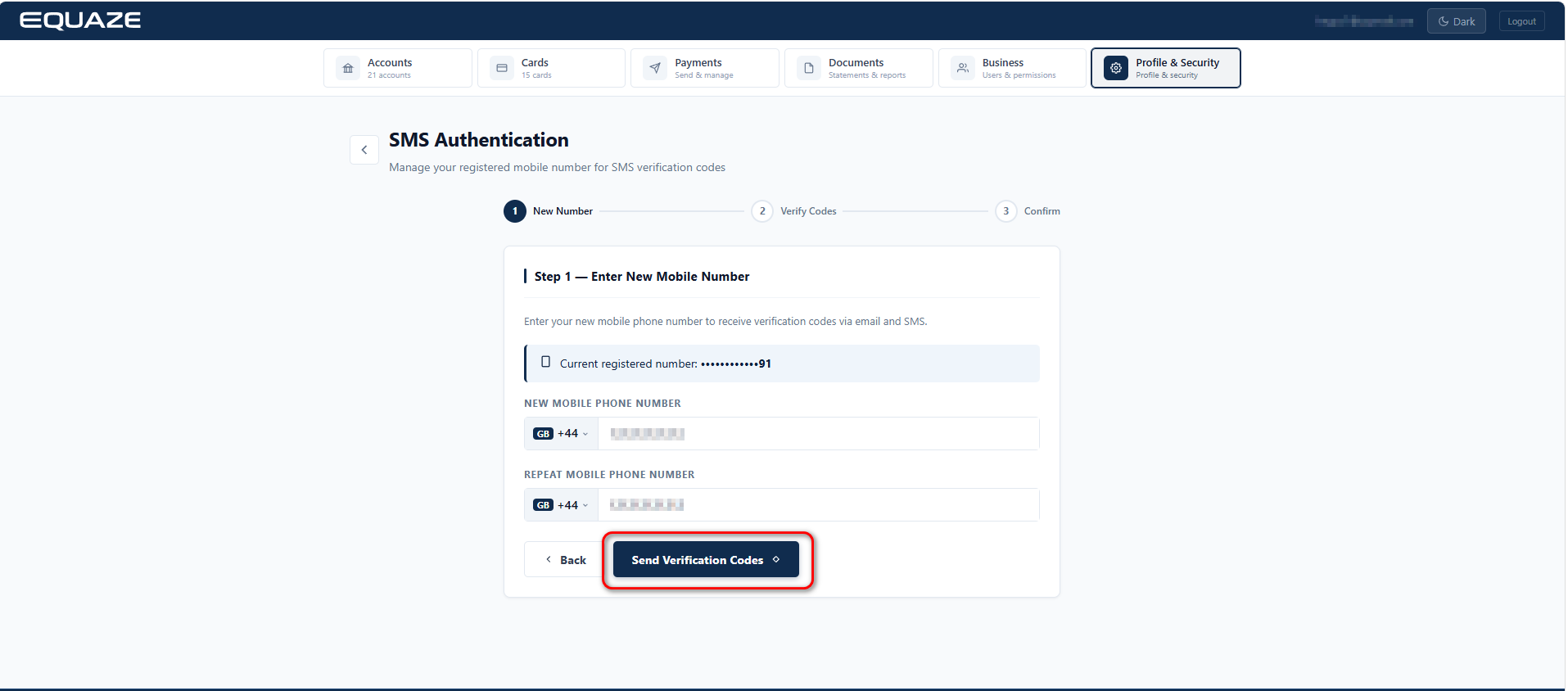
Fields for “Email Verification Code” and “SMS Verification Code” will be presented.
Verification with Codes
Enter Email Verification Code received on your email address to Email Verification Code field.
Enter SMS Verification code received on your new mobile number to SMS Verification Code field.
Validate your request by clicking “Validate Request”.
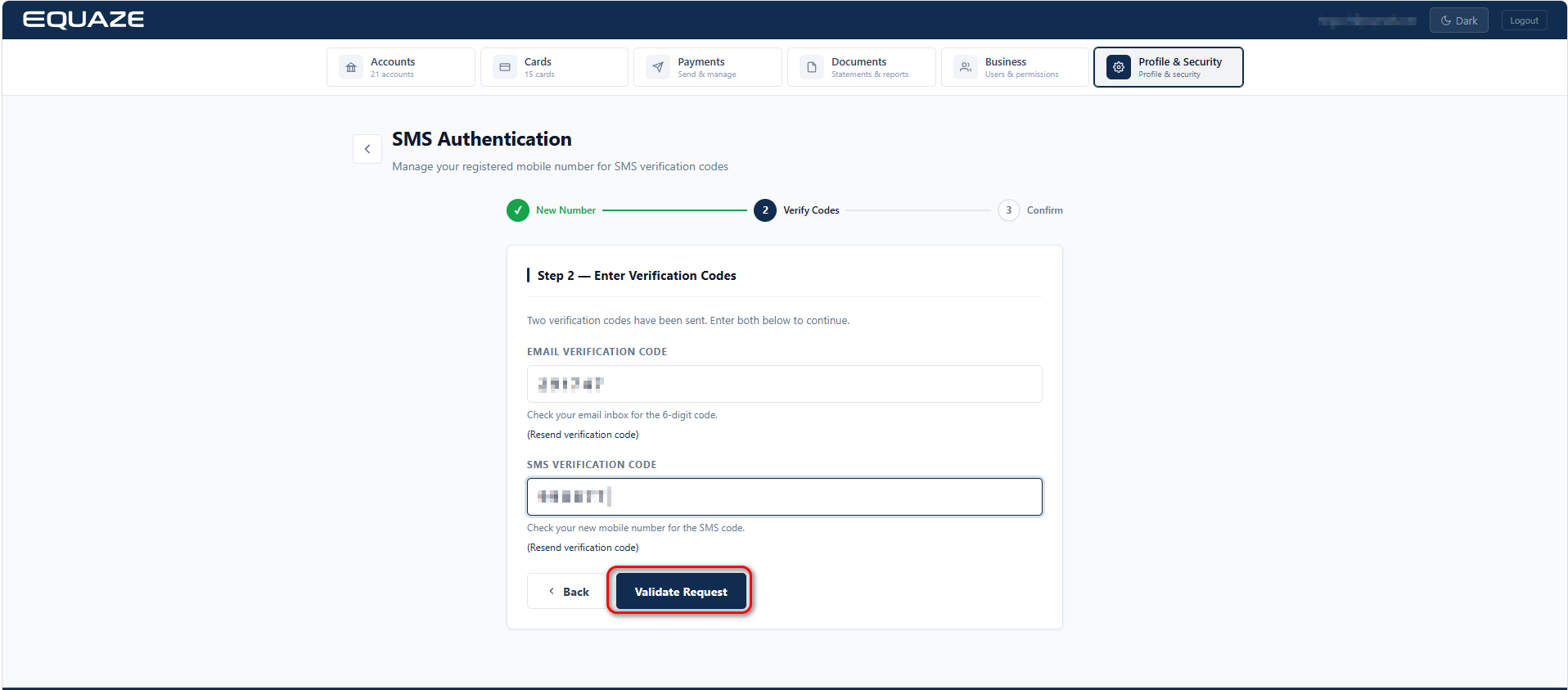
Subsequently, fields for “MFA Verification Code” and “Access Code” will be displayed.
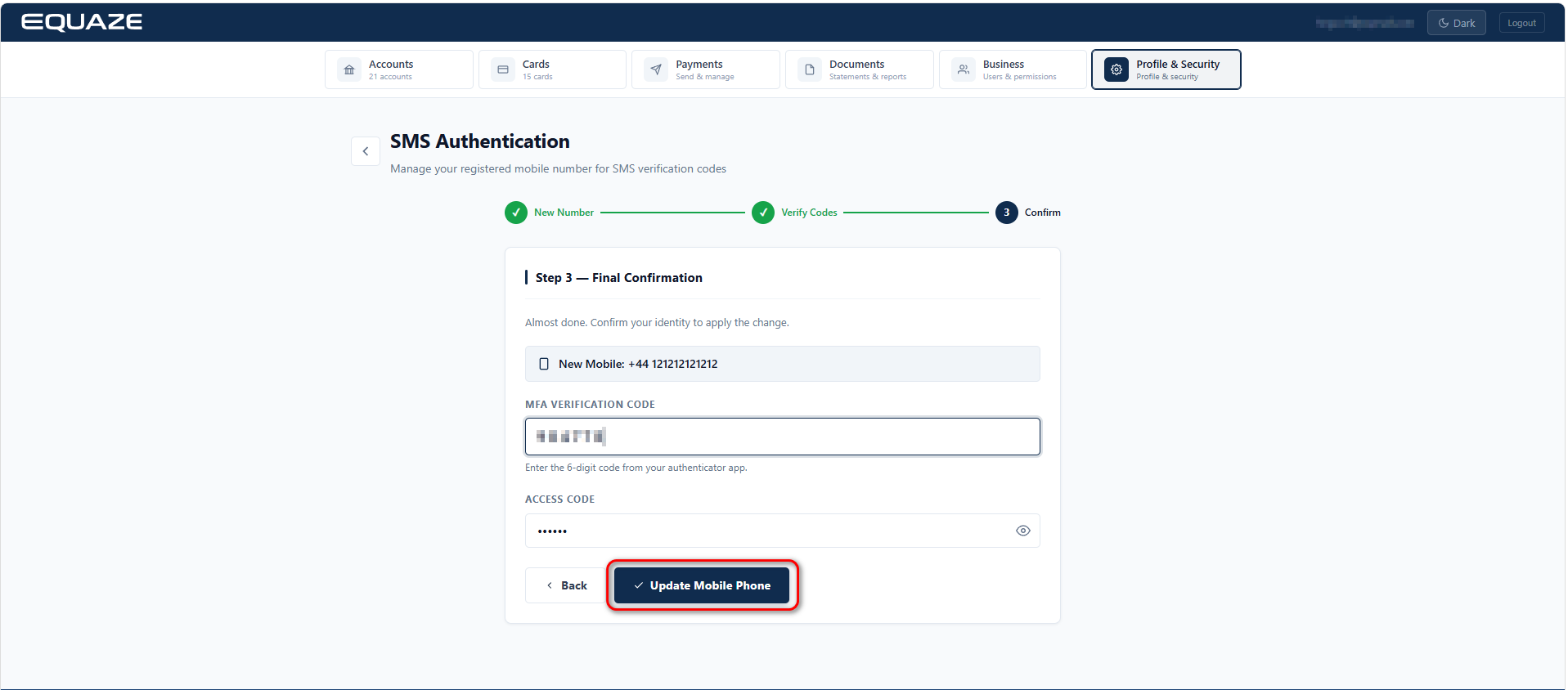
Enter MFA code to MFA Verification Code field.
Enter your Access Code to Access Code field.
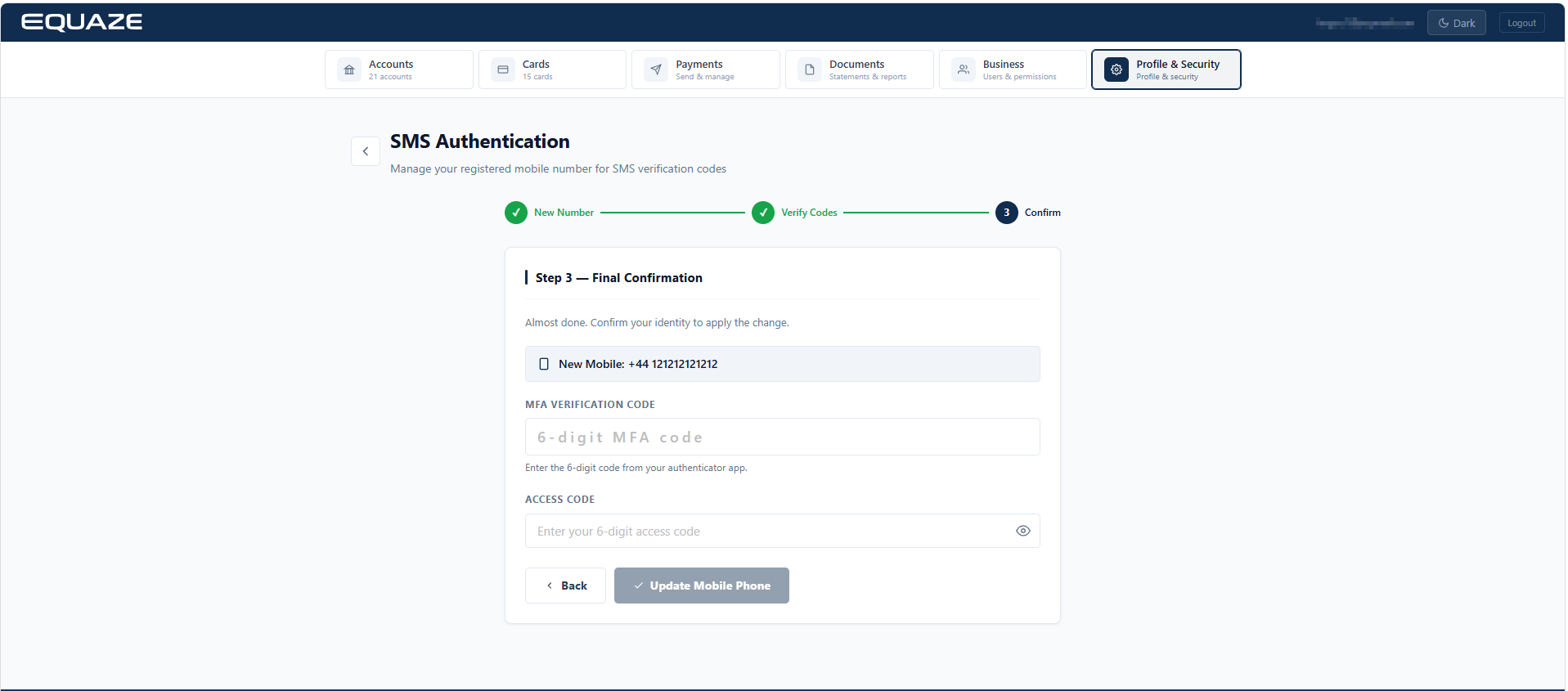
Finalizing Mobile Number Update
Click “Update mobile phone” to complete the process.
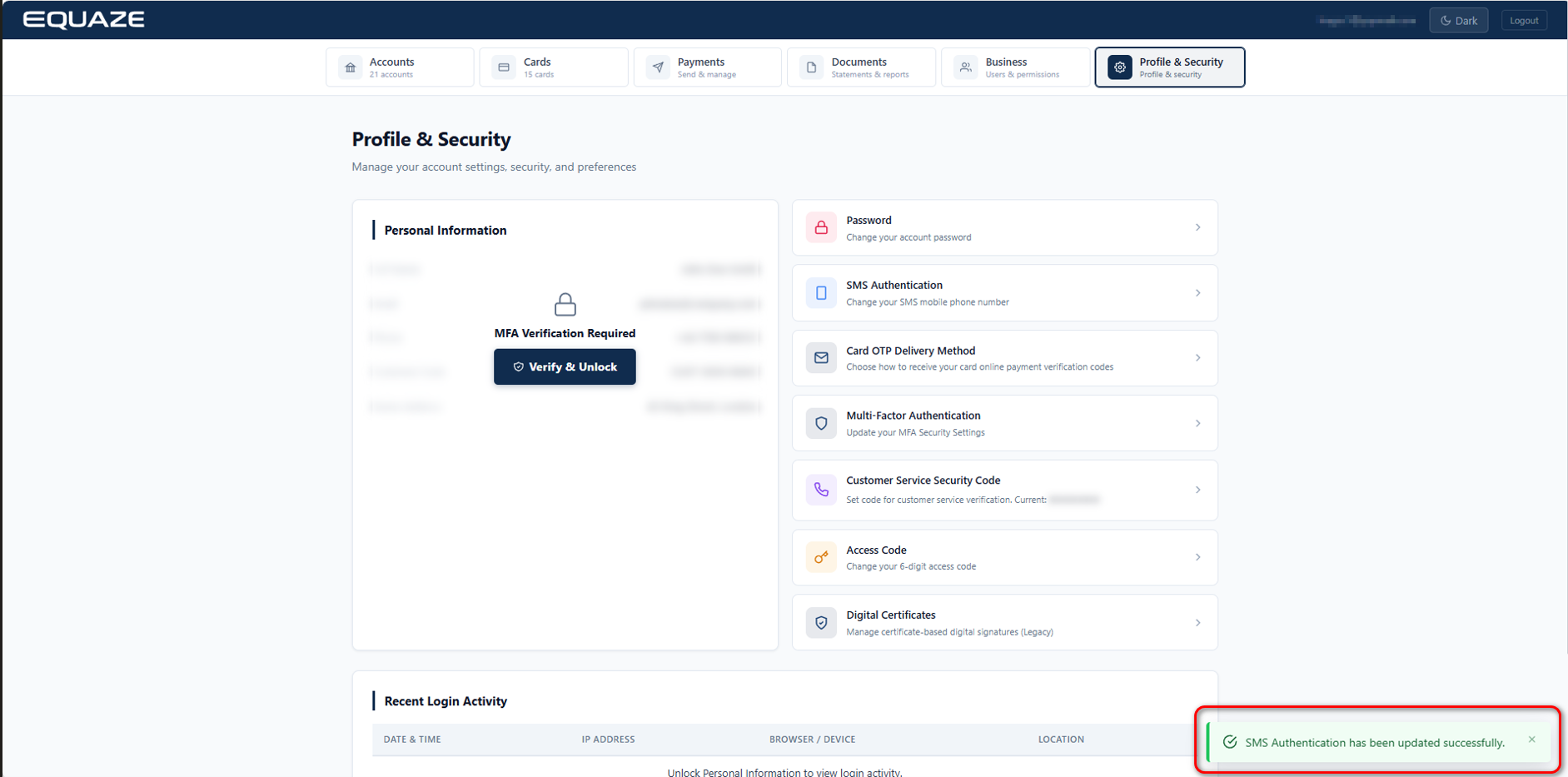
A success message confirming “SMS Authentication has been updated successfully” will be displayed.
By following these detailed steps, you can efficiently update your mobile number within your account, ensuring a secure and accurate process.


