Prerequisites
PKI User is a user created in the system with authentication based on the Public Key Infrastructure (PKI), ensuring a high level of security for transactions and operations. PKI Users cannot log in directly to the system through the standard user interface.
Each PKI User’s permission can be managed like a normal Business User (Signatory) in “Manage” > “Permissions” screen.
Create PKI User
To create a PKI User for a business, you must have Sole or Dual Authority over that Business.
Step 1: The user selects Business and then selects PKI/Certificates.

Step 2: Click on PKI User
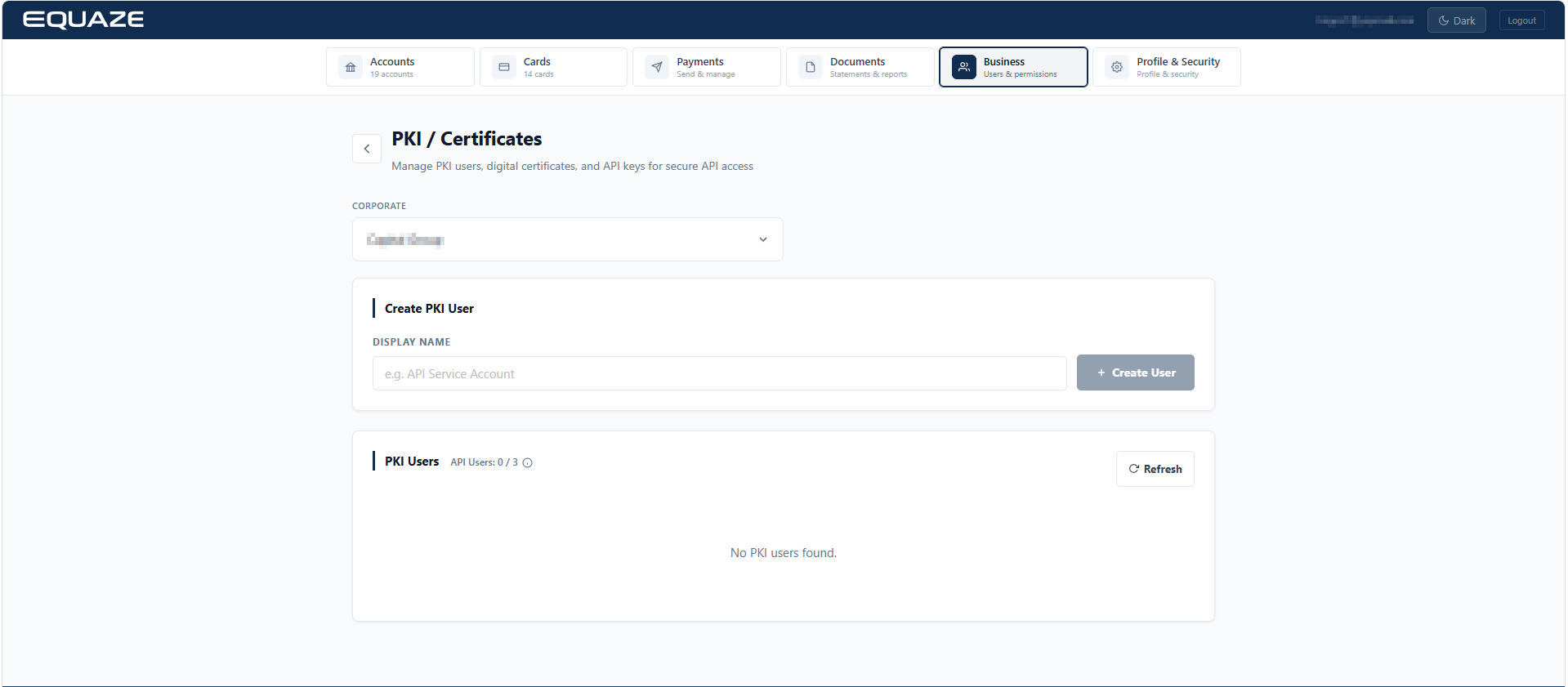
- Then, the browser should navigate to a “PKI User Management” page.
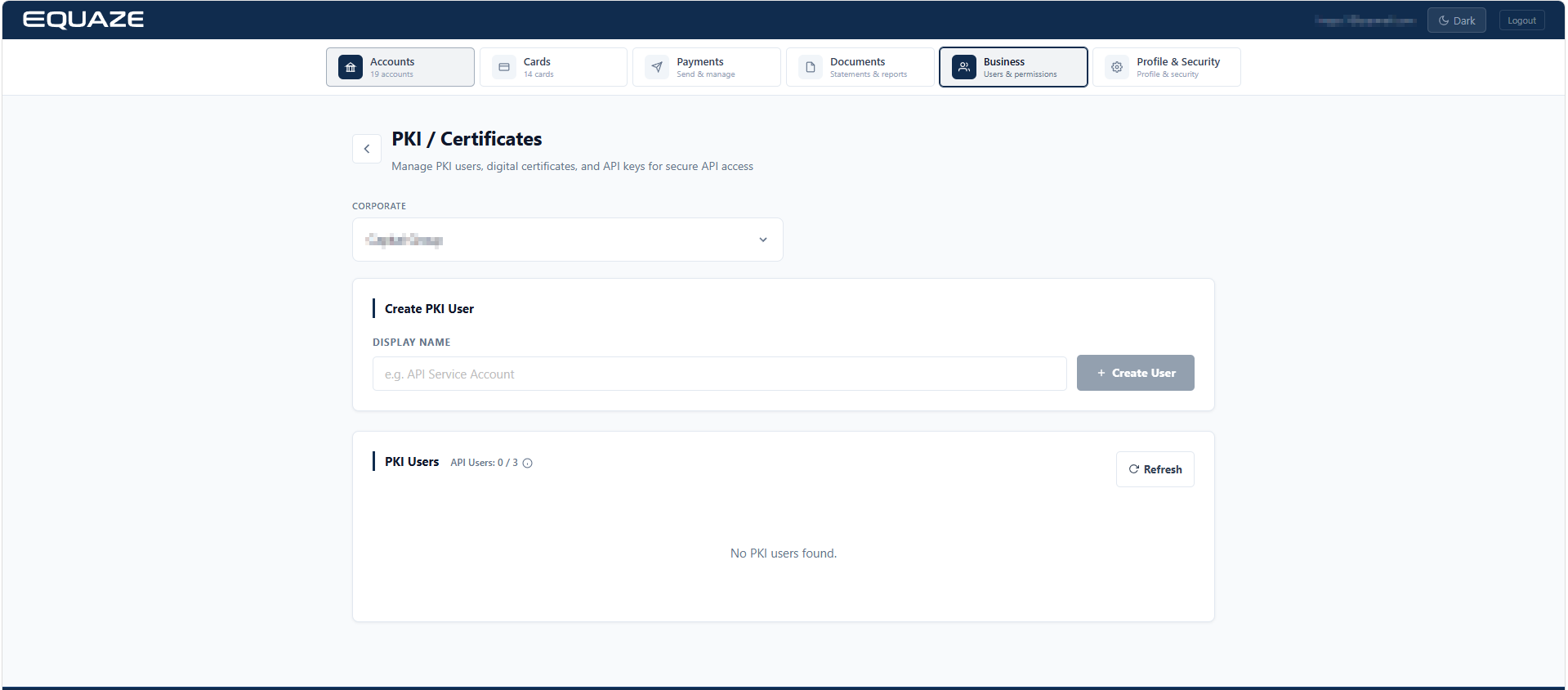
Step 3: Click “Source Business” to select business.
- “Create PKI User” section is displayed.
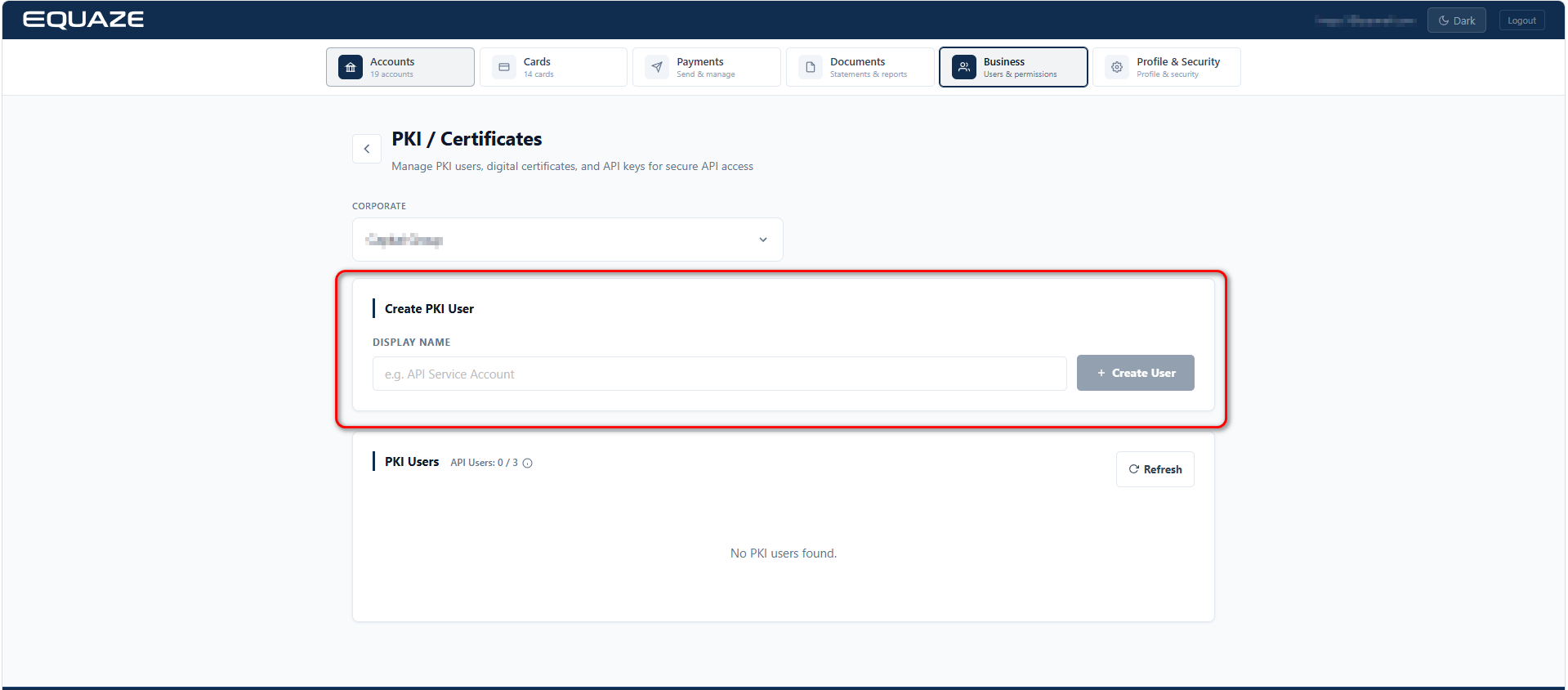
Step 4: Enter Display Name and click “Create User.”
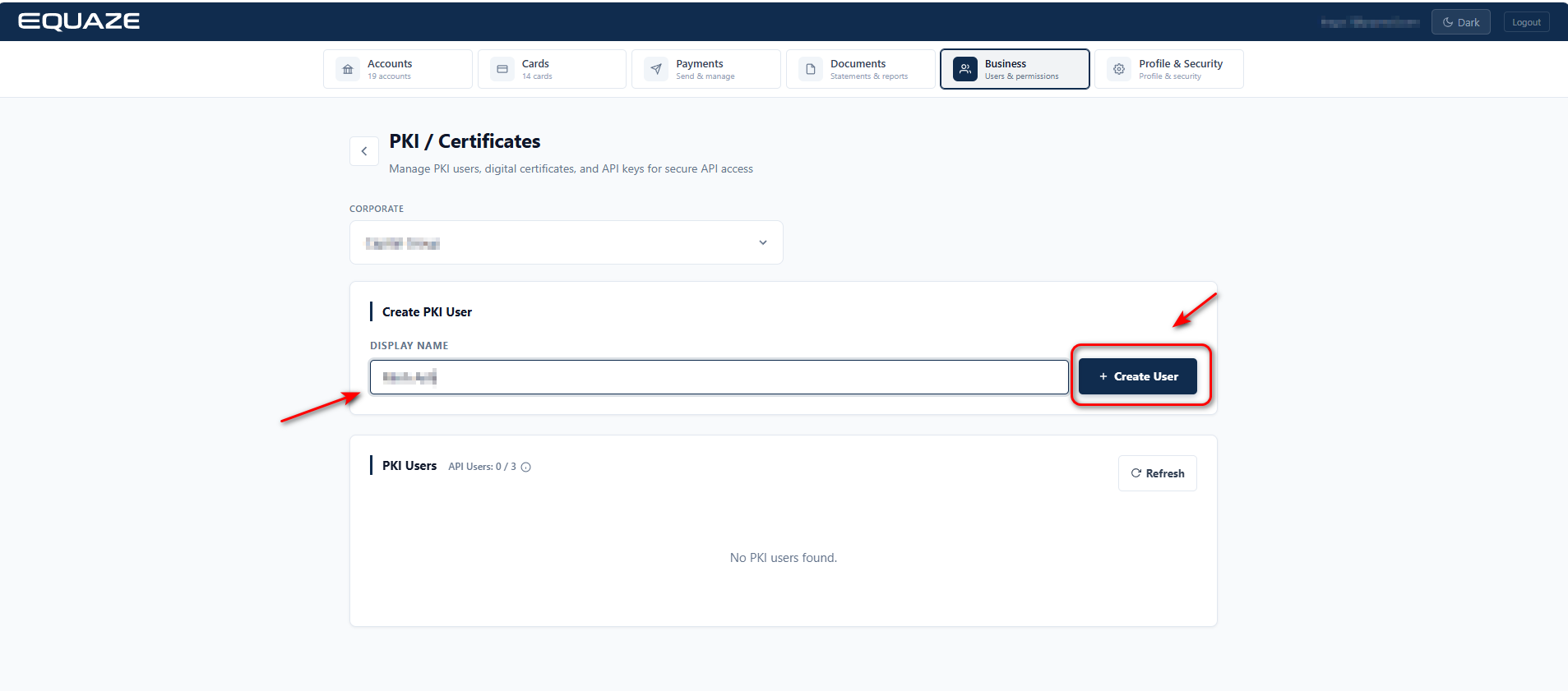
The newly created PKI user is displayed in the PKI users list table.
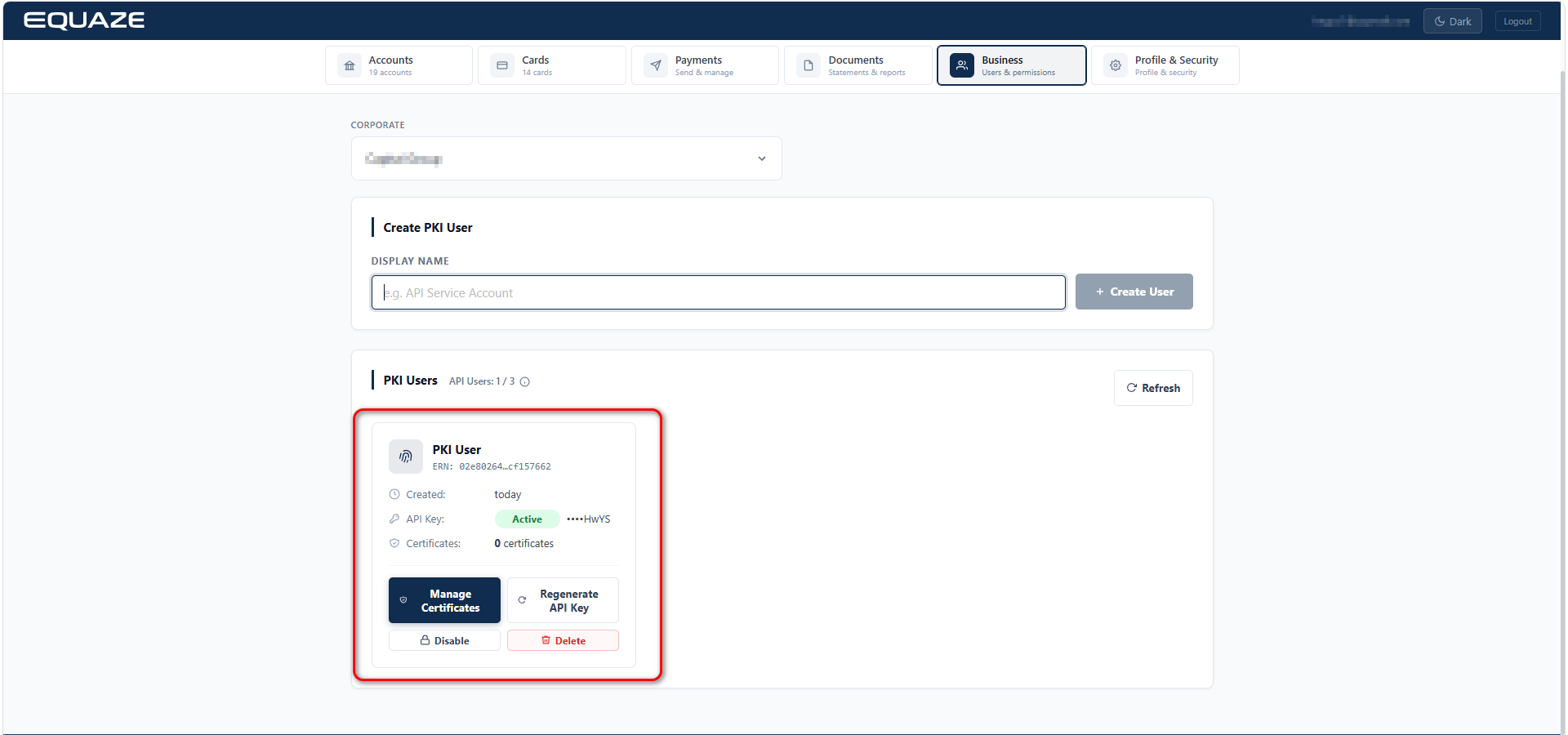
Note: If you have Dual Authority, your request requires approval to finalize the creation of a PKI User.
Generate Certificate for PKI User
The Generate Certificate function allows Business Admin Signatory to create digital certificates for PKI Users, enabling secure authentication when performing money transfer transactions within the system. The certificate ensures that each PKI User has a unique and verified identity before executing any money transfer operations.
Step 1: Select “Business” → Click “PKI / Certificates” → Select Corporate → Click “Manage Certificate” of the target PKI User.
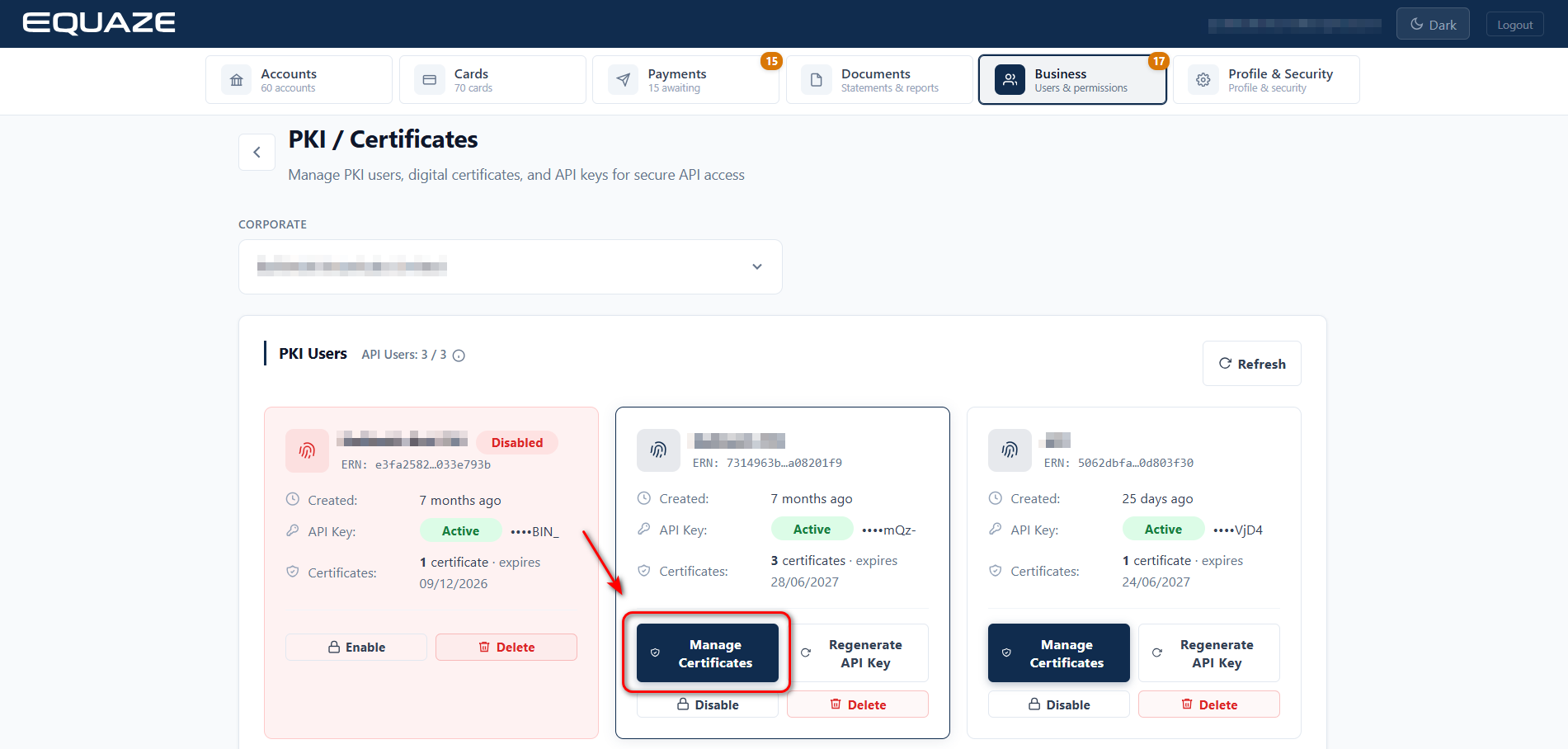
Step 2: Click “Generate Certificates”.
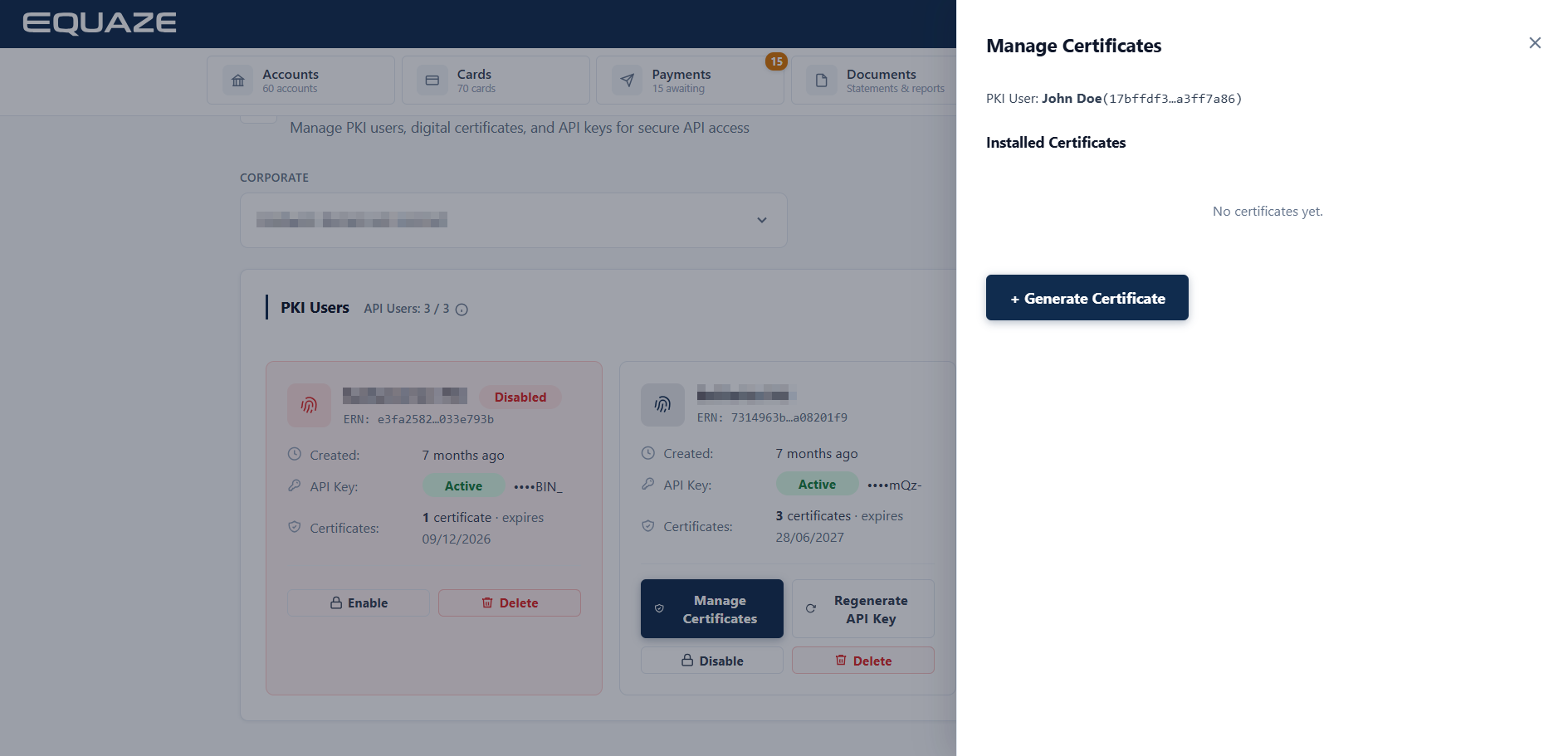
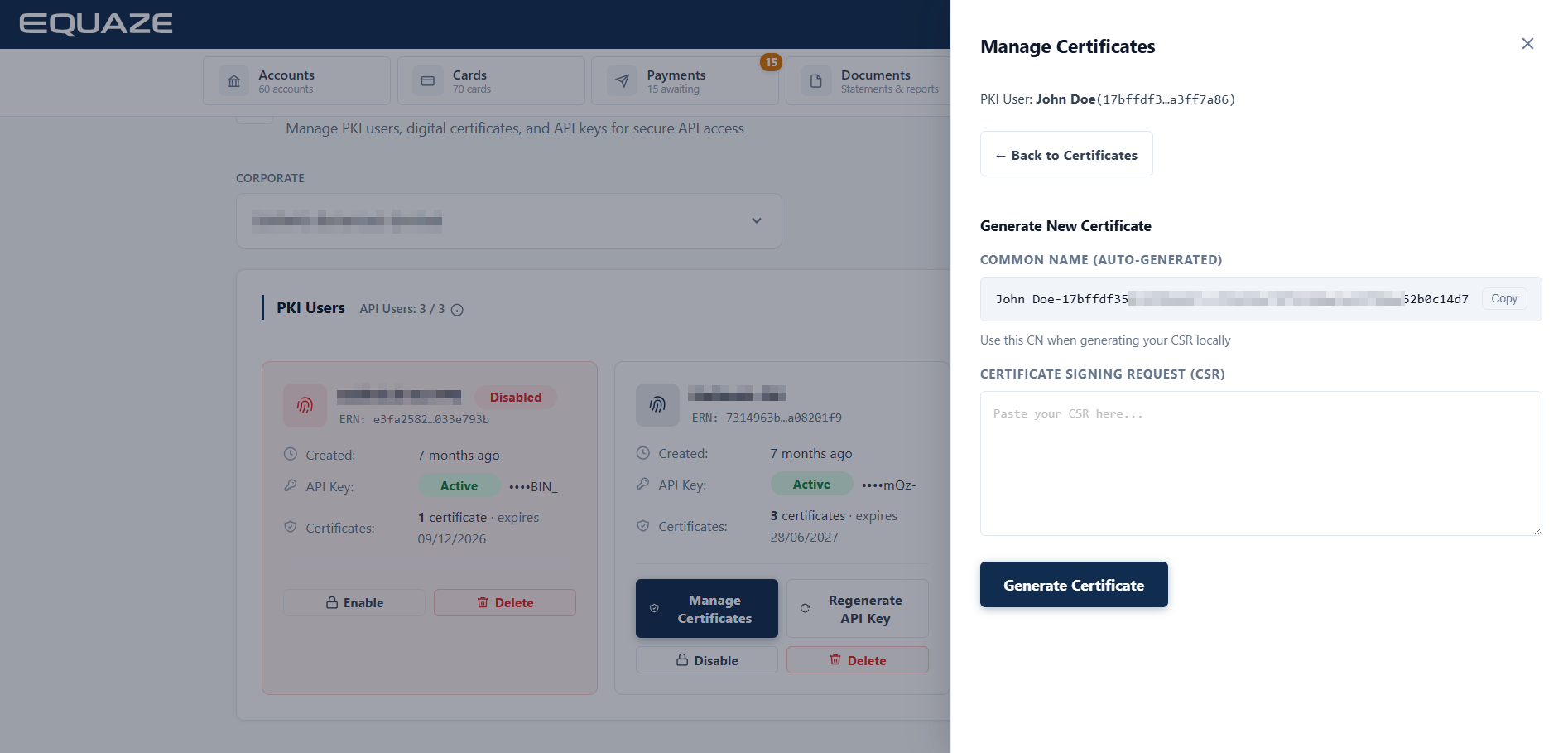
Step 3: Paste your Certificate Signing Request in Certificate Signing Request (CSR) and click Generate.
- Refer to Generate RSA Private Key and Certificate Request in OpenSSL command prompt (for Windows) – Equaze Help Documentation to create Certificate Signing Request (CSR).
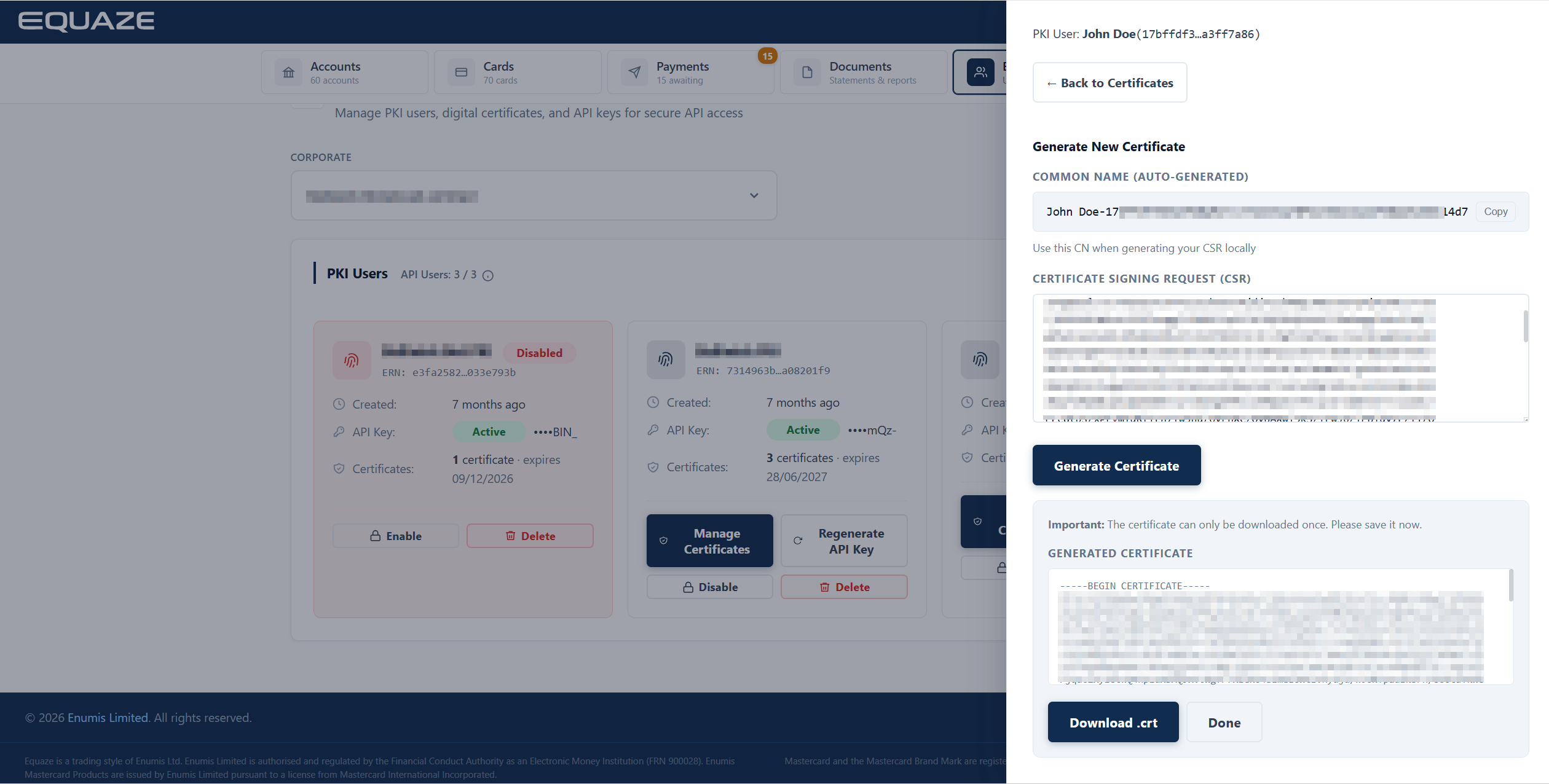
Certificate is generated successfully.
For further detailed guide on how to use Certificate in API Transactions, refer to:
- Generate a Digital Certificate in Online account – Equaze Help Documentation
- The “Digital Signature” Creation Using .NET (Dotnet) – Equaze Help Documentation
- Create a Valid Body for the Digital Certificate in Postman – Equaze Help Documentation
Regenerate API Key for PKI User
An API Key is a unique identifier issued to a PKI User, required for authentication each time the user interacts with the system via API. When an API Key is regenerated, the current API Key will be immediately invalidated, and a new API Key will be issued to the PKI User.
Step 1: Click “Regenerate API Key”

- Display popup warming: The current API key will be immediately invalidated and a new key will be generated.
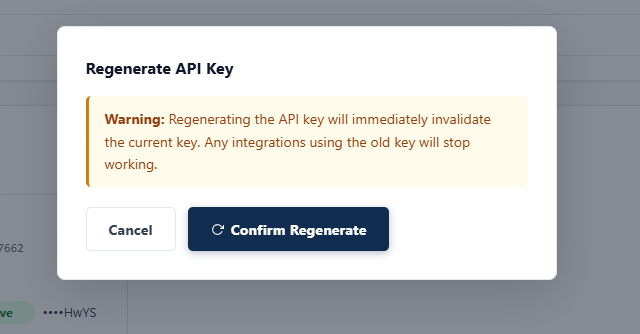
Step 2: Click “Confirm Regenerate“
- API Key is generated.

Enable and Disable PKI User
The Disable or Enable PKI User function allows a Business Admin Signatory to lock / unlock a PKI User account. Once disabled, the PKI User cannot perform any actions.
Step 1: Select “Business” → Click “PKI / Certificates” → Select Corporate → Click “Disable” of the target PKI User.
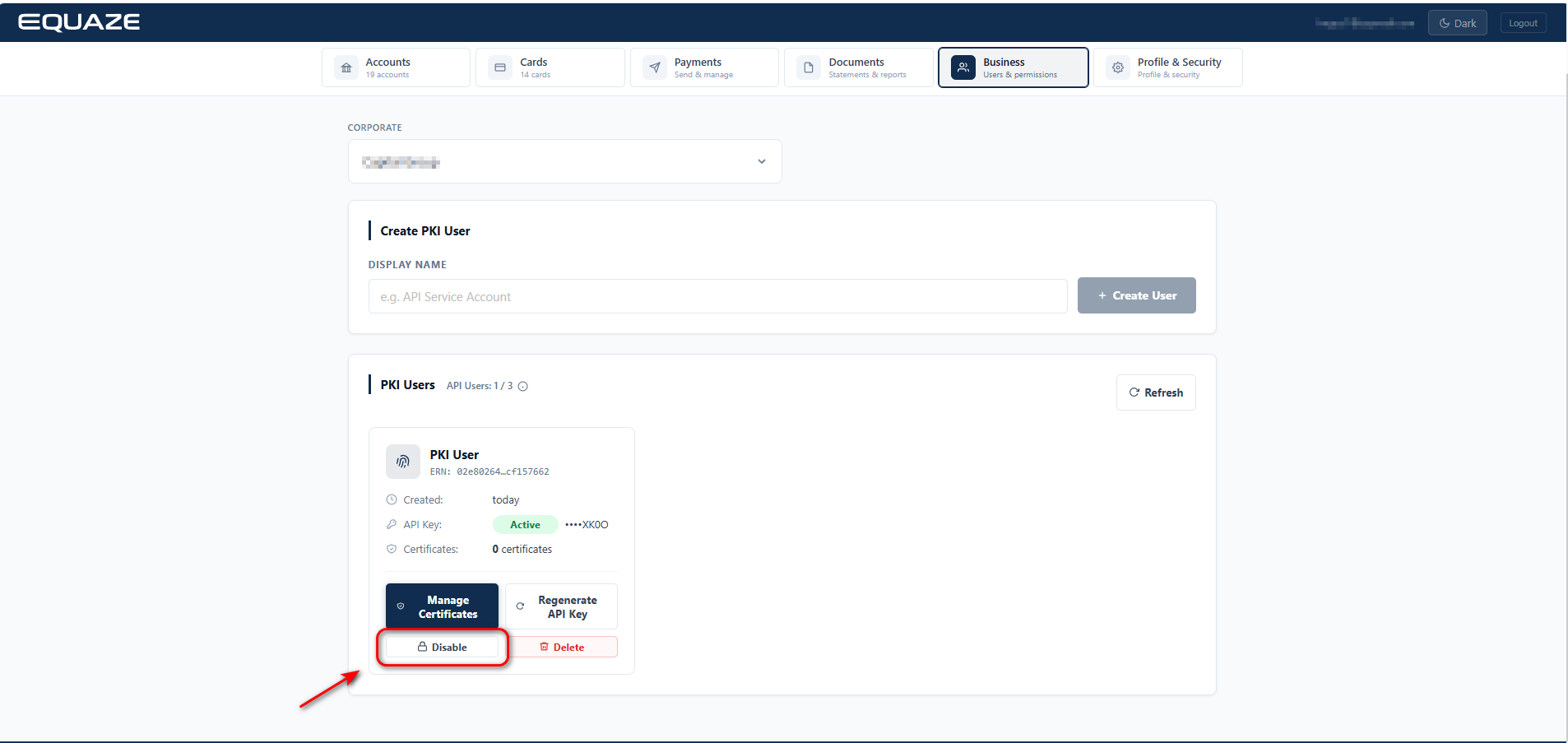
- Confirmation popup should be displayed.
Step 2: Click “OK”
- PKI User is disabled
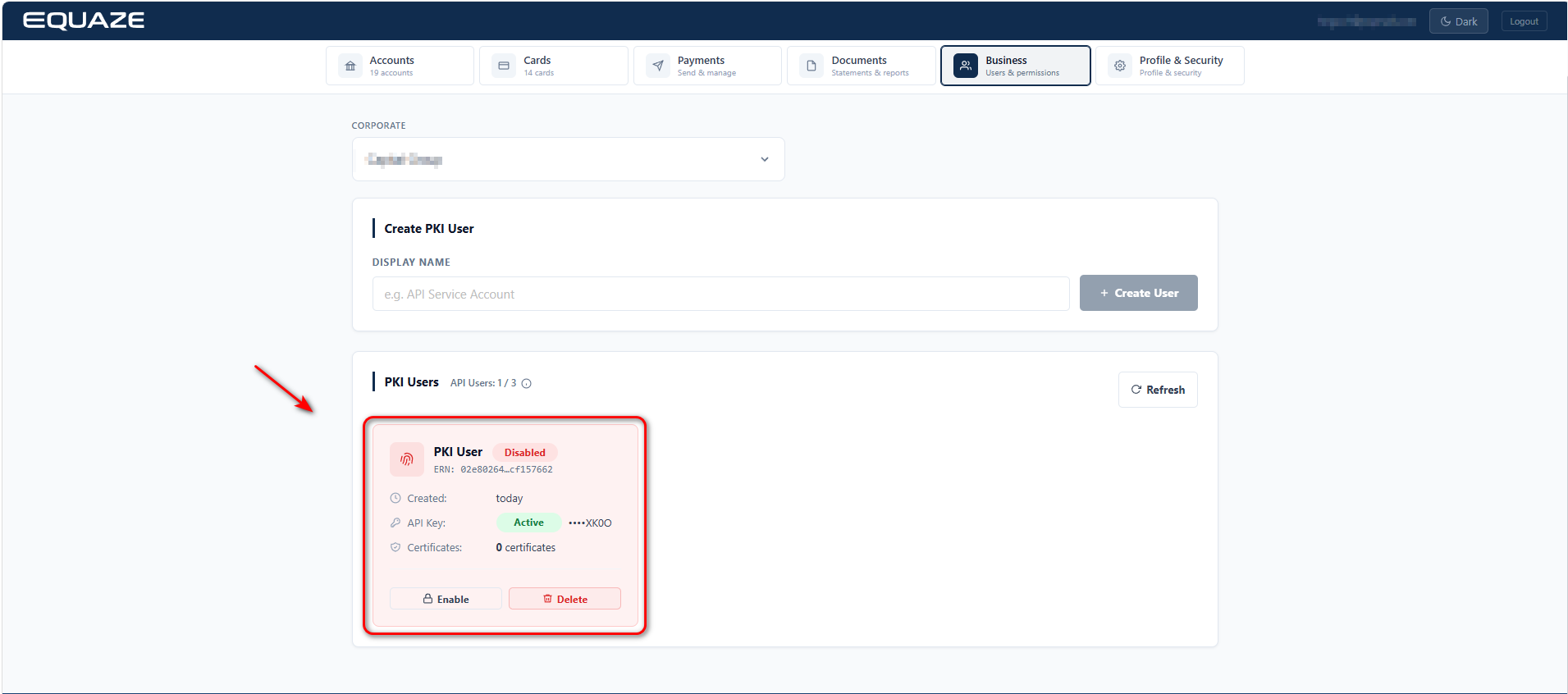
Note: Repeat above steps to enable PKI User.
Delete PKI User
The Delete PKI User feature allows Business Admins to delete a PKI user. Once deleted, the PKI user will no longer appear in the system.
Step 1: Select “Business” → Click “PKI / Certificates” → Select Corporate → Display all PKI User in Business
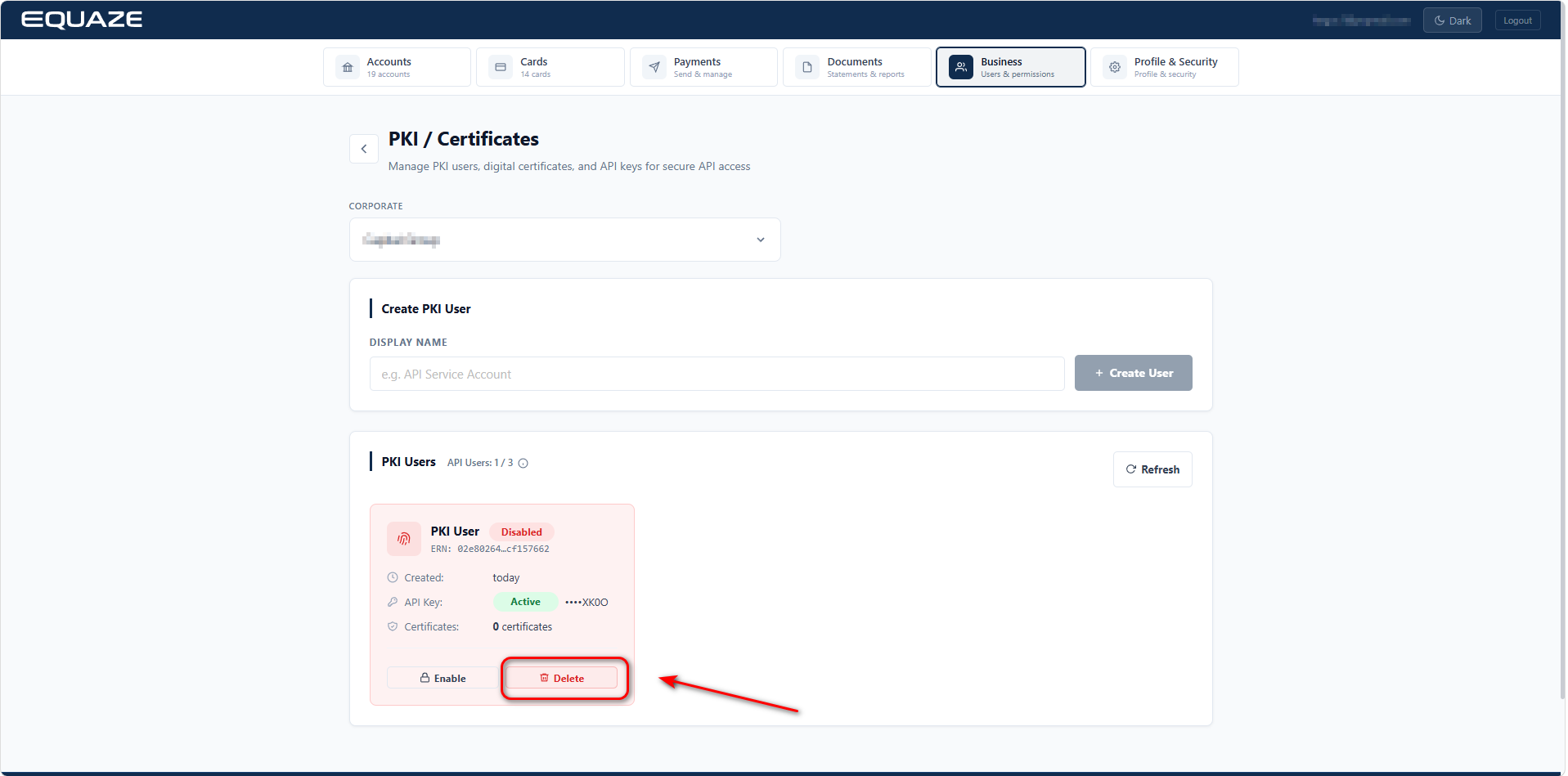
Step 2: Click on Delete → Click on OK to confirm Delete PKI User → PKI user will be removed from the list.