
How to access the Transaction History page
There are two ways to access the Transaction History page.
- First, on the Accounts screen, select the account to export transaction data from and click the Transaction History button to navigate to the Transaction History page.

- Select Documents and click Transaction History to navigate to the Transaction History page.

Access “Transaction History” Page
After navigating to Transaction History page, identify and click on the “Account” dropdown menu for selecting the account.
Review the list of available source accounts and choose the desired one.
- The selected source account should be displayed in the field.

Access “Export to Excel” Button
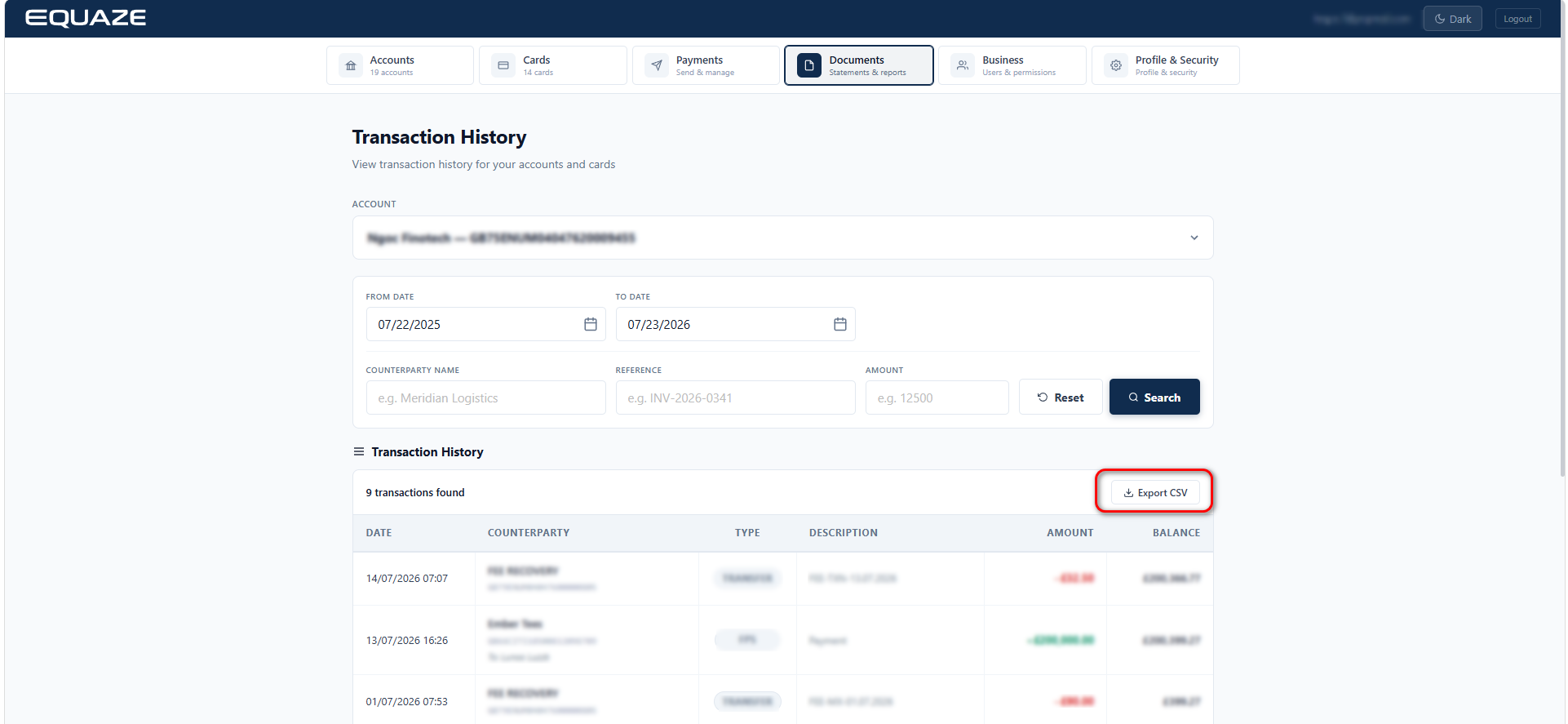
Locate the “Export CSV” button above the table displaying transactions information.
Click on the “Export CSV” button to initiate the export process.
Confirm Download of Transactions Information
- Observe the system’s response and ensure the file with transaction information is successfully downloaded.
- The file should contain the expected transactions data.


